Group
The Group tool allows you to group other tools together in the Inspect application step.
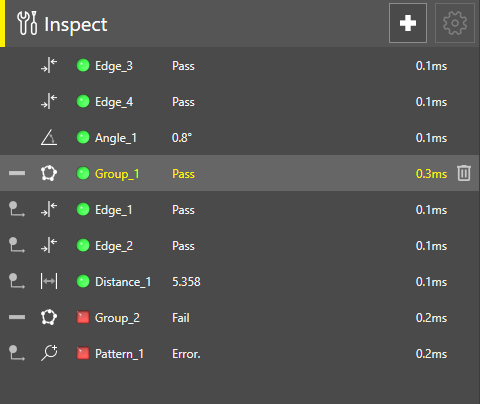
The image shows a list of tools organized into tool groups. Three tools are in Group_1. One tool is in the Group_2. The three remaining tools are ungrouped.
Groups are expanded by default. When a group is expanded, the grouped tools appear as child nodes of the group. To collapse or expand a group, click the minus or plus button next to the group in the tool list.
A group only produces a Pass result if all the tools in the group produce a Pass result. If one tool in the group fails, the group produces a Fail result.
Group Tool Settings
The settings pane for the Group tool displays a list of Grouped Tools and a list of Ungrouped Tools. Grouped tools are the tools in the group. Ungrouped tools are all the tools in the job that are not in any group and are available for grouping. When you first add the Group tool to a job, it does not contain any of the other tools in the job.
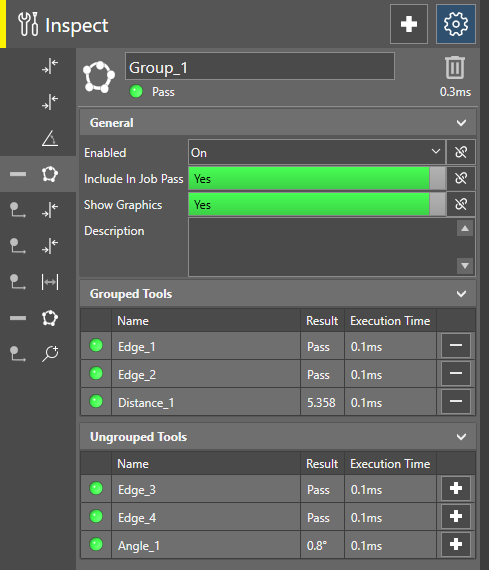
The settings pane displays the following information for all grouped and ungrouped tools:
- Pass/Fail
-
Result
-
Name
-
Execution Time
After you add a Group tool, the settings pane opens where you can add tools to the group. To edit an already existing Group tool, double-click the group in the list of tools in the Inspect application step sidebar.
In the settings pane, you can perform the following actions:
-
To add a tool to the group, click the plus button next to the tool in the Ungrouped Tools list. A tool can only be part of one group.
-
To remove a tool from the group, click the minus button in the Grouped Tools list.
-
To open or close the General Settings of the Group tool, click the settings button in the upper right corner. The options in the General Settings include:
-
Enable or disable the tools in the tool group.
-
Decide whether the tool group is included in the job pass.
-
Decide whether the graphics from the tool group are shown.
-
Add a custom description to the group.
-
-
To add a new tool, click the + button next to the settings button in the upper right corner.
-
To rename the group, edit the name in the name field at the top of the edit screen.
-
To delete a tool group, click the delete button next to the name field, or right-click the tool group in the tool list and select Delete.
Limitations of the Group Tool
The following restrictions apply to groups and grouped tools:
-
You cannot copy and paste a Group tool.
-
Groups cannot be nested.
-
Grouped tools and other tools that are already contained by another group do not appear in the list of ungrouped tools.
-
If you delete or disable a group, the operation is applied to all tools in the group. You can undo the operation to recover all the tools involved.
-
The maximum number of property links is 200 for a Group tool.