Industrial Ethernet – PROFINET Configuration
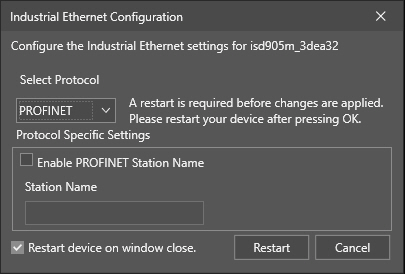
When the PROFINET protocol is selected, the Industrial Ethernet Configuration window changes to display PROFINET-specific options.
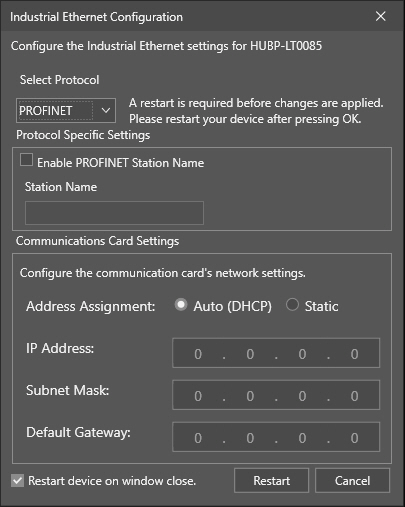
In case of using an In-Sight ViDi PC deployment on the PC, the dialog also allows you to configure additional network settings in the Communications Card Settings section. These settings are available for other vision systems in the Network Settings utility. See that topic for a description of the available network configuration options.
The available PROFINET configuration options are as follows:
| Property | Description |
| Enable User Data Bypass | Check the Enable User Data Bypass checkbox to set user data to be written immediately to the UserData attribute. Otherwise, the data does not appear until the Set User Data service is executed. |
| Enable Traffic Control | Enable Traffic Control is a setting that allows PROFINET without a QoS switch to run better on busy networks. When using Enable Traffic Control, user interface updates such as WebHMI and In-Sight Easy Builder become slower, but PROFINET does not disconnect. |
| Enable PROFINET Station Name | This checkbox enables the use of a Station Name to define the host name of the Master PROFINET device that will be communicated with by the vision system. By default, this setting is disabled. |
| Station Name |
Specifies the name of the Master PROFINET device that the vision system will be communicating with via the PROFINET protocol. The maximum length of the station name is 240 characters. The Station Name field syntax should meet the following rules:
|