Count Blobs
The Count Blobs tool allows you to count the number of blobs that occur within a defined search region. Blobs are two-dimensional, variably shaped, similarly shaded groups of pixels forming a connected area in the image.
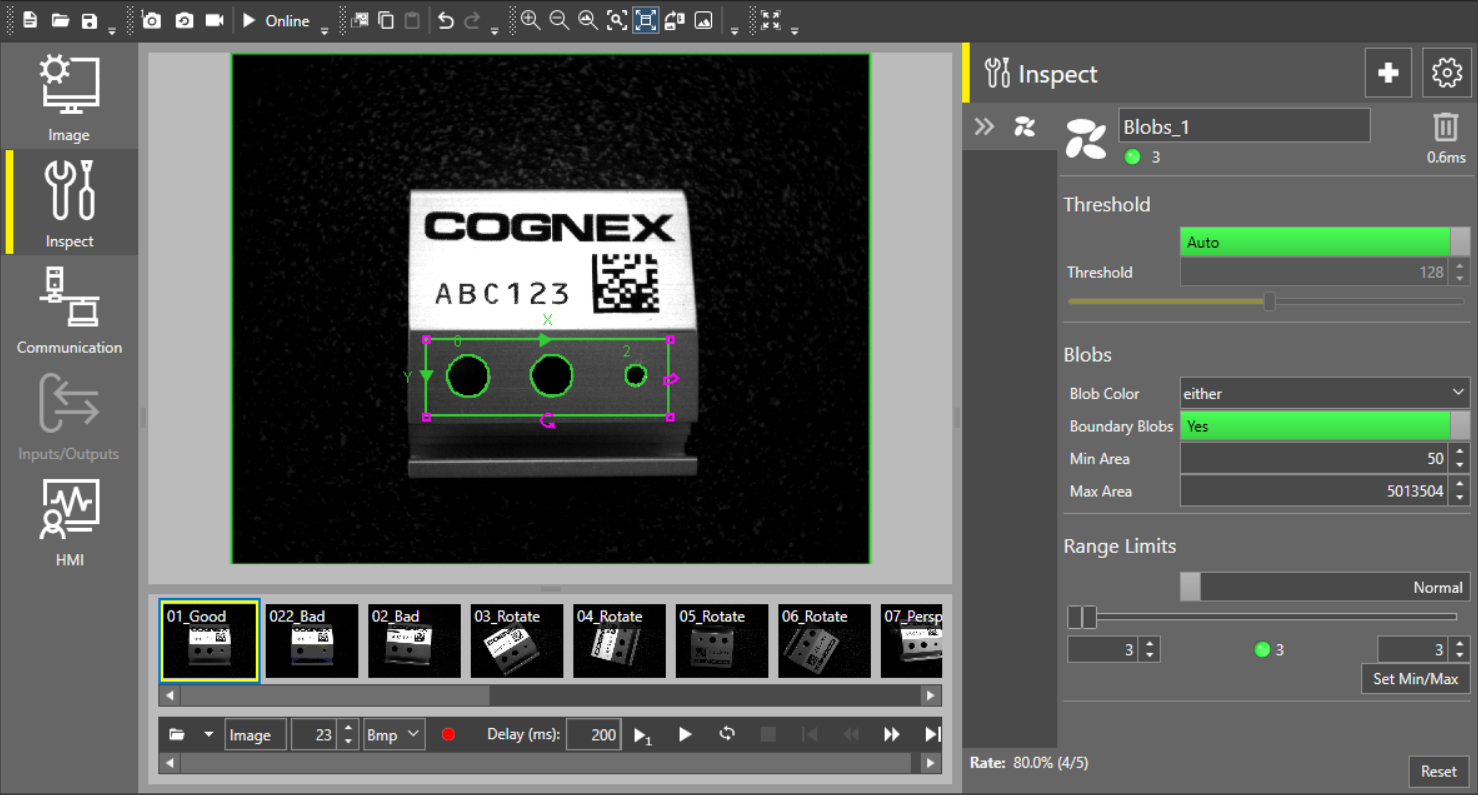
 To add the Count Blobs tool to your job:
-
Open the Inspect tool palette, expand the Counting tool group, and select the Count Blobs tool.
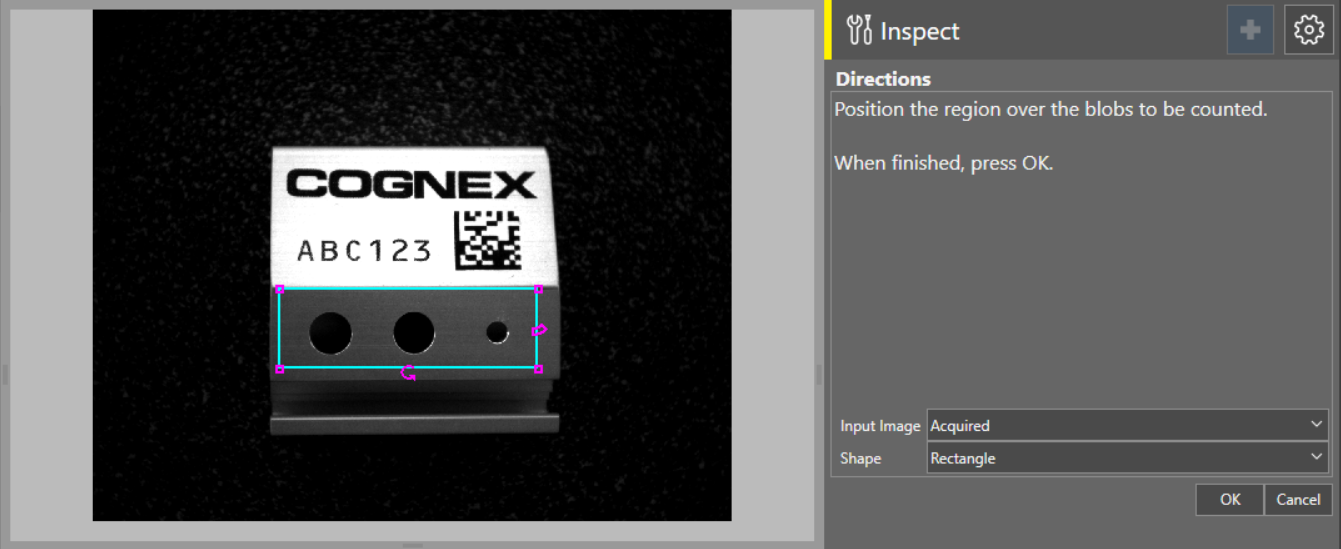
-
In the dialog, define the search region by resizing and repositioning the Search box on the acquisition display screen. You can change the shape of the box using the Search Shape dropdown on the right. The available shapes are Rectangle, Circle, Annulus, and Polygon.
-
You can also add a subregion to your search region to create irregular shapes by right clicking on the acquisition display screen, and selecting Add Subregion > Shape in the context menu. By default, the subregion is subtracted from the search region, but you can change it to add the subregion by right clicking on the acquisition screen, and selecting Subregion Operation > Add in the dropdown menu.
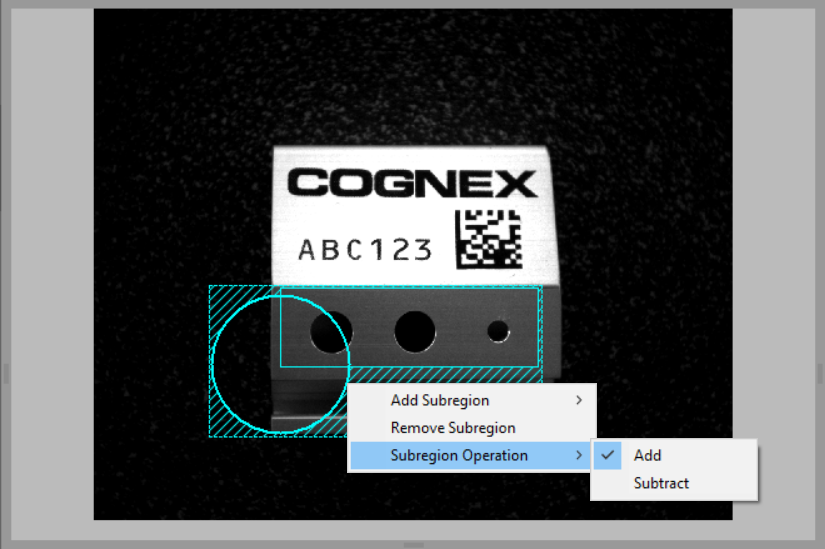
- Click OK.
To change the threshold settings:
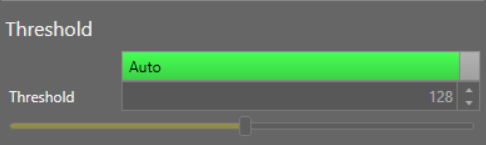
To enable manual threshold configuration, disable the Auto toggle. If Auto is enabled, all other settings in the Threshold section are disabled.
Change the threshold value using the slider or by providing the numerical value in the boxes below.
To change the blob settings:
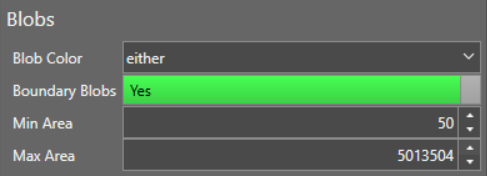
Change the color of the blobs in the Blob Color dropdown. You can select black, white, or either.
Enable or disable the Boundary Blobs toggle to include blobs defined by the search region boundaries.
Adjust the Min Area and Max Area parameters to define the size of the individual blobs you want to count.
To adjust range limits:
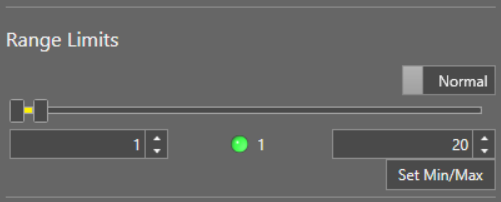
Toggle the Normal/Inverted toggle to change the way the tool result is generated. If set to Normal, the tool produces a passing result if the number of pattern matches falls between the defined minimum and maximum values. If set to Inverted, the tool produces a passing result if the number of pattern matches falls outside the defined minimum and maximum values.
Adjust the valid range by changing the Minimum and Maximum number of pattern matches using the sliders or by providing the numerical values in the boxes below the slider.
Click Set Min/Max to use automatically calculated minimum and maximum pattern match values. The default minimum and maximum values are both equal to the current number of pattern matches within the defined region when you add the tool or click the Set Min/Max button.
You can also enable advanced tool settings if your job requires more complex configuration. For more information on the advanced tool settings, see Advanced Tool Settings.