Audit Logging
The Audit Logging utility allows you to track jobs and system level changes and enable traceability and accountability for modifications made to the vision system.
The following actions in In-Sight Vision Suite trigger audit logging events:
-
Cell expression
-
Online or Offline status change
-
Saving or loading a job
-
Enabling or disabling cell state
-
Changing complex tools:
-
ViDiELClassify
-
ViDiELClassify3D
-
ViDiELRead
-
ViDiELSegment
-
ViDiELSegment3D
-
TrainPatMaxRedLine
-
ReadIDMax
-
OCRMax
-
EditRegion
-
EditInt
-
EditFloat
-
EditString
-
-
Changing utilities:
-
Connecting to Spreadsheet and EasyBuilder
-
Audit Logging Configuration
-
Backup or Restore
-
Restart or Factory Reset
-
Communication settings (Ethernet network settings, host name, serial settings)
-
Startup settings changes
-
To use audit logging:
-
Launch In-Sight Vision Suite if it is not already running.
-
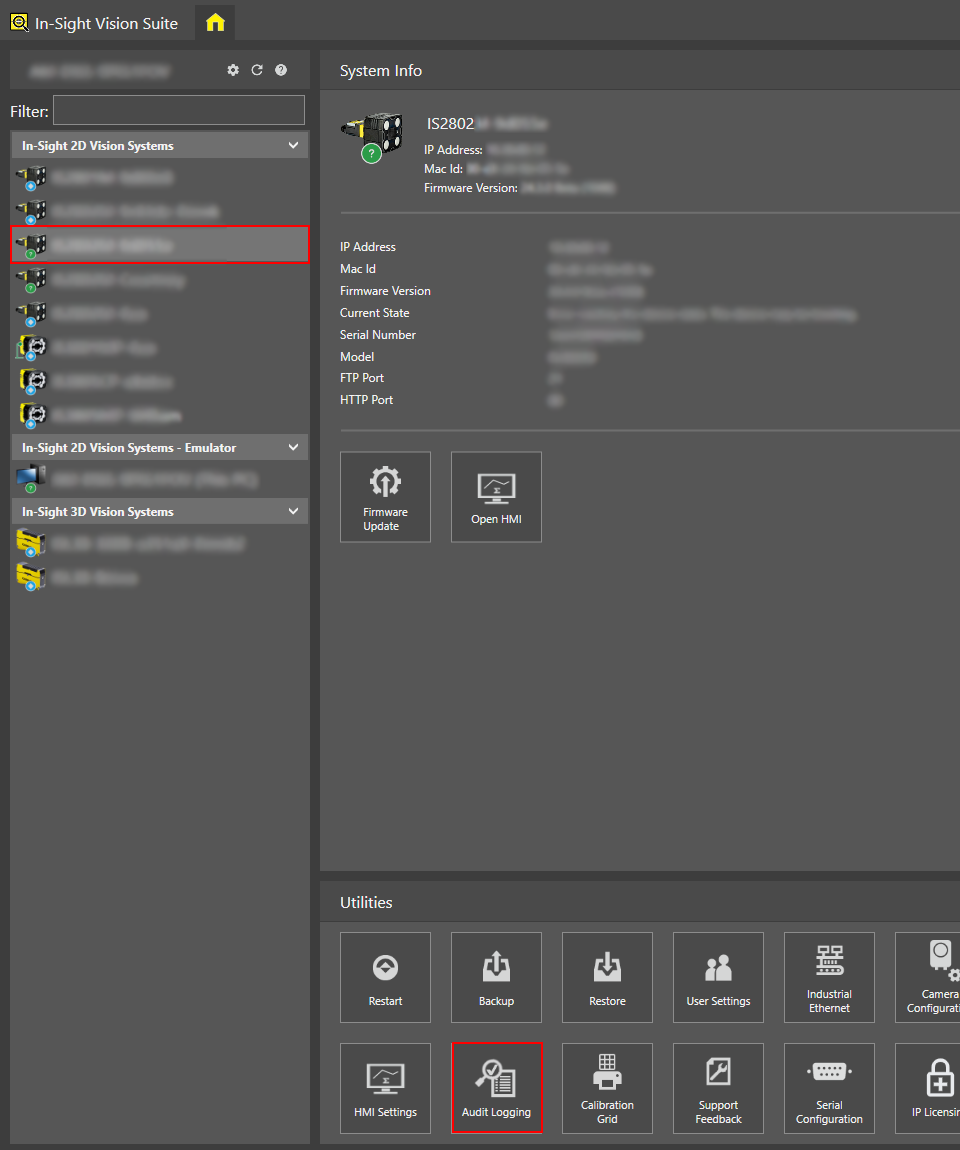
Left-click the device you want to configure on the In-Sight® Device Pane on the left. The list of Utilities applicable to the selected vision system then appears at the bottom of the window.
-
Click Audit Logging.
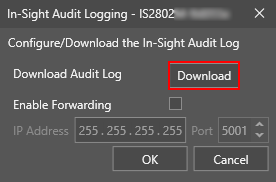
The Audit Logging window appears.
-
Retrieve the audit log by doing one of the following:
-
Download the audit log by clicking Download.
-
Click Enable Forwarding to enable sending the audit log to a remote server. Set up the IP address and the port number.
Note: In-Sight Vision Suite uses syslog forwarding protocol to store audit log records. You need to set up a syslog server for collecting audit records.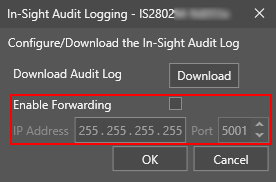
-
-
Click OK.