Support Feedback
The Support Feedback utility (also known as the Report a Problem utility) prepares error reports for potential issues encountered when using a Cognex vision system or software, and helps you sending those reports to Cognex Support for troubleshooting.
Perform the following procedure to prepare an error report with the utility:
-
Launch the Support Feedback utility. The dialog is accessible by two means:
-
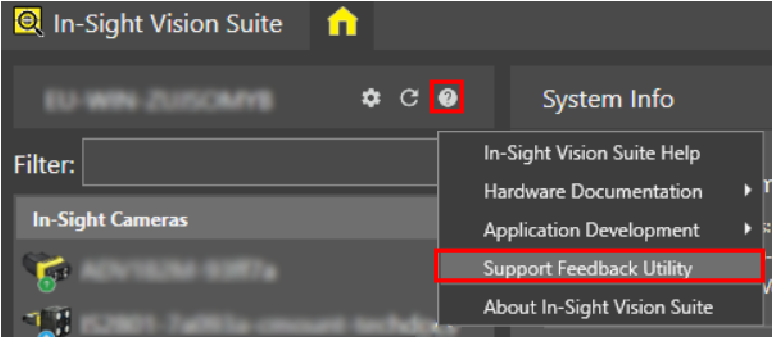
Click the Help button of the menu bar, and then select the Support Feedback Utility option.
-
Left-click the device you want to configure on the In-Sight® Device Pane on the left. The list of Utilities applicable to the selected vision system then appears at the bottom of the window. Click the Support Feedback button to open the dialog.
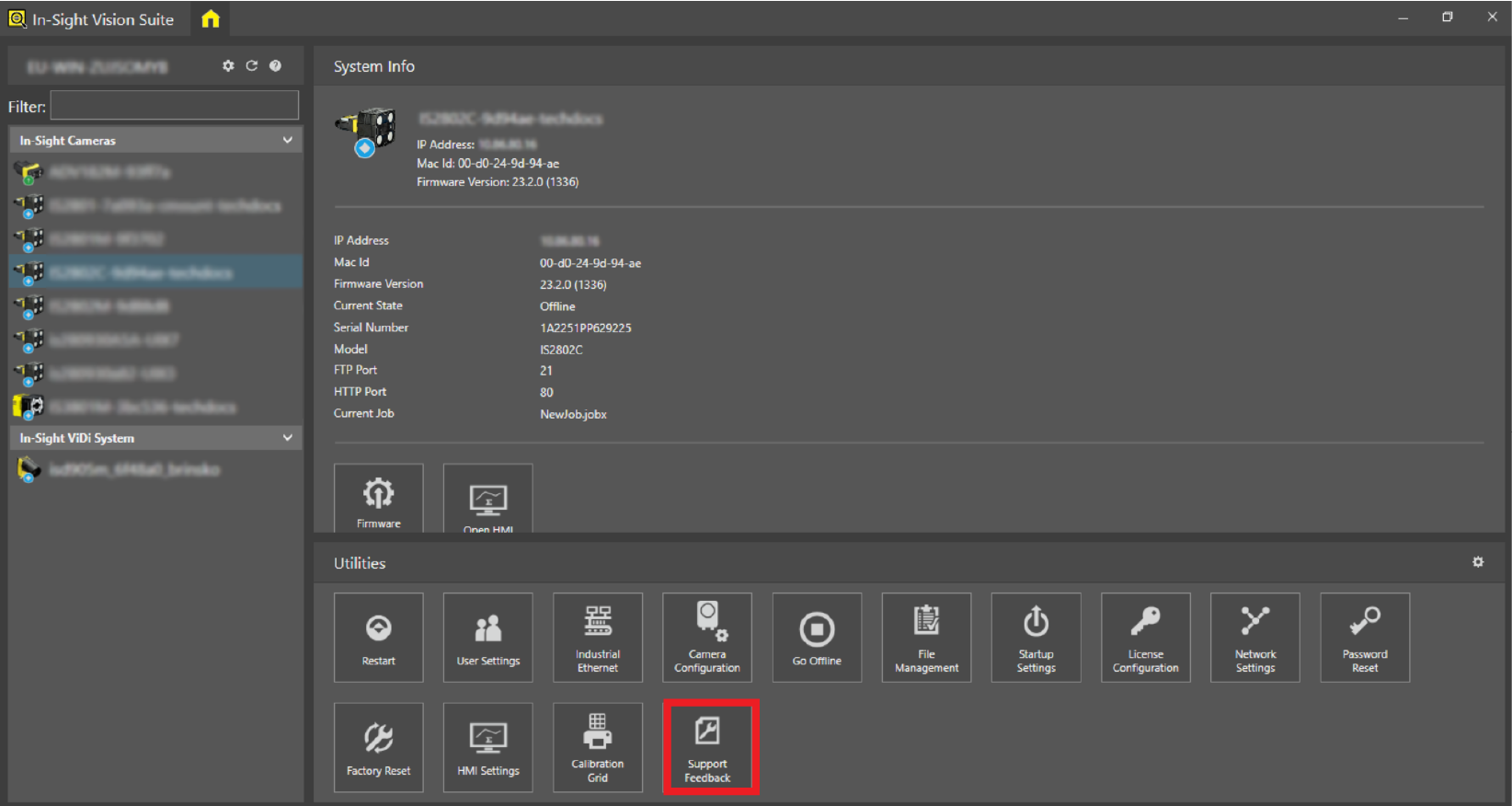
Tip:You can also open the Support Feedback Utility without starting In-Sight Vision Suite. To do so, launch the ReportAProblem.exe executable, located in the following location:
<Drive_Letter>:\Program Files\Cognex\In-Sight\In-Sight Vision Suite
The Cognex Support Feedback dialog appears.
-
-
Specify the device with the drop-down textbox you were using when the error occurred. To do so, either use the drop-down list to select the device, or type its IP address manually in the textbox. The list indicates both the IP address and the host name of the detected Cognex devices. In case the Continue without using a device option is checked, this setting is disabled.
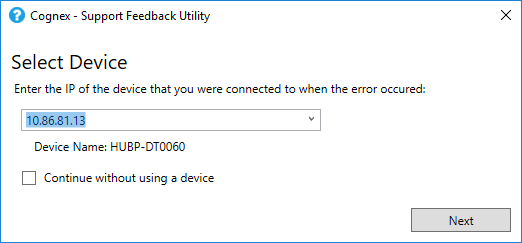 Note: The drop-down list shows all Cognex devices it finds on the network. However, it does not list the devices that are located on remote subnets and have been added to the In-Sight® Device Pane with the System Settings > Network menu. Therefore, if you want to generate a report for a device located on a different subnet, type its IP address manually in the drop-down textbox. If you specify the device manually this way, you can check its IP address above the Connect button once it is selected on the In-Sight® Device Pane.
 -
Specify whether you want to include Cognex device information in your report by either checking the Continue without using a device checkbox, or leaving it unchecked:
-
If this option is unchecked, then the utility attempts to retrieve the logs of the selected Cognex device along with all other logs listed below.
Tip: Keep this option unchecked if your device is discovered by the utility, as the collected device logs provide essential troubleshooting information. - If this option is checked, then the utility does not collect Cognex device logs. However, it still collects the following information:
- The logs of In-Sight Vision Suite and its installed adapters.
- Data on the PC hardware and the processes running on the operating system.
When using In-Sight ViDi PC, it also collects the logs and license information of the Cognex Security Dongle.
Note: The Support Feedback Utility collects all CodeMeter™ logs found on the PC, including logs for other non-Cognex Wibu-Systems dongles that are plugged in the PC. Therefore, Cognex recommends removing all non-Cognex dongles before executing the utility.
Check this option only if you experience severe device detection issues (for example, if your Cognex device does not appear in In-Sight Vision Suite).
Once the checkbox is checked or left unchecked, click Next to continue.
-
-
Fill the applicable problem report textboxes as described in the following list.
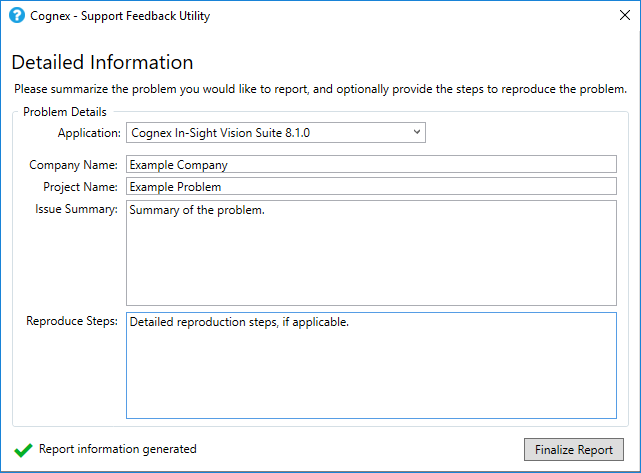
- Application: The Cognex software with which you are experiencing the issue. Use the drop-down menu to select the applicable software. The list contains every Cognex software installed on the PC In-Sight Vision Suite and its Support Feedback Utility.
- Company Name: The name of your company.
- Project Name: The name of the project your Cognex product is used for.
- Issue Summary: A description of the problem you are experiencing.
- Reproduce Steps: If the issue you are facing is reproducible, describe its steps here.
Tip: Although none of the fields are mandatory, Cognex recommends including as much detail about the issue as possible to help Cognex Support in troubleshooting and facilitate quicker response times. -
While filling the textboxes, the Support Feedback utility automatically collects troubleshooting data, indicated with the Gathering report information status message. The time of generating the report depends on the number of Cognex software installed on the PC (and consequently, the number of logs), and may take from approximately 30 seconds to several minutes. Once the report is generated (indicated with the Report information generated status message), and you finished filling the Problem Details textboxes, click the Finalize Report button.
-
The utility then saves the finalized report file into the Temp folder of the operating system by default. Click the link of the report to open the Temp folder and access the report file. Alternatively, use the rest of the buttons to send or store the report, and to close the utility.
Tip: The generated report file has a *.supportInfo extension and cannot be opened with text editors.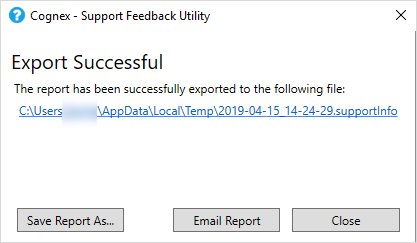
- Save Report As...: Saves the finalized report with a different file name to another location.
- Email Report: Opens the default email application of the PC, and prepares a template email message addressed to Cognex Global Support, containing all the information you provided in Step 3, with the generated report file added as attachment.
- Close: Closes the Support Feedback utility.