Go Offline
The Go Offline utility sets an Online job Offline on an In-Sight vision system. This is useful if you have to quickly stop the job currently running on the In-Sight vision system.
Perform the following steps to stop a running job with the utility:
- Launch In-Sight Vision Suite if it is not already running.
-
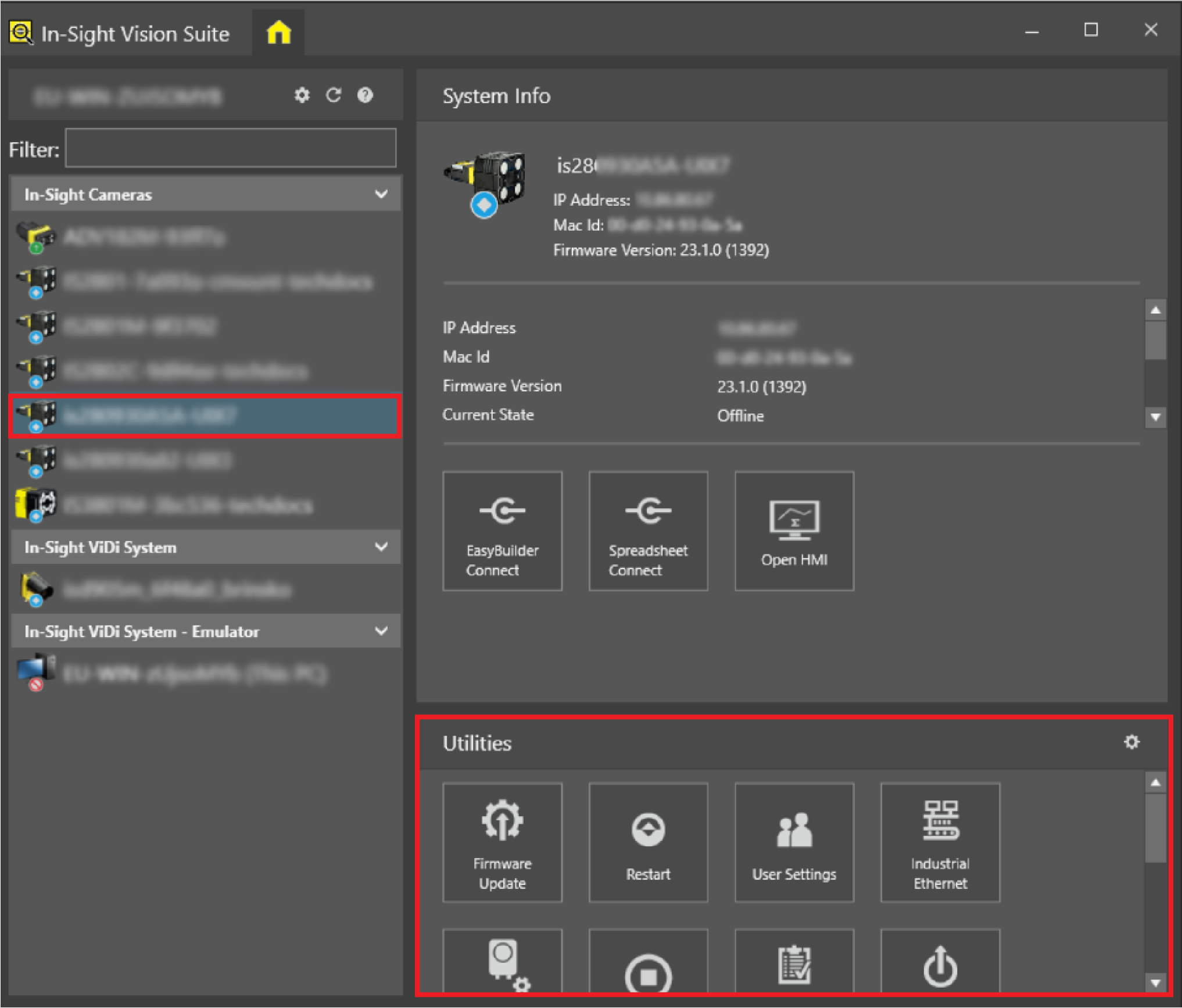
Left-click the device you want to configure on the In-Sight® Device Pane on the left. The list of Utilities applicable to the selected vision system then appears at the bottom of the window.
-
Click the Go Offline button in the Utility list.
-
Once the utility launched, provide your login credentials to continue, as shown below.
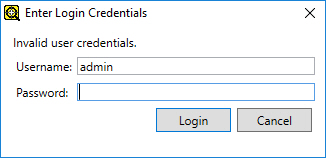
After you entered your user name and password, click Login to continue.
-
Once you provided your credentials, or if your admin user has a blank password, the Go Offline confirmation dialog appears, as shown below.
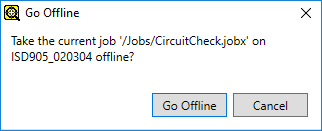
Click Go Offline to terminate the running job on the device. The dialog then automatically closes, and the running job is set Offline.
-
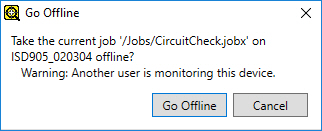
The Go Offline utility will notify you if there are any Web browser HMI connections to the device (as shown below), allowing you to determine whether or not to stop the running job.
-
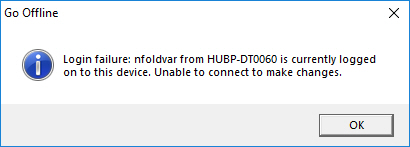
You cannot set the device Offline if another user is connected to the device and has the adapter software open. In such cases, the utility shows a login failure dialog as seen below.
-
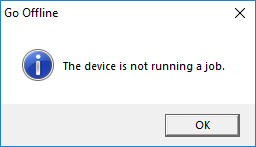
When launched, the utility checks if there are any jobs Online on the device. If not, it automatically stops immediately with the following message:
- For more information about Online and Offline behavior, see your applicable adapter help (the In-Sight ViDi Help or the In-Sight 3D Help).
- You can place multiple devices Offline in bulk. Select the devices by holding down Shift or Ctrl while clicking on the devices, then click on Go Offline.