Configure In-Sight Emulator
Perform the following steps to configure an In-Sight emulator on your PC:
-
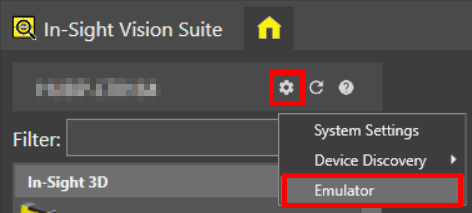
Open the System Settings dropdown menu by clicking on the cogwheel icon at the top of the device list, and click on Emulator to open the Emulator Configuration dialog.
-
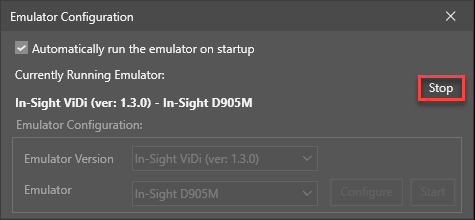
If any emulator is running, click Stop to stop it.
-
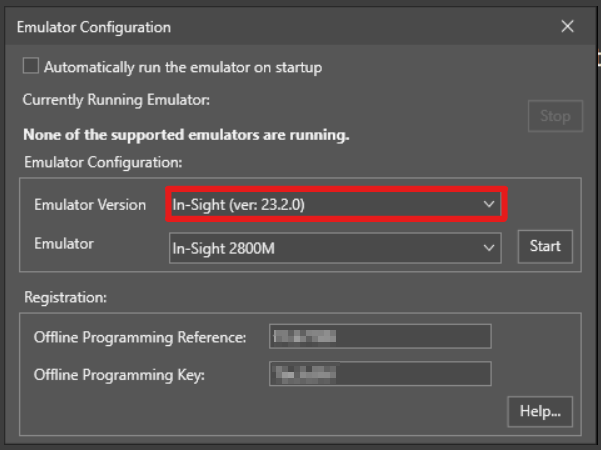
Use the Emulator Version drop-down box to select the emulator version.
-
Open the Emulator drop-down list and select the device you want to emulate:
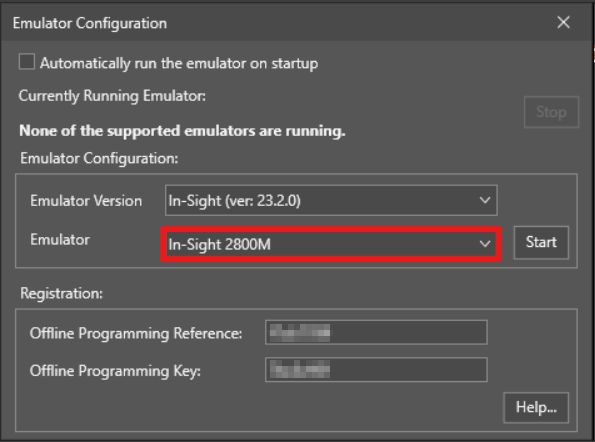
In-Sight Vision Suite currently supports the following emulators for In-Sight and In-Sight 3D:
- In-Sight 2800M
- In-Sight 2801M
- In-Sight 2802M
- In-Sight 2801C
- In-Sight 2802C
- In-Sight 3801M
- In-Sight 3803M
- In-Sight 3805M
- In-Sight 3801C
- In-Sight 3803C
- In-Sight 3805C
- Advantage 182M
- Advantage 182C
- In-Sight L38-033
- In-Sight L38-050
- In-Sight L38-100
- In-Sight L38-300
- In-Sight L38-500
Note:If any of these emulators are already running on the PC, the Emulator Version and Emulator drop-down lists, along with the Configure and Start buttons, are disabled. At the same time, the dialog displays the version and type of the running emulator above the disabled controls in bold formatting.
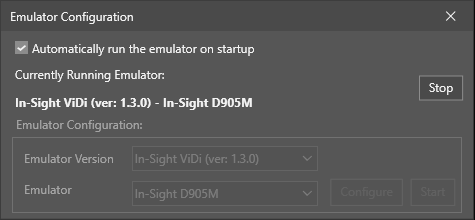
Click the Stop button to stop the emulator and enable the emulator configuration controls again.
-
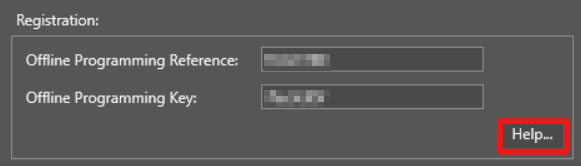
If you do not have your Registration settings configured yet, click Help... to go to the In-Sight Key Generator web page, and follow the instructions on the page to acquire the necessary registration keys.
-
To run advanced vision tools on the emulator, including Cognex Edge Learning tools, you have to download and import a Cloud Credential file in CodeMeter. For instructions on how to import the Cloud Credential file, see the In-Sight Vision Suite support page.
-
Click Start to start the emulator with the configured settings.
If you want to set the emulator so that it automatically starts when In-Sight Vision Suite is launched, check the Automatically run the emulator on startup checkbox, and then press the Start button.