IP Licensing
In-Sight allows you to apply IP protection to individual cells or cell ranges in a Spreadsheet job file. When a cell is IP-protected, the cell formula is hidden and cannot be edited, and the cell only executes if a license is added to the vision system.
You can generate a license for IP-protected cells using the IP License Generator tool in In-Sight Vision Suite. If you load a job containing IP-protected cells without the proper license on the vision system, the cells display #ERR, and a tooltip returns a message that a license is required to run the cell.
You can configure multiple instances of IP protection for different cells in the same job. For each instance of IP protection you use in the job file, you have to create a corresponding license.
Add IP Protection to Cells
-
Create a job in Spreadsheet.
-
Highlight the cells you want to protect.
-
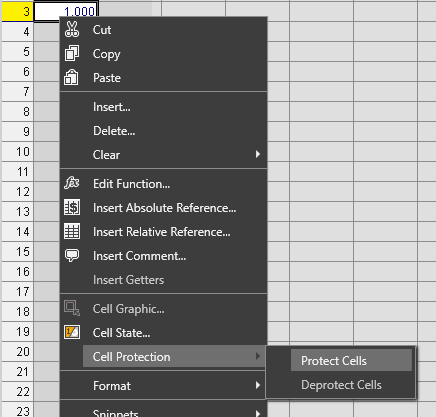
Right-click on your selection, and click Cell Protection > Protect Cells in the context menu.
-
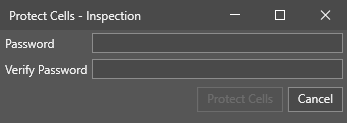
In the Protect Cells dialog, enter the password in the Password field.
-
Re-enter the password in the Verify Password field.
-
Click Protect Cells. The selected cells are now IP-protected, and require a license to execute.
Add a License to a Single Vision Systems
-
Open the In-Sight Vision Suite home page.
-
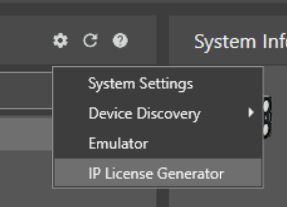
Open the Settings menu and click IP License Generator.
-
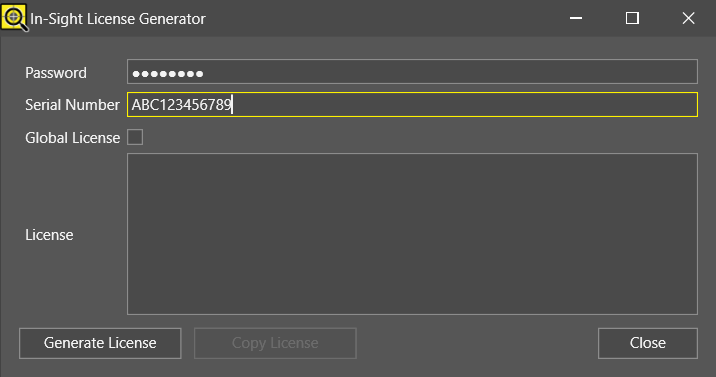
In the In-Sight License Generator dialog, enter the password you used for cell protection in the Password field.
-
Enter the serial number for the vision system you want to add the license to in the Serial Number field.
-
Leave the Global License checkbox unchecked.
-
Click Generate License to generate a license in the License field.
-
Click Copy License to save the license string to your clipboard, and click Close to exit the In-Sight License Generator.
-
On the In-Sight Vision Suite home page, select the vision system you want to add the license to.
-
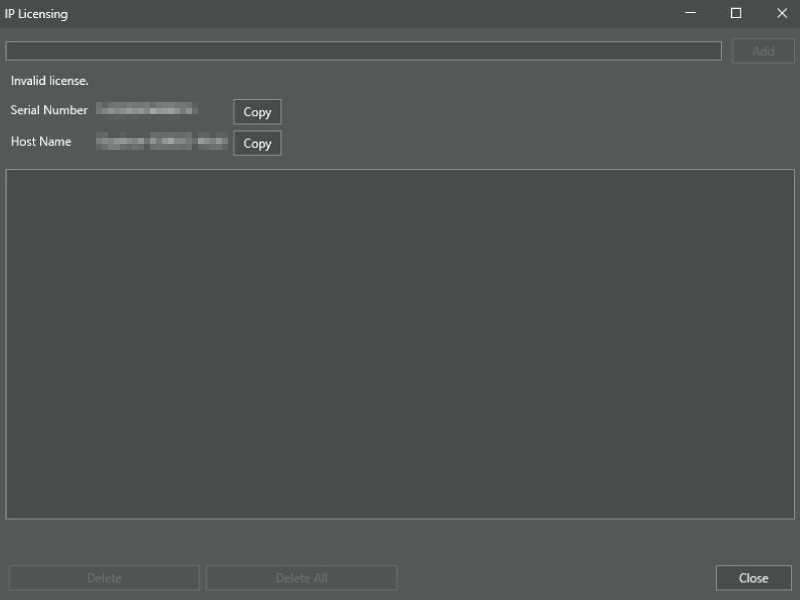
In the Utilities bar, open the IP Licensing utility.
-
In the IP Licensing utility, paste the generated license in your clipboard into the empty field at the top.
-
Click Add to add the license to the vision system, and click Close to exit the IP Licensing utility. The IP-protected cells now execute, and the results are displayed.
Note: For the changes to take effect, reload the job. Adding or removing IP Licenses on a vision system does not take effect on the currently loaded job.
Add a License to Multiple Vision Systems
-
Open the In-Sight Vision Suite home page.
-
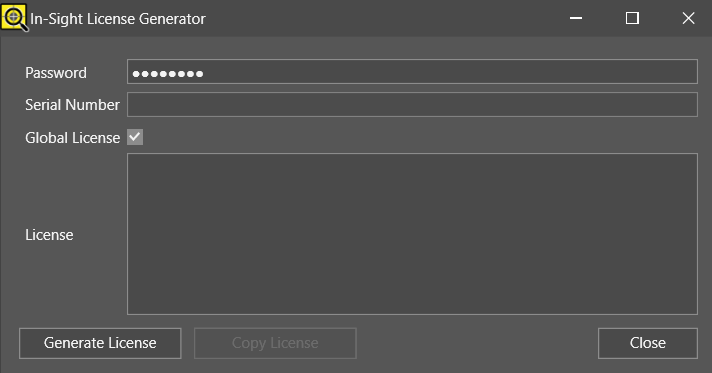
Open the Settings menu and click IP License Generator.
-
In the In-Sight License Generator dialog, enter the password you used for cell protection in the Password field.
-
Leave the Serial Number field empty.
-
Check the Global License checkbox.
-
Click Generate License to generate a license in the License field.
-
Click Copy License to save the license string to your clipboard, and click Close to exit the In-Sight License Generator.
-
On the In-Sight Vision Suite home page, select the vision system you want to add the license to.
-
In the Utilities bar, open the IP Licensing utility.
-
In the IP Licensing utility, paste the generated license in your clipboard into the empty field at the top.
-
Click Add to add the license to the vision system, and click Close to exit the IP Licensing utility. The IP-protected cells now execute, and the results are displayed.
Remove Password Protection from Cells
-
Highlight the IP-protected cells you want to remove protection from.
-
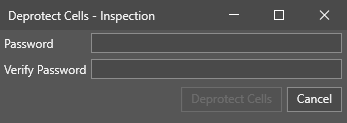
Right-click on your selection, and click Cell Protection > Deprotect Cells in the context menu.
-
In the Deprotect Cells dialog, enter the password in the Password field.
-
Re-enter the password in the Verify Password field.
-
Click Unprotect Cells. The selected cells are no longer IP-protected.