Checking the PROFINET Communication Setup
After the configuration has been set up, check PROFINET communication as follows:
-
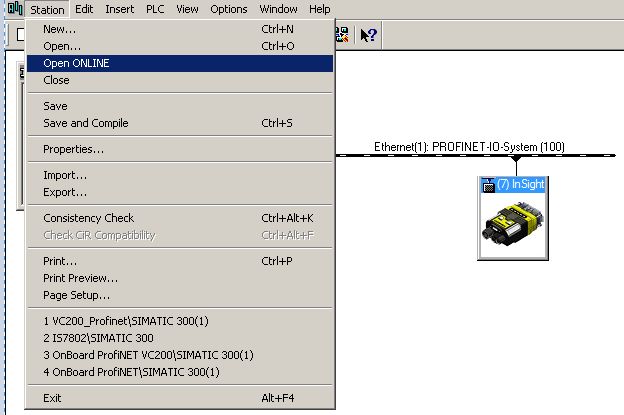
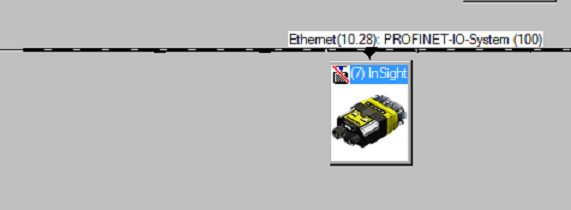
Click on the Station menu of the HW Config window, and select the Open ONLINE menu. If there is any problem with the communication, then a red strikethrough sign can be seen on the left-upper corner of the vision system symbol.
-
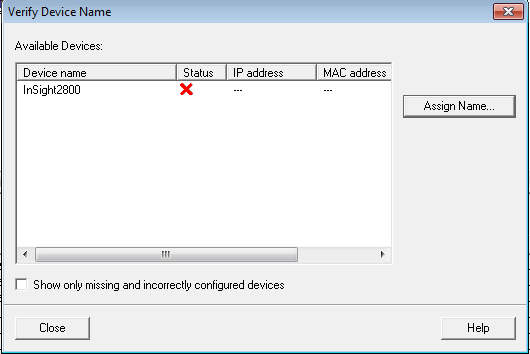
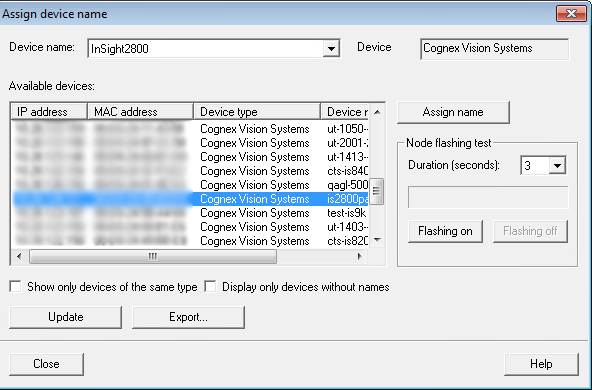
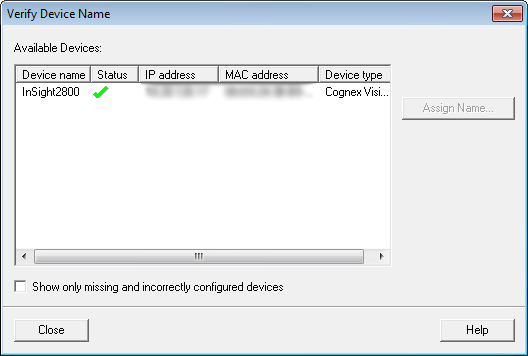
In case of any errors, check the physical connection and the assigned device name. To do so, check the PLC => Ethernet => Verify Device Name setting. In case of error, a red cross can be seen in the Status column. In this case, click the Assign Name button, select the correct device from the list, and then click Assign name.
-
If everything is fine, a green sign needs to appear in the Status column instead of the red cross.
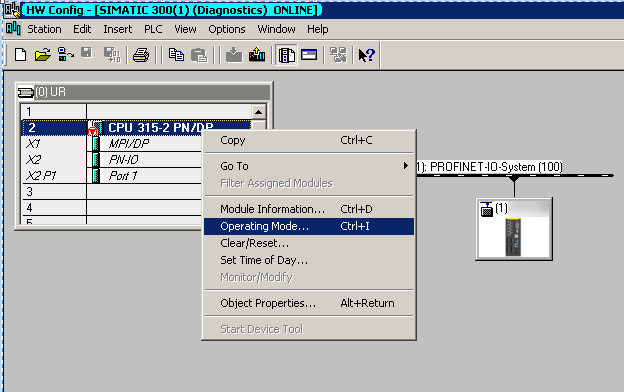
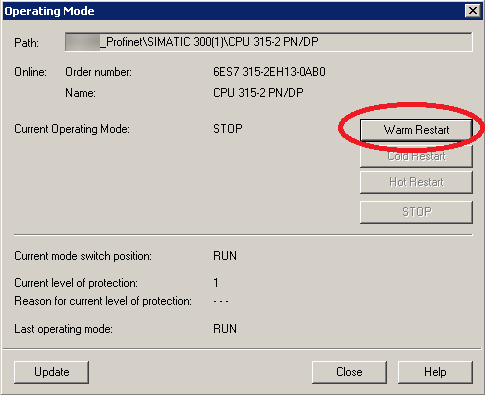
If a new name has been assigned to the In-Sight vision system then its original name is overwritten in the vision system. In this case, the Siemens CPU stops. To restart the Siemens CPU from the HW Config window, right-click on the CPU, select the Operating Mode option, and then click the Warm Restart button. This needs to set up the PROFINET communication between the PLC and the vision system properly.
|
|