Repair and Support
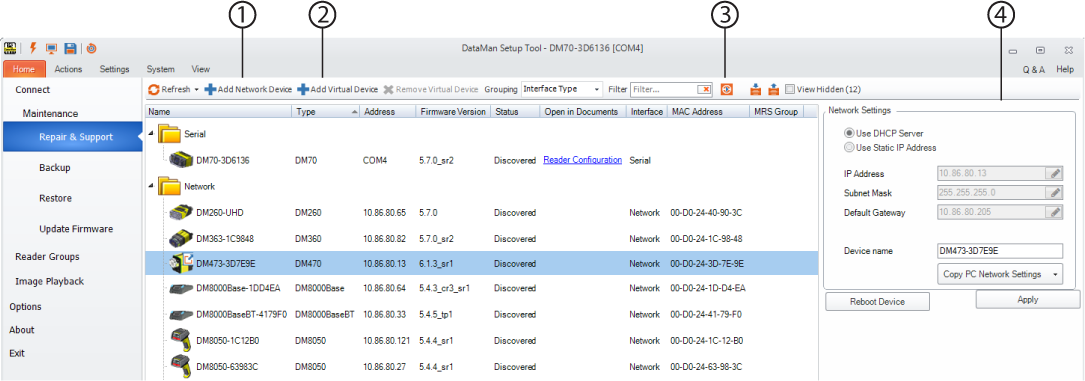
| 1 | Add Network Device | Click Add Network Device for the dialog window to pop up. You can provide here the IP address of the device you want to add. |
| 2 | Add Virtual Device |
The Add Virtual Device function allows you to create a virtual device based on either a custom configuration file or a device with default configuration. This can be used to look at different panes in the Setup Tool without the need of a device to connect to. Pressing the button initiates a wizard that guides you through the steps of creating a virtual device. Initial options are to use a configuration/backup file for creation or use the factory default settings. After the wizard is finished, a new virtual device is added to the list of discovered devices, indicated by a V icon. The virtual device is not visible for others on the network. Even after closing the Setup Tool and opening it again, you only have to add the virtual device once. You can connect to the virtual device in the same way as a regular device. All configuration changes are rejected (everything is read-only) and no features, functions, and actions work on virtual devices. |
| 3 | Export icon |
Clicking the Export Cognex Support File icon initiates Cognex Support File generation, which generates a .zip file containing a collection of preset data logs. This feature is only available if at least one device is selected. Clicking the button pops up a dialog box where you can specify the data types to be included in the support .zip file in a list of checkboxes. You can manually edit the User Comment field. The destination folder of the support file can be modified using the '...' icon. You can select to open the containing folder after the file generation or send it as an attachment with the default email client (.eml). The output of the process is a .zip file. The file name contains the device name and the date of creation. An additional descriptor.xml in the zip contains the following data:
|
| 4 | Network Settings | Use the Copy PC Network Settings button to fill in the subnet mask and gateway information for your device. Make sure you manually update the IP Address to your device's IP address, after your PC network settings have been copied. |