Image Panel
You can view the read image on the right hand side of the window: the Image Panel is always displayed by default. On the View tab you can switch on and off by clicking the icon. This window can also be docked in different places of the application.
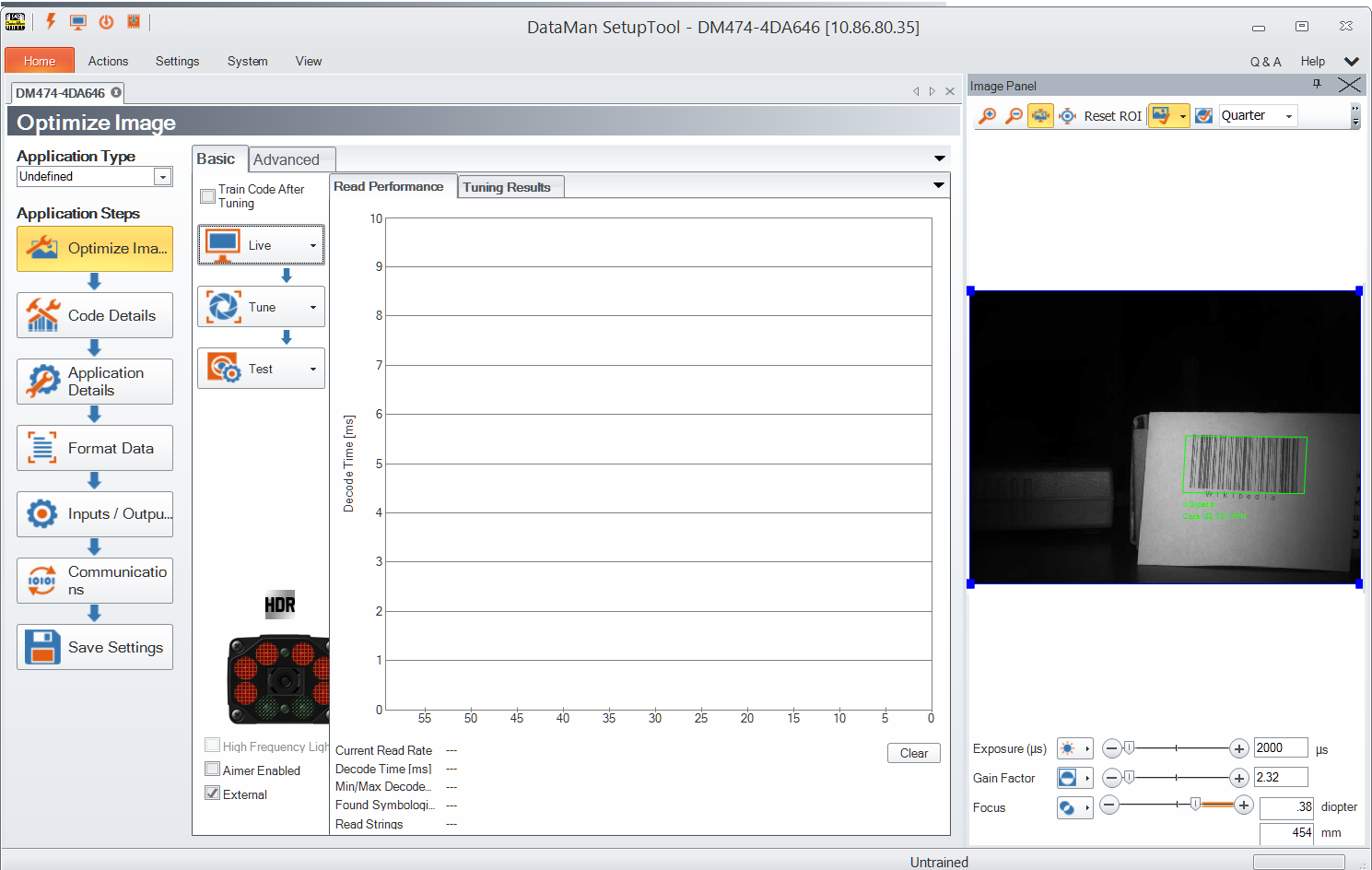
You have the option to zoom in and out of the image. In addition, log no-read and decoded images to the file system from this pane using the Logging options. Click the More Buttons drop-down arrow on the far right side of the Image Panel:
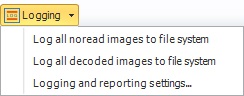
Clicking the last option here opens the Setup Tool Options window, in which you can set the default folder where logs of no-read and decoded images are to be saved.