Communications
On the three tabs of the Communications application step, serial and Ethernet settings can be implemented. Click the appropriate tab to enter your setting values.
On the Serial tab, you can configure serial port values (speed, parity, data bits, stop bits or RS-232 Inter-character Delay (ms)) as well as USB connection settings.
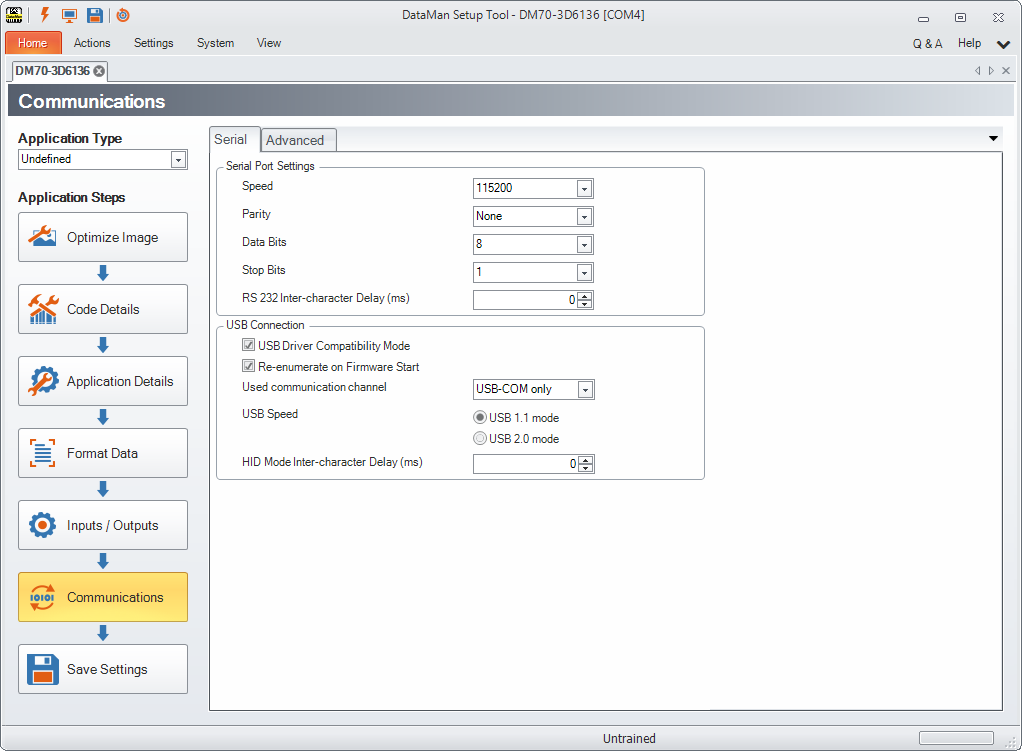
By default, the DataMan reader uses a USB driver that can help the reader recover from an electrostatic discharge (ESD) event. Use USB Driver Compatibility Mode if you require strict conformance to the USB specification.
In the Used communication channel option, you can set the communication method via USB. Depending on the used device, the following options are available:
- USB-COM only: Choose this option to reach the device through a serial port.
- USB-HID only: This option ensures that the device will behave like a USB keyboard.
- USB-COM + USB-HID: This is a combination of the above modes.
On the Ethernet tab, configure network settings for your wireless or tethered reader. If you are using a wireless reader, configure network settings on the base station.
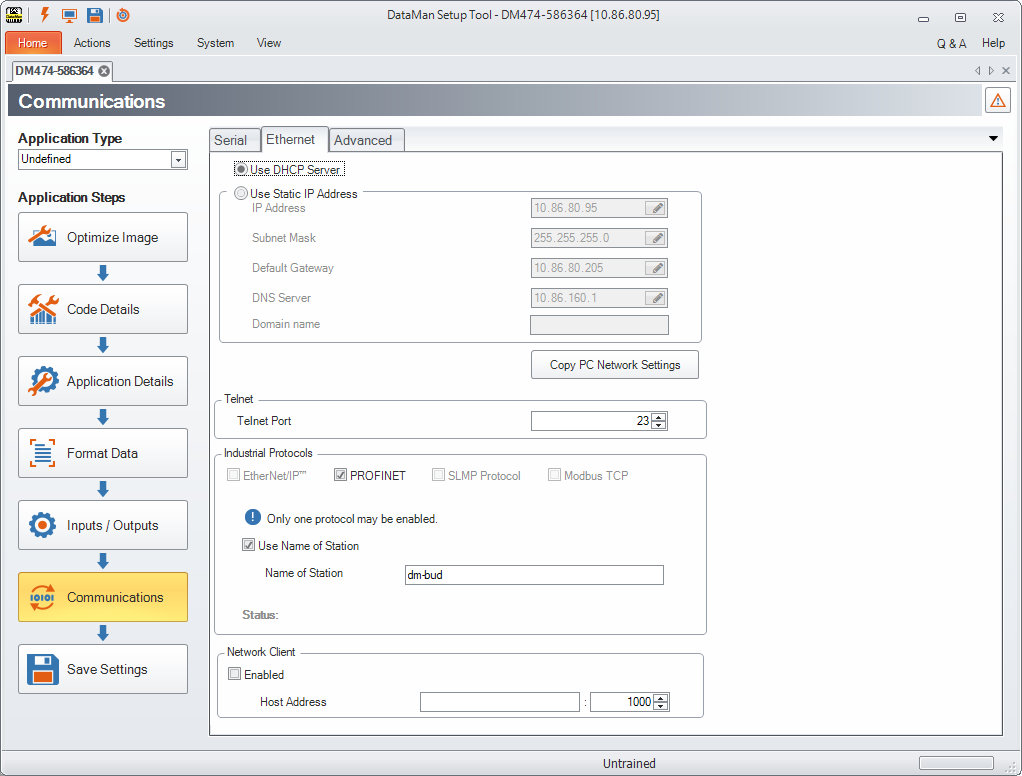
Select the Use DHCP Server option to have the reader assigned an IP address by a DHCP server (if one is available), or enter the network settings manually. Contact your network administrator for an appropriate value or click Copy PC Network Settings. Your own PC network settings will be copied in the above fields, including the IP address of your computer. Make sure you do not forget to update this to the IP address of your reader.
Under Telnet, you can set the Telnet Port. The reader allows TCP connections to port 23, which is the default TCP port for Telnet applications. If you use a Telnet client, the only parameter you will have to provide is the reader's IP address. If you are using another application or SDK to connect, make sure that it uses the same TCP port setting as your reader does. The reader will automatically send code output over this connection. You are able to transmit DataMan Control Commands (DMCC) over this connection as well.
Under Industrial Protocols, you can choose one of the following protocols: EtherNet/IP, PROFINET, SLMP Protocol or Modbus TCP. The Status field of the industrial protocols displays the last logged message of the status dialog. The message will remain displayed until another message is logged. If no industrial protocol is enabled, the status field remains blank. Status messages vary by protocol, and some protocols do not log any messages.
For Modbus TCP, you have the option to set Idle Timeout. Idle Timeout is the amount of time that a port is held open with no outgoing traffic. Once the reader opens a connection to an FTP server, the reader keeps that connection open as long as traffic occurs. If no traffic occurs for the set Idle Timeout period, the connection is closed. This can be useful if an FTP transfer only happens seldom and the network overhead for keeping the connection open is not desired.
The Network Client behavior is a means for the reader to actively open an Ethernet connection to another device on the network. Once open, the connection will have the same basic operational behavior as the DataMan Telnet connection; it can produce read results (transmit results to the external device) and it can act as a DMCC server (process commands received from the external device).
For further information, see the Dataman Industrial Protocols Manual.
In the Advanced tab you have further configuration options. In a table-style view you can see the settings and the corresponding values for serial and Ethernet connections.
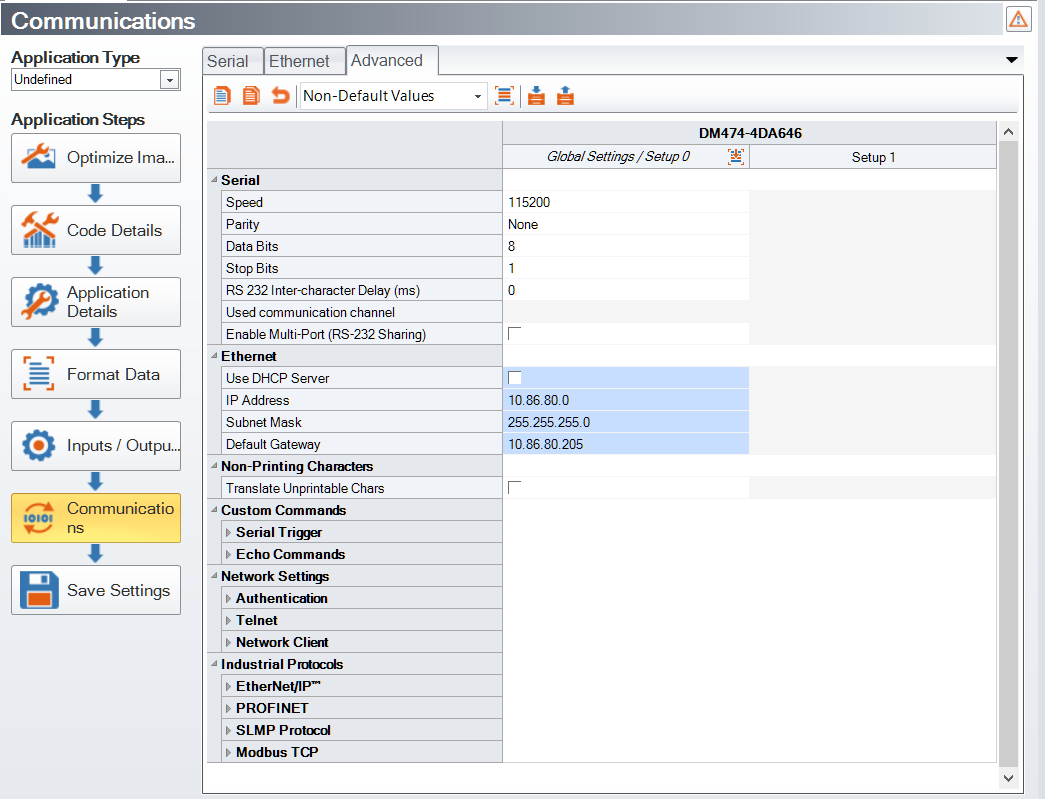
In addition, you can set Non-Printing Characters. Normally, the raw values for non-printing characters are transmitted when the reader is configured for COM communications. These values are not visible at all when the reader is configured in keyboard wedge configurations. You can configure the reader to convert non-printing characters into sequences of keyboard printable characters such as <CR> by enabling the Translate Unprintable Characters feature. Eight-bit ASCII character codes with values of 0x00 through 0x1F and 0x7F are converted when Translate Unprintable Characters is enabled.
Under Serial Trigger, the Trigger ON and Trigger OFF commands support a character limit with a resulting sequence that may have, at most, 32 bytes. Depending on how many escape sequences you use this means that the valid length of the acceptable string can vary between 32 characters (no escape sequences) and 128 (32 * 4-char escape sequences [e.g. \002]) characters.
Under Custom Commands, you can also set Echo Commands. When enabled, Echo Commands will echo back the commands you send to the reader as soon as the command, delimited by the Command Header and Command Footer strings, is received. Custom commands are provided to be used by a PLC or similar device and not intended to be manually entered. The inter-character delay is set to a small value, roughly 50 ms, so that slow typing of a custom command will be not recognized past the first character. A Trigger ON or Trigger OFF command greater than a single character must be sent as a string from another application.