Scripting
Setup Tool allows you to customize a script for outputting results. Scripting can be used to output a wide variety of information. For more details on customizing and making your own scripts, refer to the DataMan Communications and Programming Guide. For verification results, two scripting templates are provided listing the most common output formats for verification results which can be generated to a csv or an html report.
To enable scripting using the scripting templates provided, select the Format Data icon and the radio button for Script-Based Formatting.
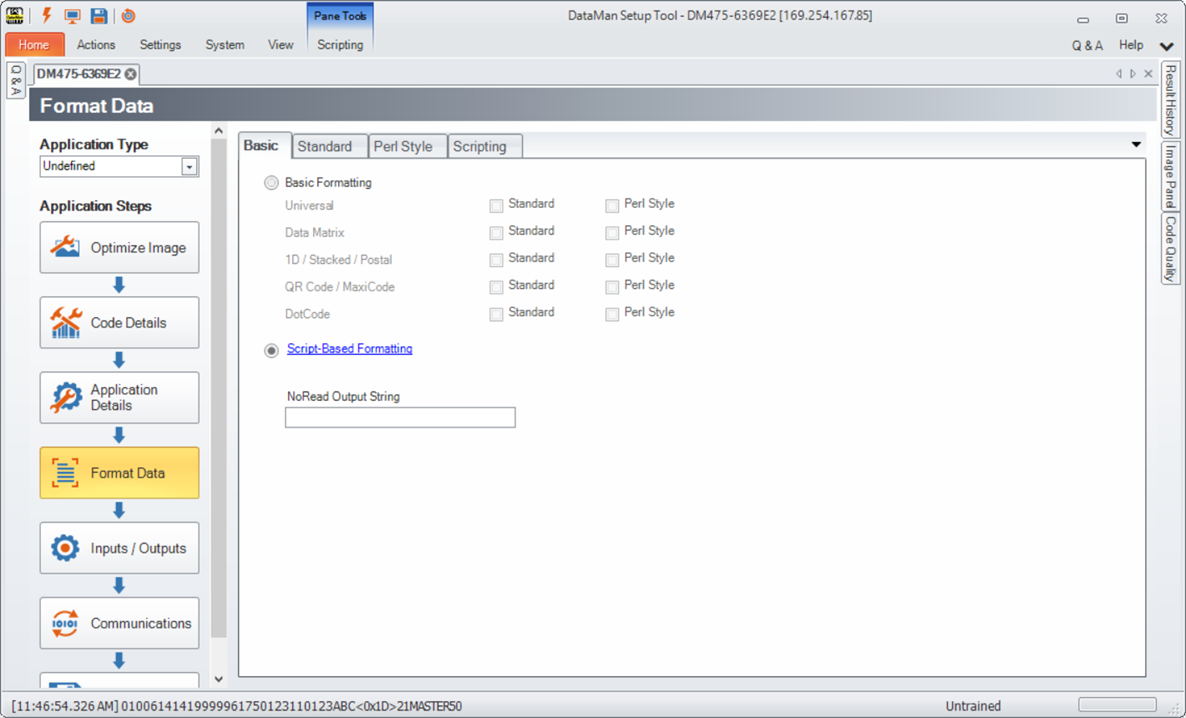
Select the Scripting tab. In the Scripting pane on the toolbar, select Open Script.
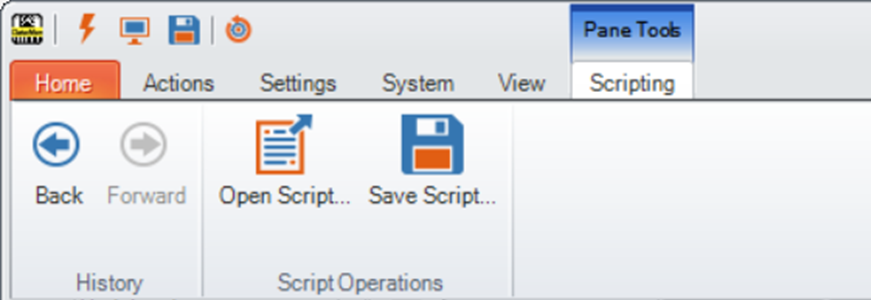
The scripting templates can be found in the following location:
C:\Program Files (x86)\Cognex\DataMan\DataMan Software vx.x.x\Scripts
One scripting template generates results to a .csv file and the other generates results to an .html file.
To save the output to a file and specify a file name and location, select the Results History tab on the right window. In the Logging option, check the box to Log all result codes to file system and select the option for Logging and reporting settings….
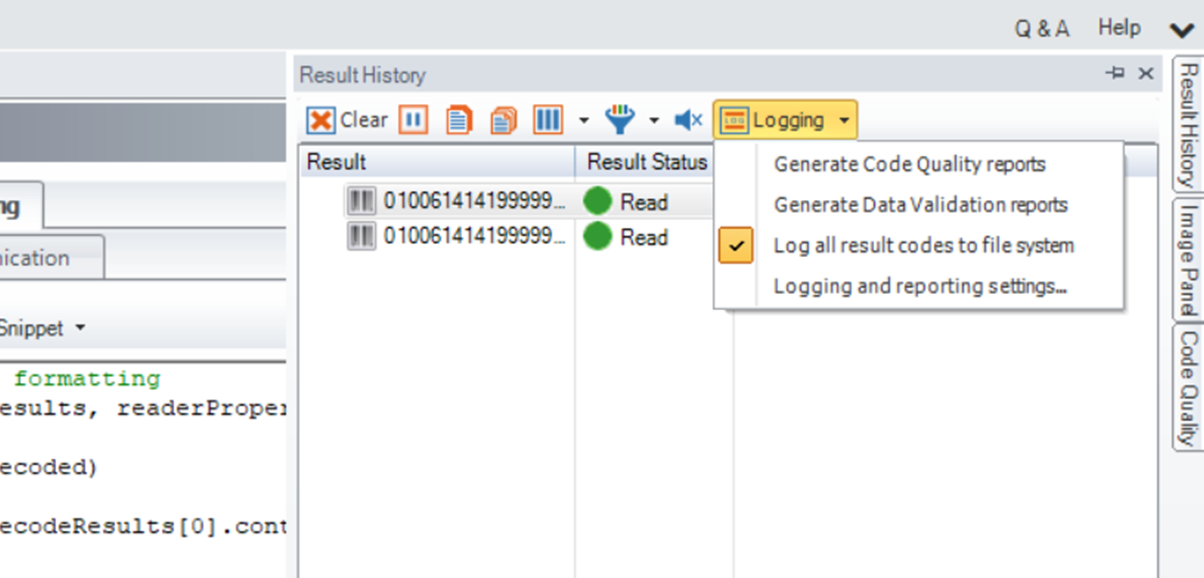
In the Logging and reporting settings menu, select a file Path and File Name under the Result Code section. After providing a File Name, you must include either “.csv” or “.html” depending on which template is selected. Select OK to save and exit.

You can customize the scripts to show more or less detail. For the full list of scripting options, see the DataMan Communications and Programming Guide.