Adjusting the Focus Height
The 8072 Verifier can be equipped with an optional adjustable height stand that is guided by a focus indicator. When using the optional stand, prior to verifying, the verifier must be adjusted to the proper height above the target to ensure proper focus.
Do not use the focusing indicator with the standoff in handheld mode. When used without the stand, the standoff itself is used to achieve the correct focus distance.
There is an additional drop-down option under the Focus Indicator option. When View Laser Spot Image is enabled, the raw image of the focus indicator is shown instead of the found location of the indicator. This may be more useful when using the focusing indicator on certain surfaces.
To adjust the focus, perform the following steps in the TruCheck Verification window:
- Place the symbol directly under the Verifier and press the Go Live button. A live image appears on the screen.
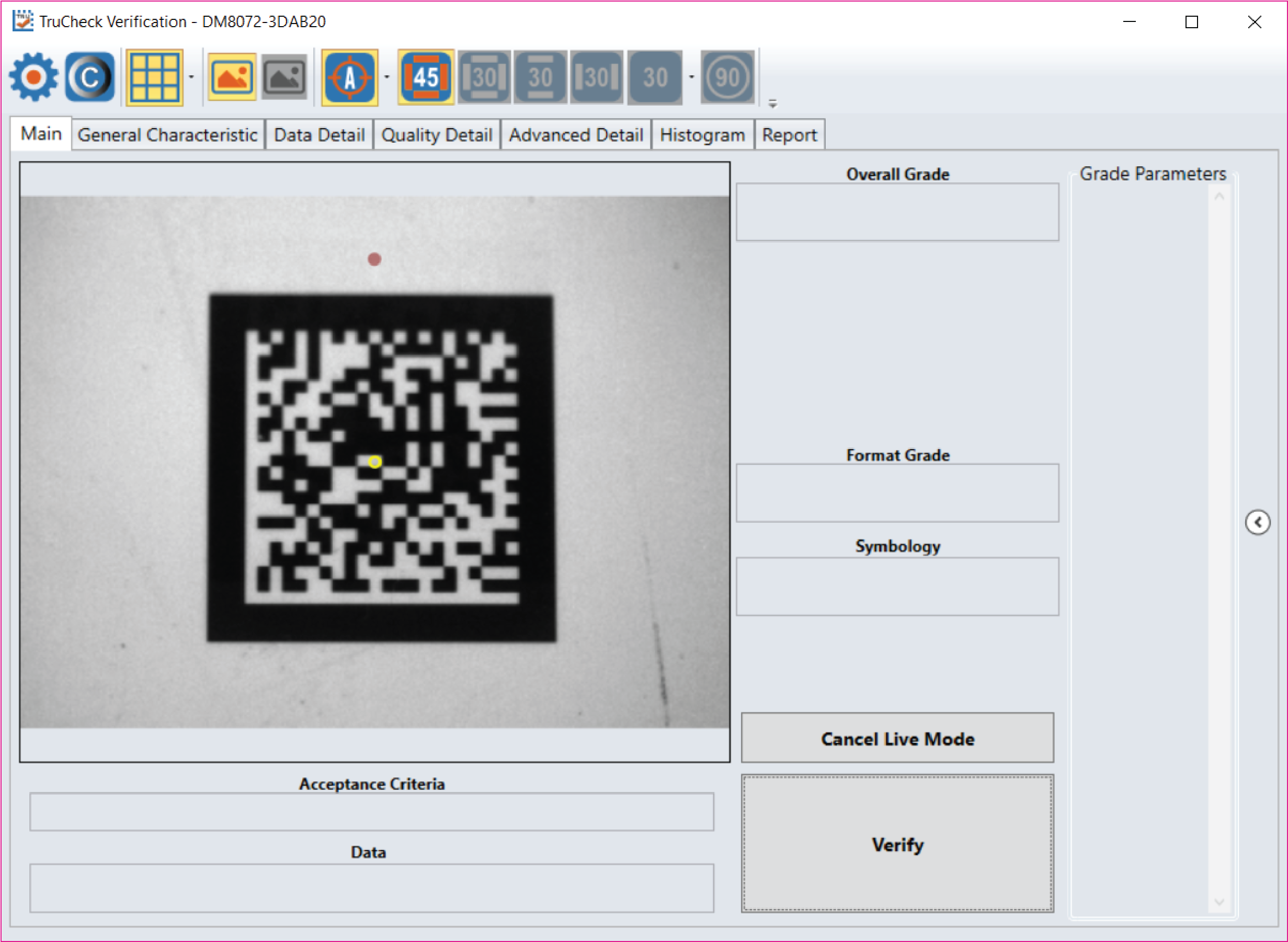
- When the Focus Indicator is enabled, you see a target circle in the center of the image window. Additionally, an image of the indicator spot appears somewhere on the image along the vertical center axis. Note: It is possible for the indicator spot to fall outside the field of view. In that case, adjust the height of the imager until the indicator spot appears in the image window.
-
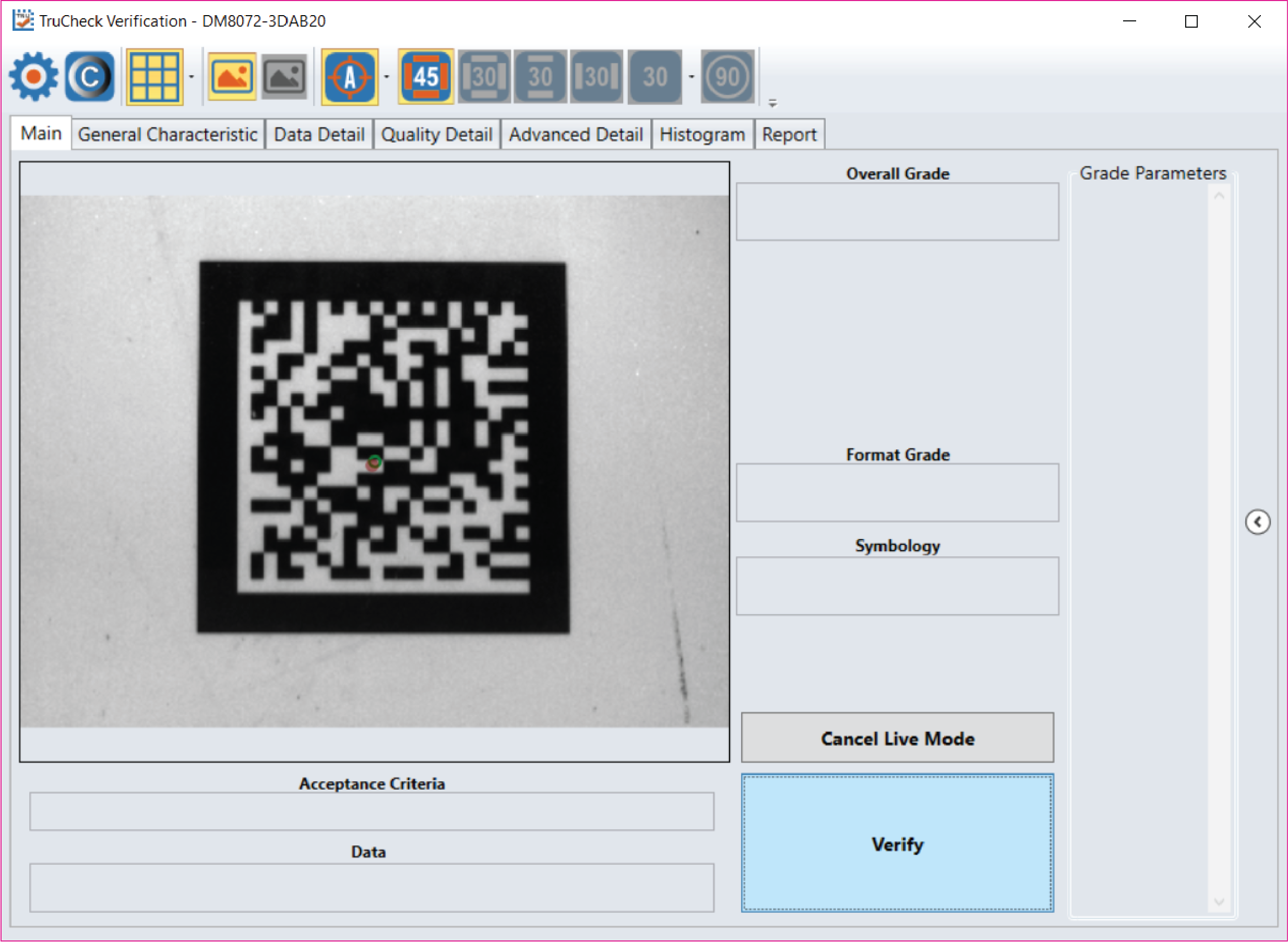
Carefully rotate the crank on the top of the Verifier until the indicator spot is in the same position as the circle. At this point the circle turns green, indicating that the unit is in focus.
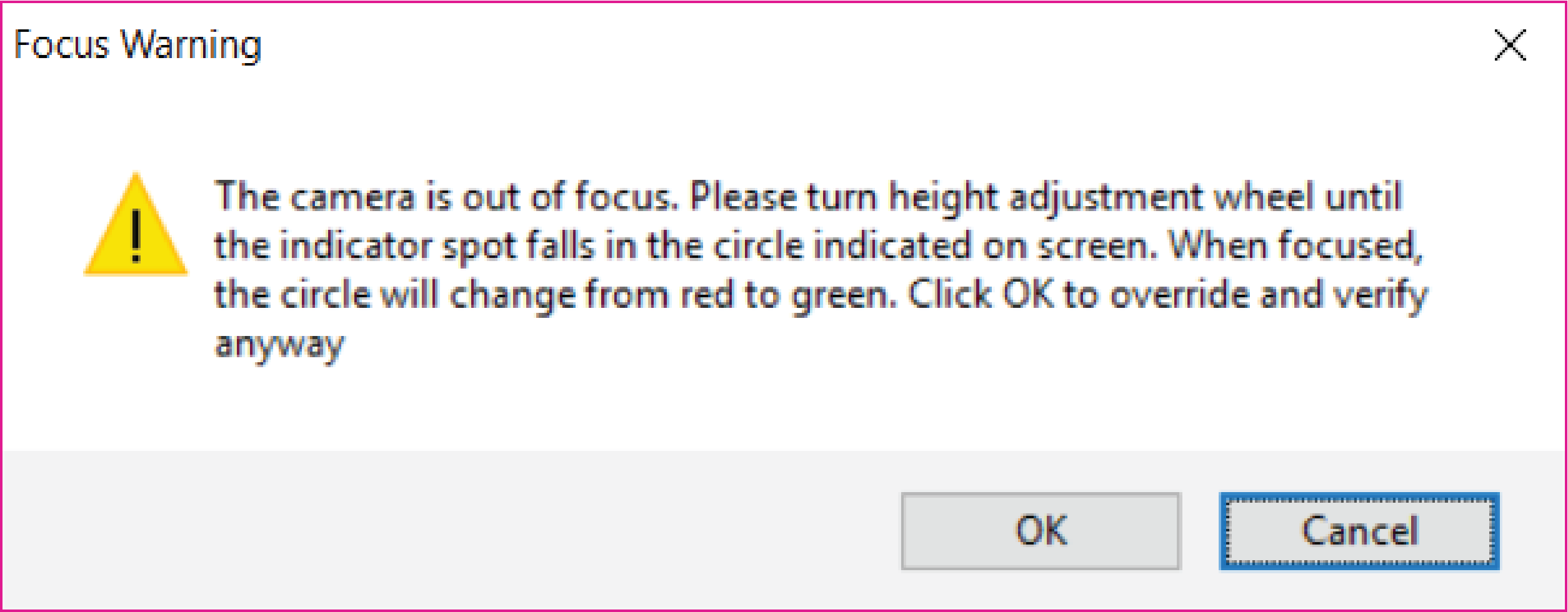
If you attempt to verify when the target circle is not green, you are prompted to focus by a Focus Warning pop-up window. By clicking the OK button, you have the option to override the focus indicator requirement in cases when the indicator spot is physically blocked by a part of a real object on which a code is to be verified. Always set the correct focus position first and only click the OK button if you are instructed to do so.