Connect
The Connect page provides the ability to connect to a single device or several devices at the same time. The devices are shown in a tree structure. The tree structure shows additional information for each device in separate columns.
The additional pieces of information shown are the following:
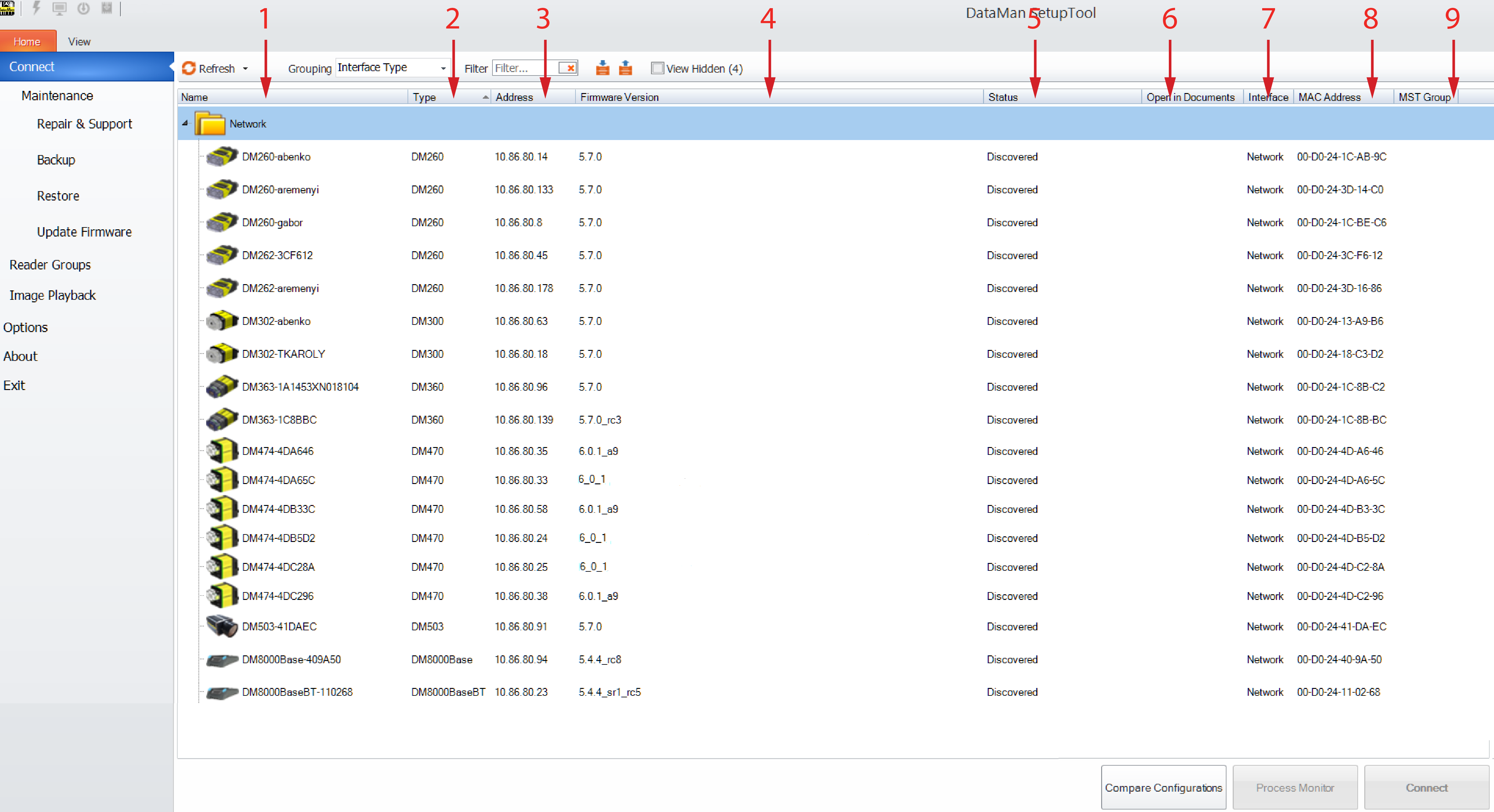
- Device name and icon
- Device type
- Device address (IP address or port)
- Firmware version
- Status (e.g. Discovered, Misconfigured, Conflicting, In use)
- The reader is open in the linked document
- Interface (e.g. Serial, Network, HID)
- The NIC (MAC address) via which the device was discovered
- The Primary reader Group the device belongs to in case of Multi-Reader Sync grouping
Click Refresh to refresh the list of available devices and their settings.
The tree and grid-like device list control provides the following options:
- Sorting: Each column in the grid can be sorted, both in an ascending and a descending alphabetical order, by clicking on the column header. The sorting direction is shown by a triangle. For example:
 or
or  . The triangle is shown only in the sorted column. By default, the Type column is sorted in an ascending order.
 - Grouping: You can use different groupings when showing the discovered devices. You can choose from built-in groupings, but you can also define your custom groupings. The built-in groupings are the following:
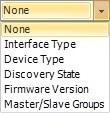
They are based on the same data as the data in the related column of the grid. Only one grouping can be selected at a time using the designated combo box. The default grouping is None.
For more details on reader groupings, see the Device Grouping section.
- Filtering: The
 text field filters the list of discovered devices based on the characters typed in. The list of devices gets updated based on filtering on each key stroke. The filtering text can be cleared by deleting the filter text or clicking on the clear (
 ) button. The filter text is matched to each column in the device list grid and only those rows remain visible that have a column which contains the text provided in the filter text.
 - Expanding/collapsing the device tree: The displayed tree of devices can be collapsed and expanded fully, as well as on a node-by-node basis. Full collapse or expand can be done with the designated buttons (expand:
 , collapse:
  ), whereas node-by-node collapse or expand can be done by clicking on the desired node’s collapse/expand triangle (
 ).
). - Viewing hidden devices: You can view the hidden devices when the
 checkbox is selected.
After selecting one or more devices (click/Ctrl-click/Shift-click), a connection can be initiated by clicking the Connect button or double-clicking on a device. Connection gets initiated to the selected device(s) and separate documents are opened.
Upon connecting to a device, a device document is opened, it gets its own tab. For such a device, the Status column will show "In Use" on the device list pages. The connection gets closed when its document tab is closed. If the device reboots (e.g. because of a firmware update), the document tab remains open, the progress bar and messages inform you about the current state of the device. If a connection is lost, the document tab does not get automatically closed, an overlay message informs you about this event. If the reader goes offline, the overlay with the message stays there until the device comes back online or until you close the document tab.