Overview
In the Overview tab of Settings, you can set up the language and theme of the WebUI. You can also customize the behavior of the in-application help.
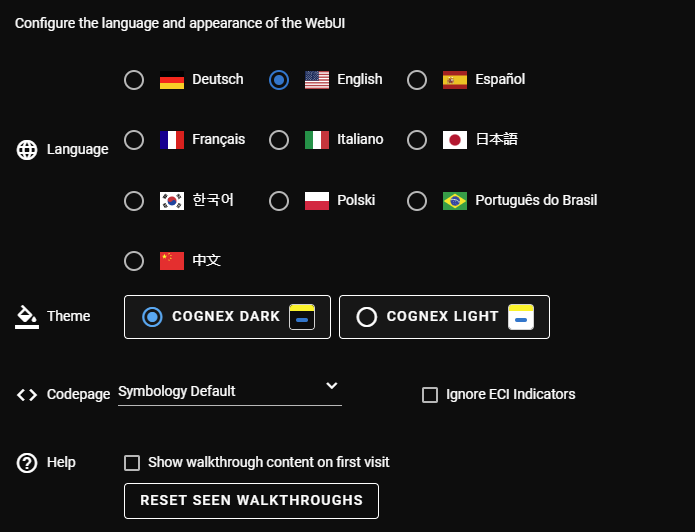
Configure Codepage
You can change the codepage to be able to decode non-ASCII characters.
Click Symbology Default to open the drop-down of available codepages and select one of the options. Read at least one non-ASCII code and use the Decoded Result column to help determine which codepage is the right one for your reading. You can also use the Filter field to narrow down the list of available options or disable the Show Invalid Decodings checkbox to only show valid codepages.
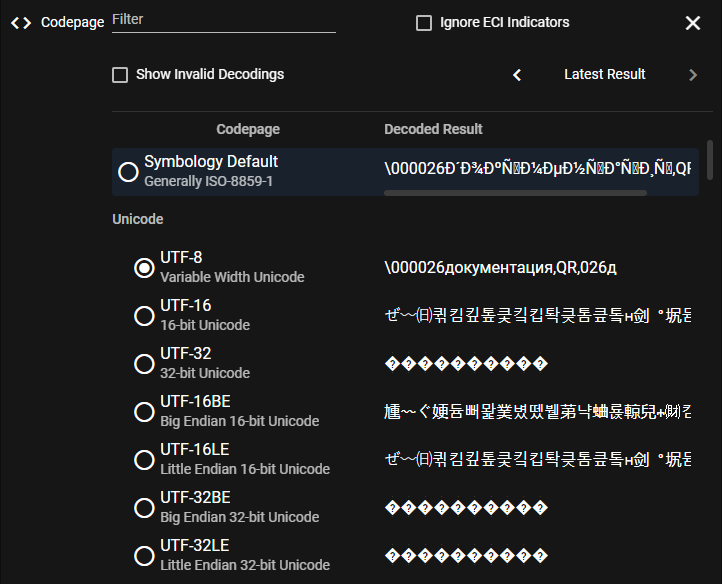
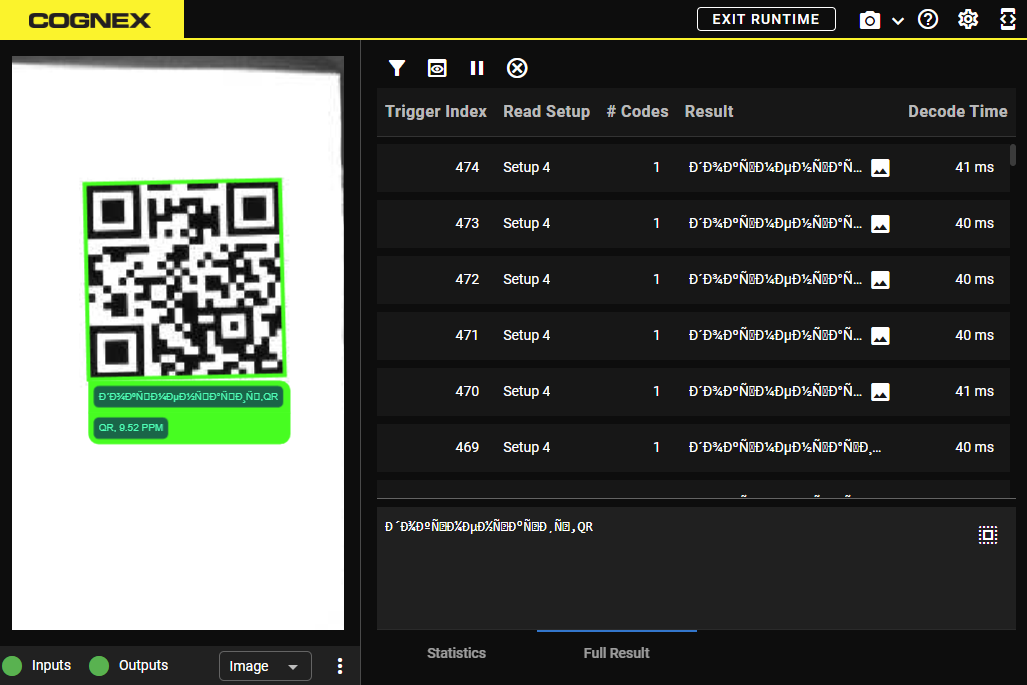
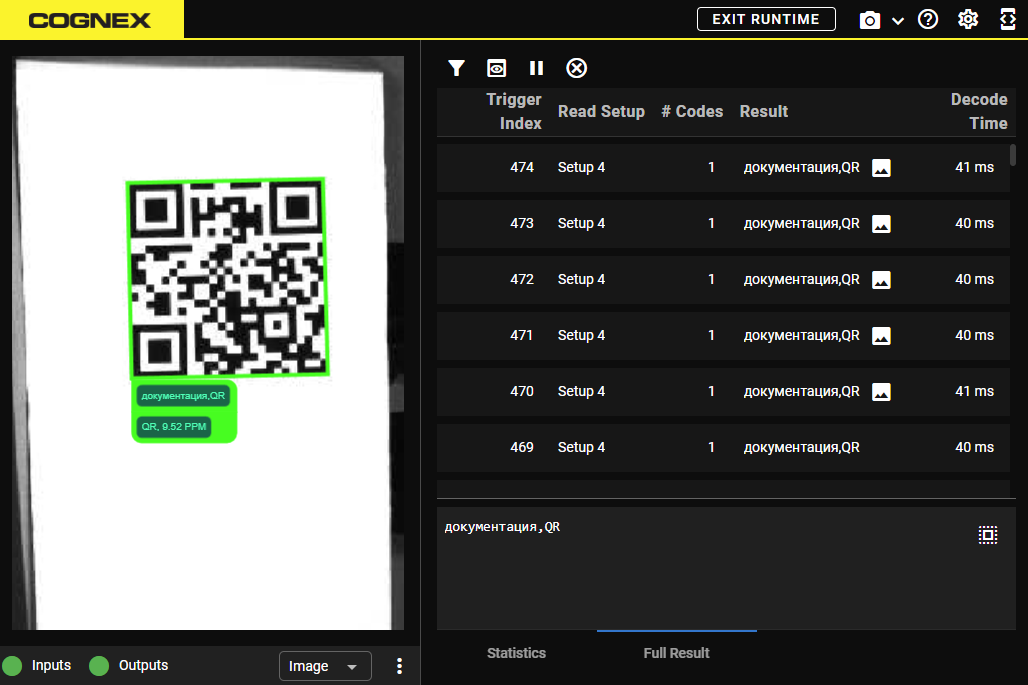
See the example below of a code result in the default codepage compared to a codepage that can decode the characters:
- Symbology Default
- UTF-8
By default, the WebUI recognizes Extended Channel Interpretation (ECI) indicators compliant with AIM ECI standards. When reading compliant codes, this allows the WebUI to automatically identify and use the correct codepage. Check the Ignore ECI Indicators box to disable support for ECI indicators, so the WebUI uses the configured codepage instead.