Saving Reports
You can see a preview of the report in the Report tab. See Report Tab.
Check the Generate Report box in the Report Settings menu.
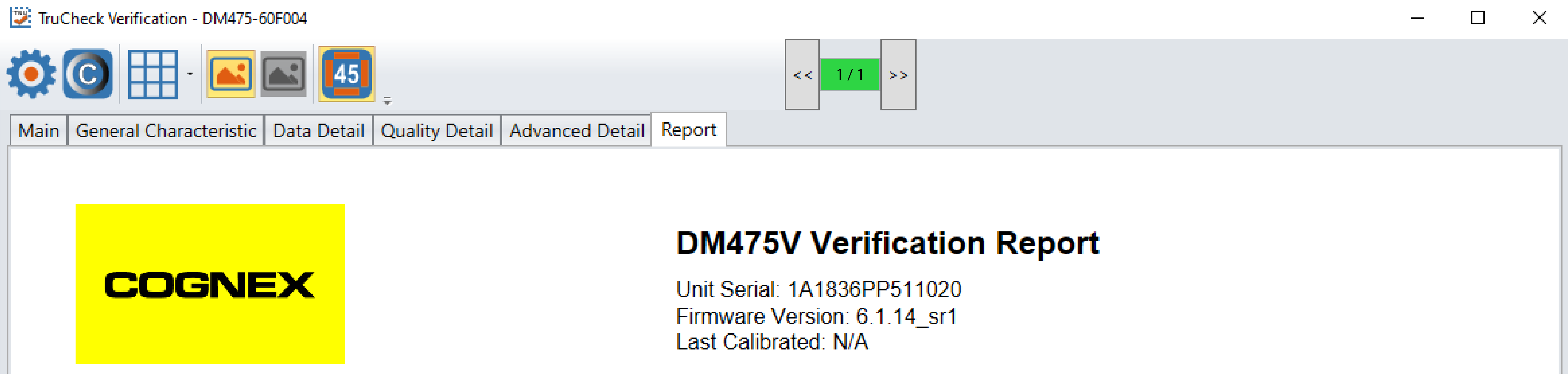
You can save and print the report by right-clicking on the report. Select a printer or Save to PDF.
Alternatively, you can save and print electronic reports by enabling the Code Quality report in the DataMan Setup Tool window:
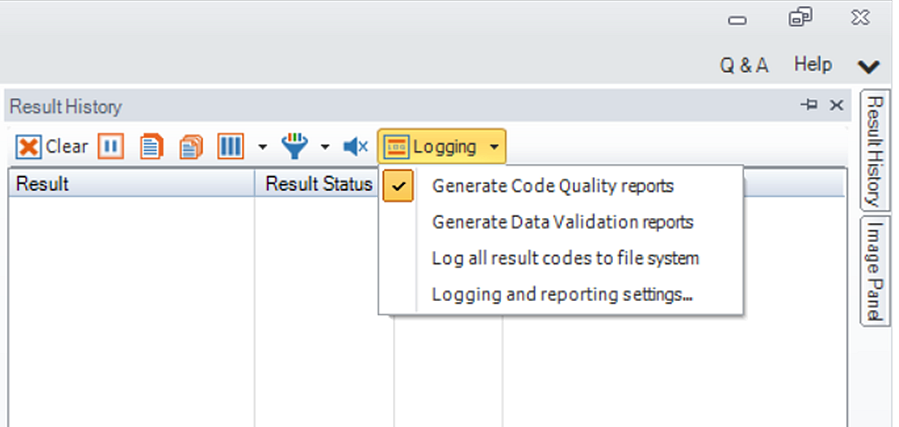
- Open the DataMan Setup Tool, and navigate to the Results History pane.
-
In the Logging drop-down menu, click on the Generate Code Quality reports.
-
In the same drop-down menu for Logging, select Logging and Reporting Settings to open the DataMan Setup Tool Options window.
-
In the Reporting box, select the Path to save verification reports to your local computer or server. Include a Filename Prefix or Filename Structure and select the Preferred Quality Report File Extension as either .html or .pdf file.
For the Filename Prefix, you can enter a custom string, or use a predefined string variable that the system automatically translates based on your settings. The following predefined strings are available:
-
{Grade}
-
{GradeLetter}
-
{GradeNumber}
-
{Symbology}
-
{Data}
-
{Batch}
-
{UII}
-
{Company}
-
{Operator}
-
{Note}
Note: The strings are case sensitive and must include the curly braces.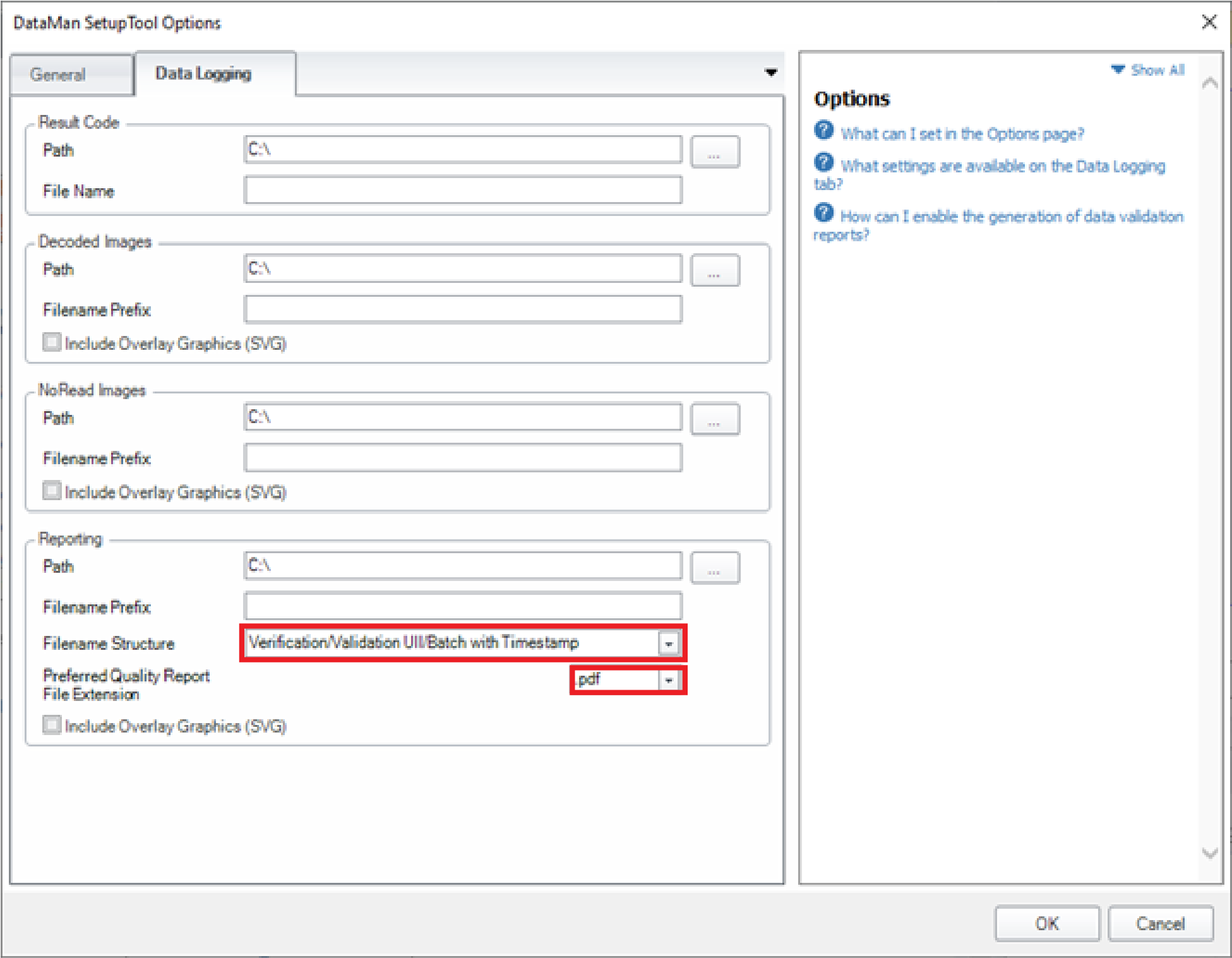 Note: The TruCheck Window only displays a report preview if you check the Generate Report checkbox under Report Settings.
 -