EtherCAT
EtherCAT is an application-level protocol used in industrial automation applications. This real-time Ethernet protocol uses standard Ethernet hardware for wiring and special EtherCAT hardware on readers for efficient communication in a fieldbus segment. EtherCAT aims to maximize the data rate on the physical network by sending frames always from the EtherCAT master controller. One master device must be present on the fieldbus segment. The master device is often implemented as a Programmable Logic Controller (PLC).
DataMan readers support EtherCAT on readers that integrate an EtherCAT subdevice controller. Refer to the Quick Start Guide of your reader to see whether yours contains the EtherCAT hardware and for further information, for example, which ports on the reader are used for EtherCAT communication.
To use your Ethernet card for EtherCAT virtualization as part of development or demonstrations, plug the DataMan reader into a properly set environment. EtherCAT communication can create problems in the Ethernet settings of your host computer.
By default, the reader has the EtherCAT protocol enabled. You can enable or disable the protocol through DMCC, scanning a configuration code, or in the DataMan Setup Tool. You need to connect the DataMan Setup Tool through the secondary Ethernet socket if you want to use DMCC or the DataMan Setup Tool.
File Over EtherCAT (FoE) Function
You can transmit files from the PLC to the reader over EtherCAT. The following file extensions are supported:
| File Extension | File Type | Comments |
| .bin.gz | Firmware update | The reader does not reboot automatically to apply the update. You have to reboot the reader manually, or using EXECUTE DMCC SoftEvent. The reader is not operational during the update. |
| .cdc | Device backup |
You must manually reboot the EtherCAT reader to apply the backup files. This is different from non-EtherCAT DataMan readers, which restart automatically. If you do not reboot the reader, the old state persists. You can reboot the reader with the Execute DMCC SoftEvent. |
| .cfg | Device configuration | Does not require a reboot. |
-
If you have more than one readers connected in a ring topology, the configuration can break when you reboot more than one readers at the same time.
-
Certain PLCs can remove the file extension when you upload these files through FoE. Always make sure that the file extensions are correct.
-
You can find the .cfg and .cdc files by unzipping the .DMB file that the DataMan Setup Tool produces when exporting a reader configuration.
DMCC
You can use the following commands to enable or disable EtherCAT:
Enable:
|
||>SET ETHERCAT.ENABLED ON ||>CONFIG.SAVE ||>REBOOT |
Disable:
|
||>SET ETHERCAT.ENABLED OFF ||>CONFIG.SAVE ||>REBOOT |
You can issue these commands through RS-232 or Telnet connection. Use a third-party Telnet client, such as PuTTY, to communicate with your DataMan reader.
Reader Configuration Code
Scanning the following reader configuration codes enables or disables EtherCAT for your reader.

|

|
| Enable | Disable |
Setup Tool
-
Open Setup Tool to discover the reader.
Note: The reader must be in the subnet. -
If the reader appears as misconfigured, select the reader and click Repair & Support to change the misconfigured IP address to the desired static IP.
Note: The reader must have a properly configured IP address for connecting to the DataMan Setup Tool. -
Click Connect to connect to the reader.
-
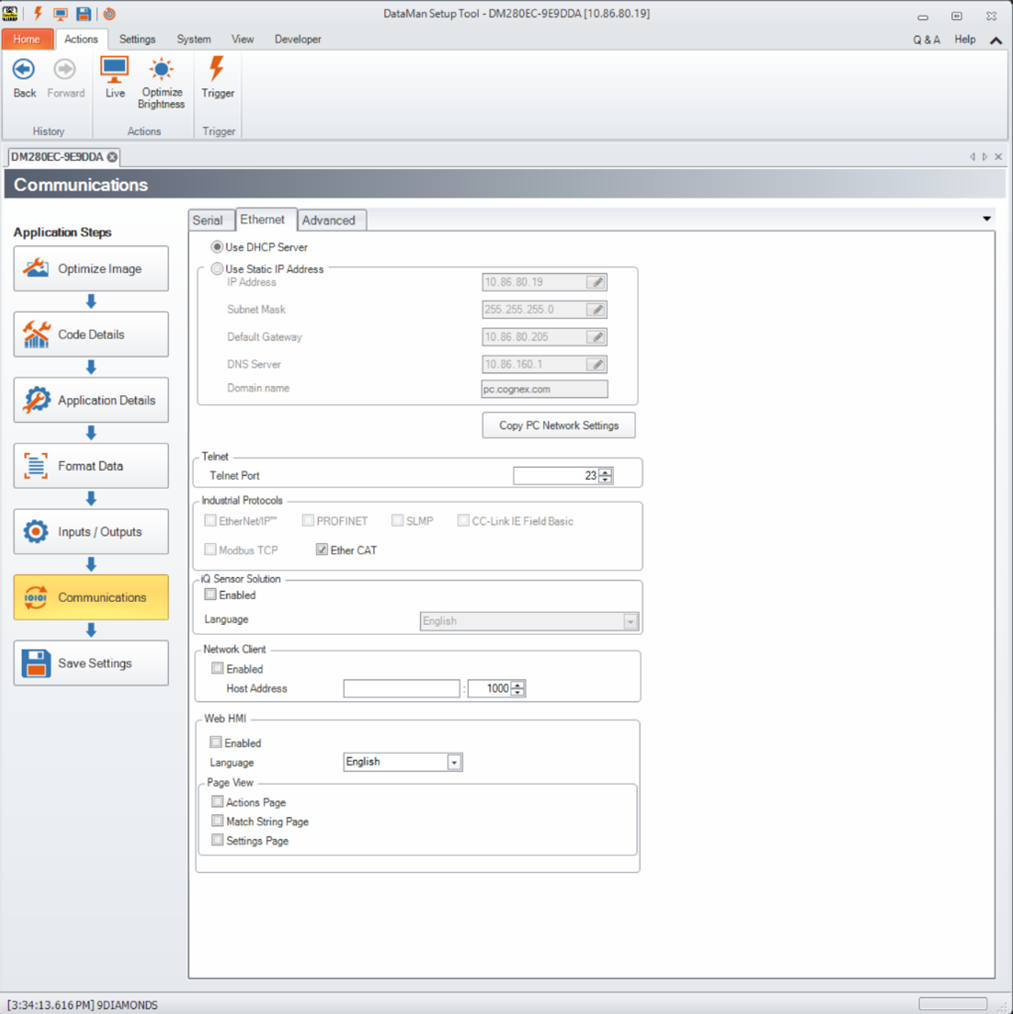
Navigate to the Communications application step.
-
Enable EtherCAT under the Ethernet tab.
-
Reboot the reader.
Getting Started
Preparing to use EtherCAT involves the following main steps:
-
Make sure that you have the development environment of your EtherCAT master device installed, for example, TwinCAT 3 in case of a Beckhoff PLC.
-
Set up the development environment software tool so that it recognizes your DataMan reader.
-
Install the ESI (EtherCAT Slave Information) file.