Data Formatting
In the Data Formatting step, you can construct a customized output string using pre-defined building blocks. You can also test your output before proceeding to the next step.
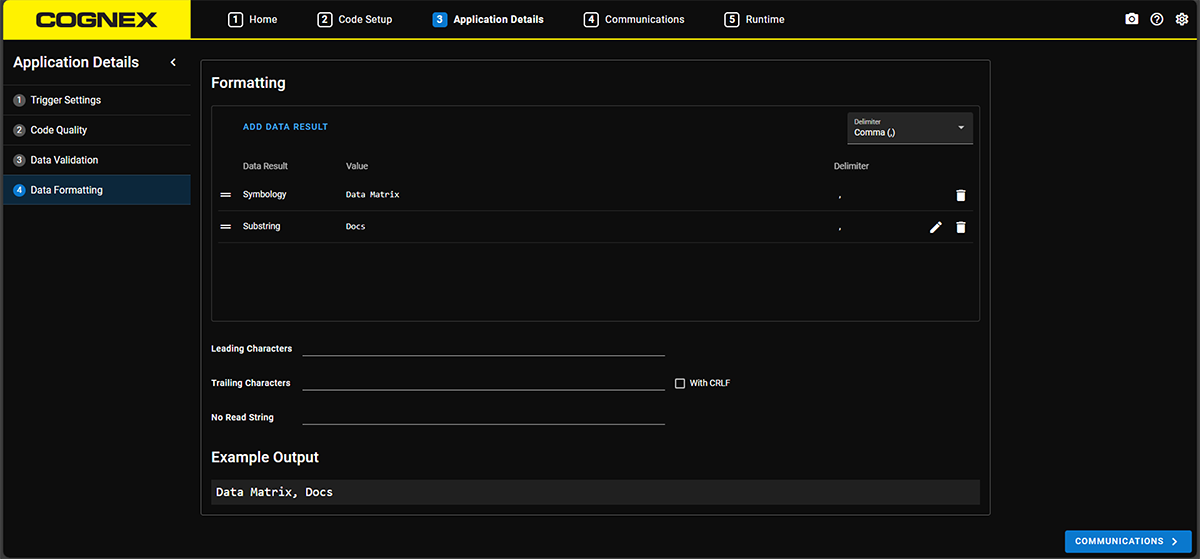
The output string starts with the text you enter in the Leading Character field. It continues with the Data Results you add, in the order you define. Each item is separated by the Delimiter. The output string ends with the text in the Trailing Character field.
To construct the output string:
-
-
Reorder your data by dragging items to their new position.
-
Configure data formatting options that apply to the whole output string.
-
Open the Delimiter dropdown and select what string delimiter you want to use.
-
In the String Options section, define the leading characters, trailing characters, and No Read string you want to use.
-
Make sure to review your final output
The String Options tab contains options that impact that overall output string, such as specifying the Leading Character and the Trailing Character. The reader transmits the No Read String if it cannot read a given code. This can be useful for verifying that the reason you do not see any output is because the reader did not read data.
You have to configure an SNTP server to add timestamps to the output string.
 Data items to construct your output string:
| Category | Data | Description |
| Result | Full string |
All of the characters encoded in the symbol. |
| Sub-string |
A sub-string of the characters encoded in the symbol. You must specify a range for the sub-string when using this data. In Simple mode, you have to provide the index of starting and ending characters to construct the sub-string. In Advanced mode, you can provide a range, such as 1-3,5,8,10-, for selecting the characters from the full string. |
|
| Symbology | The symbology of the decoded symbol. | |
| Formatting | Space |
A space character. |
| CR/LF | Carriage Return with Line Feed. | |
| Tab | A tab character. | |
| Result Details | Symbology Identifier |
The symbology identifier as specified by ISO/IEC 15424:2008. |
| Symbol Size | The size of the symbol in pixels. | |
| Module Size |
The width or height, in pixels, of each module in the symbol. |
|
| Code Position |
The image coordinates of each corner of the decoded symbol. |
|
| Code Center | The image coordinates of the center of the decoded symbol. | |
| Code Orientation | The orientation of the decoded symbol reported in degrees. Clockwise rotations of the decoded symbol are indicated as positive changes in orientation. | |
| Contrast | A value, between 0 and 1, to indicate the total amount of contrast within the decoded symbol. A high value indicates the light and dark modules in the symbol have a wide range of grey values, while a low value indicates the light and dark modules consist of similar grey values. | |
| Unused Error Correction |
The amount of available unused error correction in the symbol. Error correction is a method of reconstructing or replacing data that is lost through symbol damage. A value of 100 is ideal. A 1D symbol always returns -1. |
|
| Metadata | Input string | The received serial or Ethernet input string. |
| Passed Validations | The number of validation attempts the decoded symbol passed. | |
| Failed Validations | The number of validation attempts the decoded symbol failed. | |
| Result source |
The name of the reader. |
|
| Code Quality Grade | The grade that the code receives during validation. | |
| Timing | Decode time | The amount of time, in milliseconds, it took the reader to decode the symbol. This period of time does not include image acquisition, pending image processing, communication time and additional processing such as data formatting. |
| Trigger time |
The amount of time, in milliseconds, that elapses between receiving the trigger and completing the decode operation. |
|
| Filter time |
The duration of filtering in milliseconds. |
|
| Timestamp | Trigger Creation Local Time | The local time when the reader created the trigger. |
| Trigger Creation UTC Time | The UTC time when the reader created the trigger. | |
| Trigger Execution Local Time | The local time when the reader executed the trigger. | |
| Trigger Execution UTC Time | The UTC time when the reader executed the trigger. | |
| Image Acquisition Local Time | The local time when the reader acquired the image of the symbol. | |
| Image Acquisition UTC Time | The UTC time when the reader acquired the image of the symbol. | |
| Subresult Creation Local Time | The local time when the reader created the subresult. | |
| Subresult Creation UTC Time | The UTC time when the reader created the subresult. | |
| Current Local Time | The current local time. | |
| Current UTC Time | The current UTC time. |