You can use DMCC as an application programming interface for integrating a reader into a larger automation system.
You can also use the DataMan SDK (hereafter referred to as SDK). The following sections give detailed information about installing the SDK, its contents, building the SDK sample application, and about the utility source codes provided with the SDK.
The DataMan SDK comprises the SDK binary files and their documentation, along with code sources of some helper utilities and a sample application.
The binary files are available for two platforms: one for Microsoft .Net (PC) and one for Microsoft .Net Compact Framework (CF). The name of each file corresponds to the platform it belongs to (PC/CF). There are two components for each platform, one is the DataMan SDK core itself (Cognex.DataMan.SDK), the other is for discovering available devices to be used with the SDK (Cognex.DataMan.Discovery).
The source codes are provided in the form of complete Microsoft Visual Studio projects. In order to build the SDK sample application, open the sample code’s solution in Microsoft Visual Studio and choose Build solution.
To use the SDK for your own purposes, perform the following steps:
| using Cognex.DataMan.SDK; |
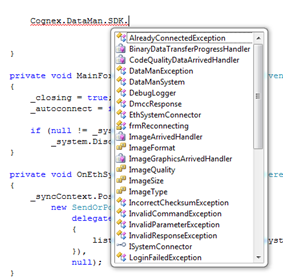
to find the different elements belonging to the SDK in this namespace. They will appear in the intellisense as seen in the following image:
In your project, which already uses the SDK, you’ll need the following additional steps:
| using Cognex.DataMan.Discovery; |
to find the different elements belonging to the SDK in these namespaces. They will appear in the intellisense.
From this point on, you can choose to discover devices either via Ethernet or via serial communication (RS232/USB), or you can choose to do both.
|
EthSystemDiscoverer ethSystemDiscoverer = new EthSystemDiscoverer(); |
|
ethSystemDiscoverer.SystemDiscovered += new EthSystemDiscoverer.SystemDiscoveredHandler(OnEthSystemDiscovered); |
|
SerSystemDiscoverer serSystemDiscoverer = new SerSystemDiscoverer(); |
|
serSystemDiscoverer.SystemDiscovered += new SerSystemDiscoverer.SystemDiscoveredHandler(OnSerSystemDiscovered); |
If you want to react to result-like events in your application, you have to subscribe to the related events. There are also some events related to connection state changes.
Here is an example where you subscribe for the events of read string and image arrival:
| mySystem.XmlResultArrived += new XmlResultArrivedHandler(OnXmlResultArrived); mySystem.ImageArrived += new ImageArrivedHandler(OnImageArrived); |
Connect to your Ethernet device by performing the following steps:
| EthSystemConnector myConn = new EthSystemConnector(deviceIP); |
where deviceIp is either a known IP address or one that was discovered by an EthSystemDiscoverer.
|
myConn.UserName = "admin"; myConn.Password = "password or empty string"; |
| DataManSystem mySystem = new DataManSystem(myConn); |
| mySystem.Connect(); |
| if (mySystem.IsConnected) |
| mySystem.Disconnect(); |
Connect to your serial device by performing the following steps:
| SerSystemConnector myConn = new SerSystemConnector(PortName, Baudrate); |
where PortName and Baudrate are either known serial connection parameters or come from a SerSystemDiscoverer.
| DataManSystem mySystem = new DataManSystem(myConn); |
| mySystem.Connect(); |
| if (mySystem.IsConnected) |
| mySystem.Disconnect(); |
<<<<<<< HEAD
Use SendCommand () for sending different commands to the
Use SendCommand () for sending different commands to the reader. For information about available commands, refer to the DMCC Command Reference.
>>>>>>> 36a43988066563dfbca98eb9262e0328838c0670There is one mandatory parameter for SendCommand () which is the command string itself. There are also two optional parameters: one for overriding the default timeout for the command and another for passing additional bytes with the command.
The following is an example for sending a DMCC command.
| DmccResponse response = mySystem.SendCommand("GET DEVICE.TYPE"); |
Some functions like SendCommand() or GetLiveImage() also have asynchronous implementations. If you wish to use these, look for the desired function name with Begin/End prefix. These functions go in pairs; the function with the Begin prefix returns an IAsyncResult which can be used by the one with the End prefix.
To have static images displayed, use DataManSystem.GetLastReadImage () or subscribe for the event ImageArrived to get images.
To have live images displayed, perform the following steps:
| mySystem.SendCommand("SET LIVEIMG.MODE 2"); |
| mySystem.GetLiveImage(ImageFormat, ImageSize, ImageQuality); |
See an example implementation in the source of the Sample application. In the example, a new polling thread is created to avoid locking the GUI.
To turn off live display mode, use
| mySystem.SendCommand("SET LIVEIMG.MODE 0") |
Some helper functions are provided as source codes with the SDK in the project called DataManUtils. Some of the main features are described below.
Provides functions for image manipulation like fitting a result image into a specified control, converting bitmap data to/from a byte array, and so on.
Additional classes provide SVG helpers for image parsing and SVG rendering. SVG formatted result component is used by the reader to mark the area of the image where the code was detected.
The order of result components may not always be the same. For example sometimes the XML result arrives first, sometimes the image. This issue can be overcome by using the ResultCollector.
The user needs to specify what makes a result complete (e.g. it consists of an image, an SVG graphic and an xml read result) and subscribe to ResultCollector’s ComplexResultArrived event.
The ResultCollector waits for the result components. If a result is complete, a ComplexResultArrived event is fired. If a result is not complete but it times out (time out value can be set via the ResultTimeOut property) or the ResultCollector’s buffer is full (buffer length can be set via the ResultCacheLength property), then a PartialResultDropped event is fired. Both events provide the available result components in their event argument, which can be used to process the complex result (e.g. maintain result history, show the image, graphic and result string, and so on.)
Can be used to escape or un-escape a DMCC command string.
Simple logger class can be used during development. This, like all other utilities provided here, works both on PC and CF platforms.
The helper utilities are contained in two projects. Both projects refer to the same source codes, but one is created for Microsoft .Net Compact Framework (DataManUtilsCF) and the other of for the PC’s Microsoft .Net Framework (DataManUtilsPC). To use the features provided in these utilities, include the proper DataManUtils project in your solution and reference it in the project in which you wish to use it.