DM282 LED Configurations
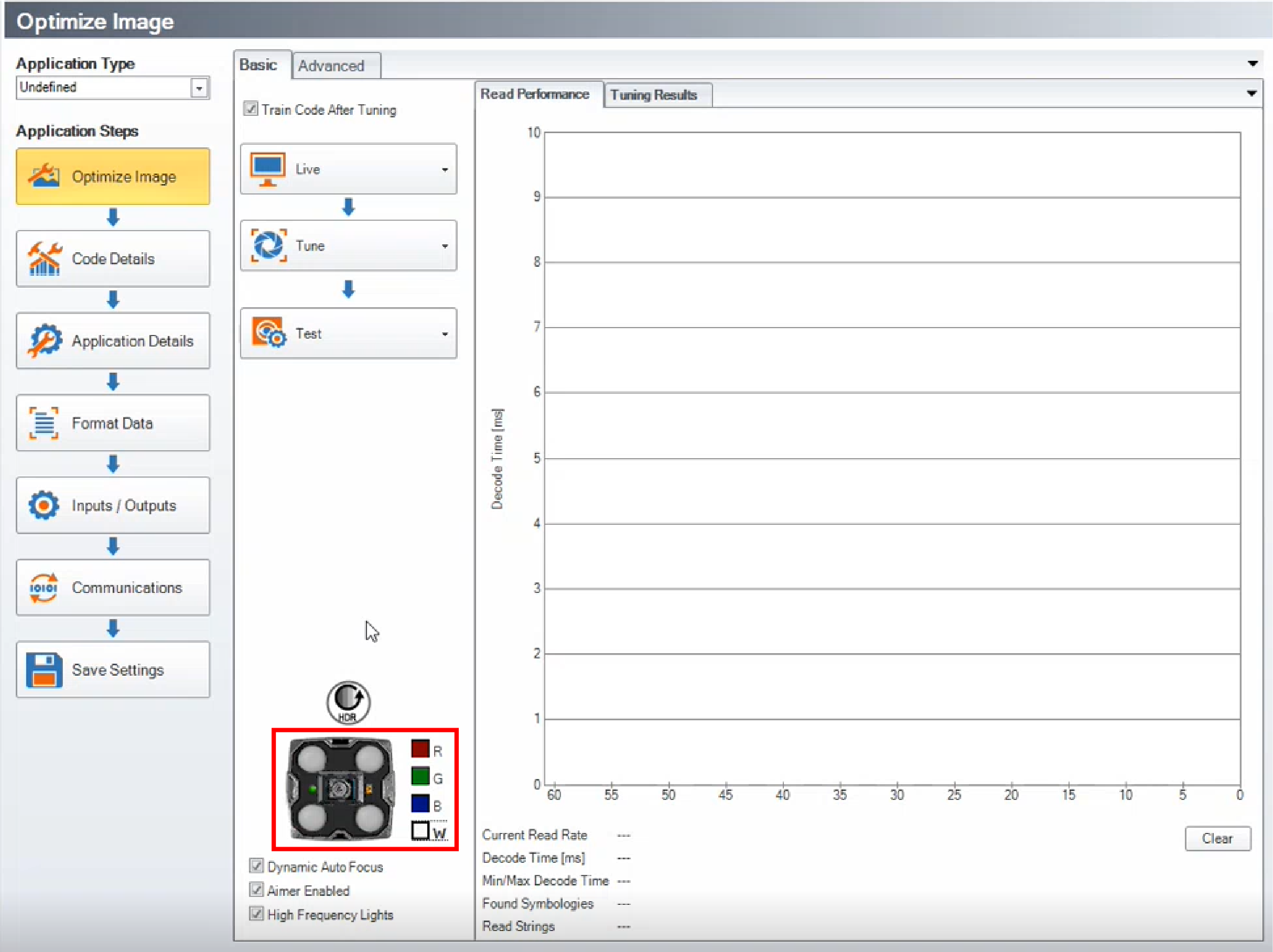
In the DataMan Setup Tool, you can control the primary illumination color of the LED lights of the reader in the Optimize Image tab. The default color is red.
The following colors are available:
- Red
- Green
- Blue
- White
To change the color of the LEDs, click on one of the color icons:
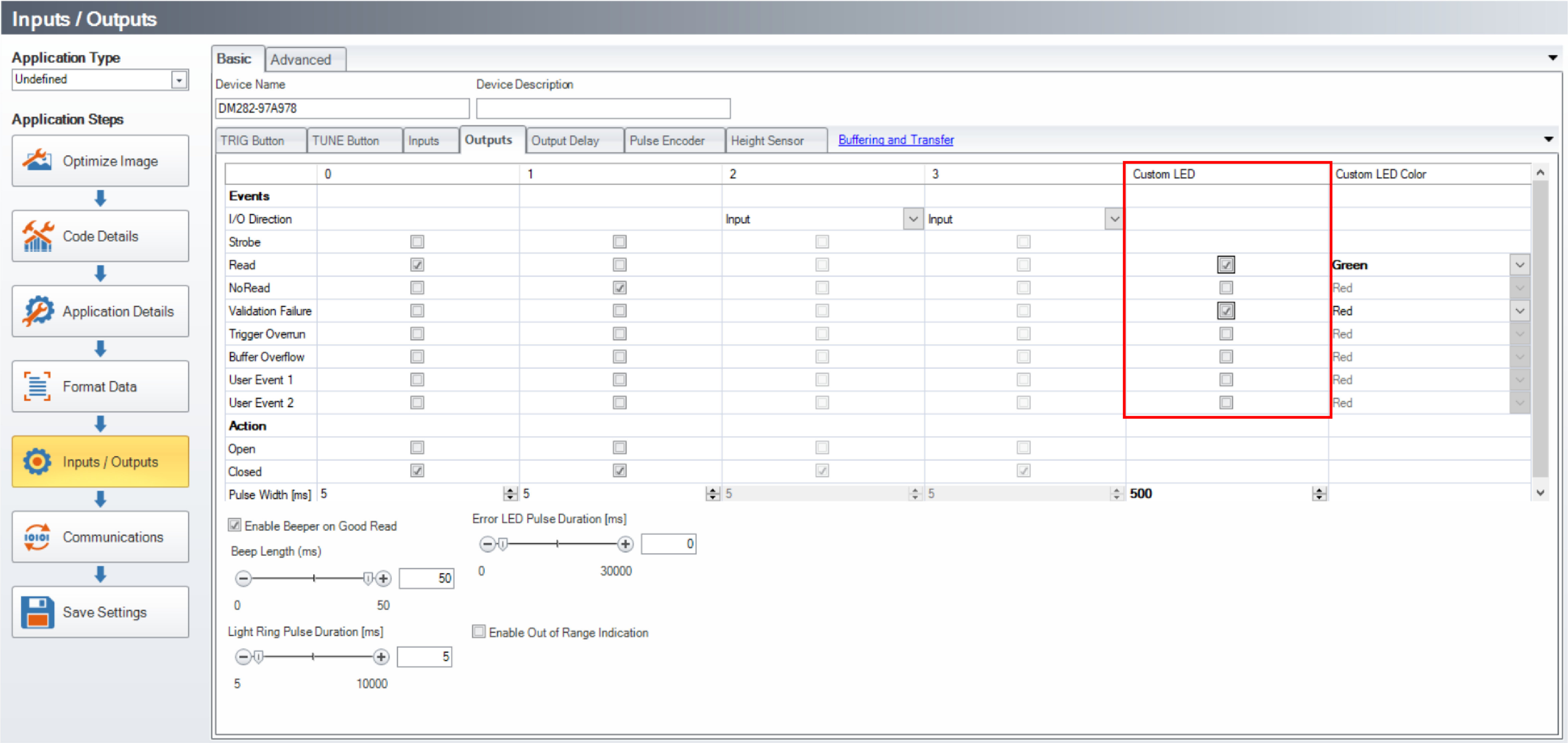
In the Inputs / Outputs pane, you can assign a LED color for the input/output events. For example, you can set a color for a successful read and set a different color for an unsuccessful read.
-
Check the Custom Indicator LED checkbox.
-
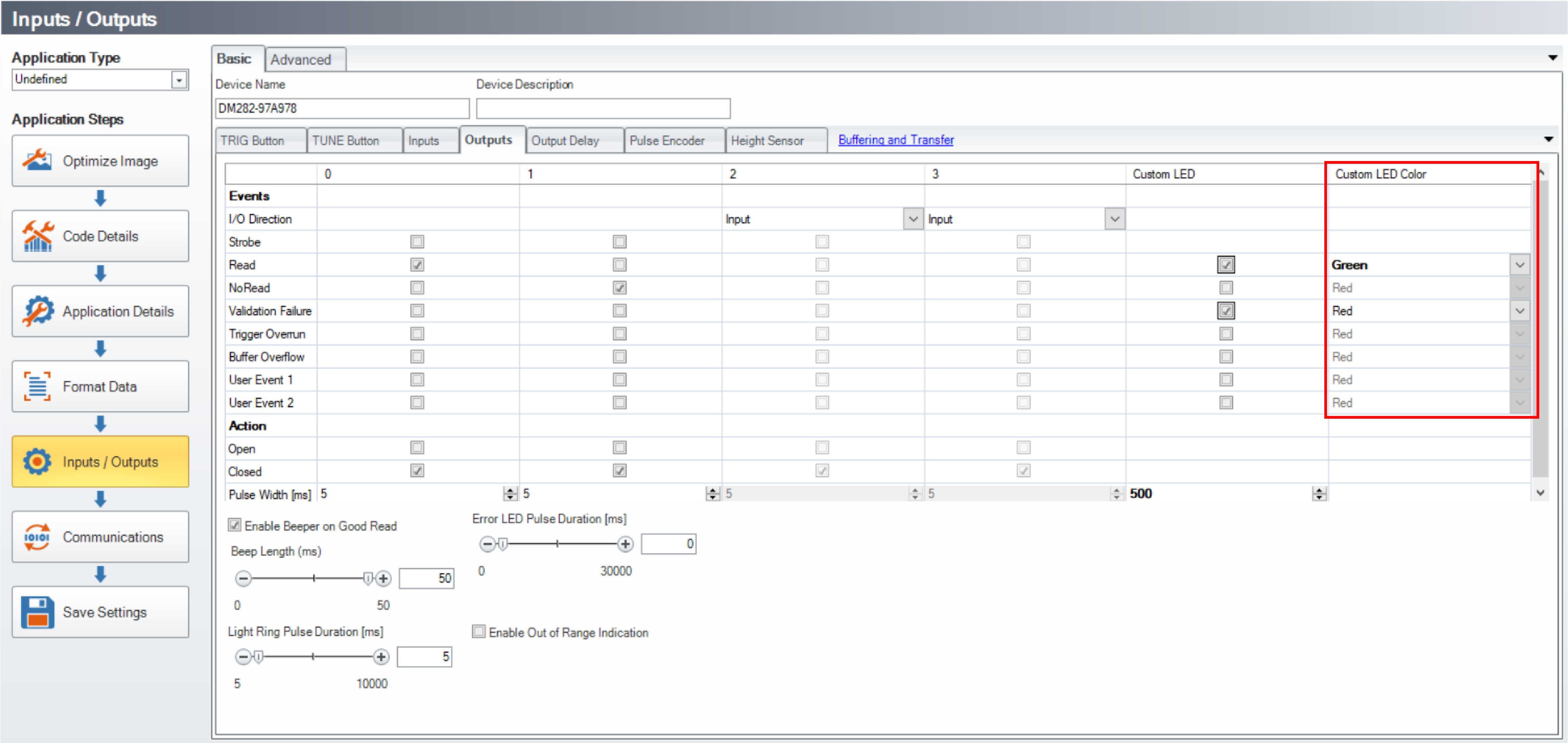
Pick a custom LED color in the Custom LED Color Selector column.
 Note:
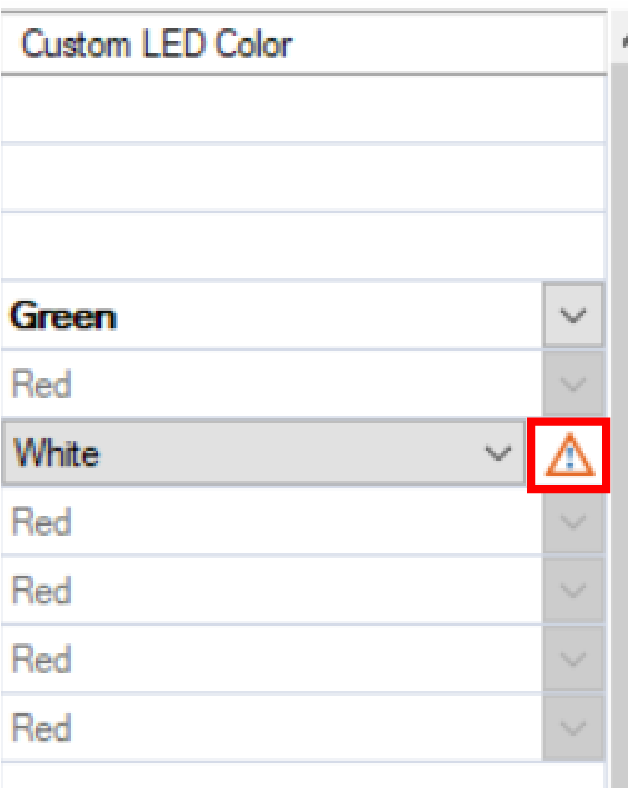
Note:If you choose the same color for the primary illumination and for the custom inputs/outputs LED, a warning appears next to the custom color. In this case, you either have to choose a different primary illumination color, or choose a different custom LED color for the inputs/outputs events.