Display VisionPro Tool Records
Cognex Designer automatically creates tags for all VisionPro tool records. These records are created after the first execution of a VisionPro Tool Block, and the tags are named using the following format:
$Tasks.{TaskName}.{TaskName}.{BlockName}.{RecordName} (for example: $Tasks.Task.Task.FindBlobs.BlobTool.BlobImage)
Note: In order for the dynamic tag to be created, the Tool Blocks in the Task must be run first.
To display and select VisionPro Tool Block records:
- With a Page open, expand the Page Vision Controls and Displays node of the Toolbox, and drag and drop a VisionPro Display onto the Page.
-
Select the VisionPro Display Subject parameter and press the grey dot to launch the Expression Builder and bind the display to a record.
Note: Please see the Binding Properties topic for more information on binding a Page parameter to a tag. - In the Expression Builder, press the Add Tag button, and from the Tags Window, navigate to the appropriate record and click Accept.
- Test the project and ensure that the correct tool record is being displayed.
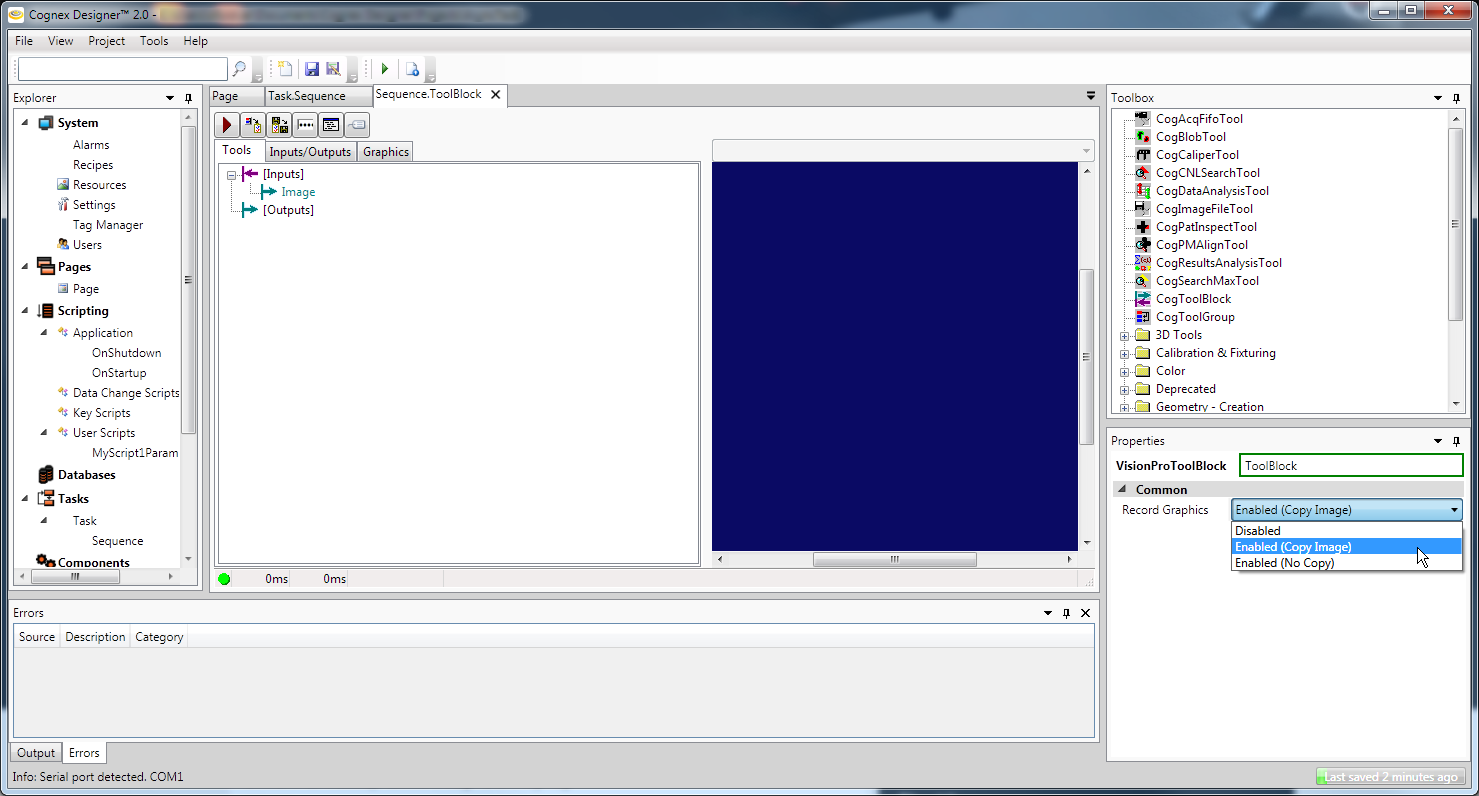
Each tool block has an additional property (Record Graphics) for the user to customize the behavior (Enabled (Copy Image) by default).
- Disabled - This disables the creation of the record tags. This will reduce processing time if the user does not need to display any records from the tool block.
- Enabled (Copy Image) - Cognex Designer 1.0 behavior. Each record has a copied instance of the image. This ensures safe behavior into multi-threading scenarios. Slightly lower performance due to copy.
- Enabled (No Copy) - Can cause issues in multi-threaded scenarios; only use this if this tool block is the last block in the Task.