VisionPro Tool Blocks
Cognex Designer supports the addition of VisionPro CogToolBlocks to a Task. This allows users to include the image processing and vision algorithms as part of the Task.
- This topic assumes that Cameras have been added and configured to pass images to the Tool Block.
- A VisionPro Tool Block saved in a Designer project will not contain the input image. They are saved using the VisionPro serializer, using the CogSerializationOptionsConstants.Minimum parameter.
- To add a VisionPro CogToolBlock to a Task, go to the Toolbox and expand the Vision > VisionPro category.
-
Drag and drop the Tool Block onto the Task, where it becomes a VisionPro Tool Block. By default, the Tool Block has a single input pin, which can be linked to compatible Reference Blocks, such as a Camera Reference Block, or other Tool Blocks. The linked block should provide the image that will be processed.
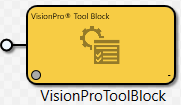
- After linking the Tool Block, press the
 Run button to execute the Task and force the Tool Block to execute and acquire an image.
 - Double-click the Tool Block to open the Designer Tool Block, which will open in a new tab beside the Task.
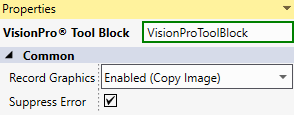
By default a VisionPro Tool Block will suppress the errors it encounters. This means that it will never trigger its Task's OnError script and won't stop the Task from running if triggered manually. The Suppress Error box can be unticked to enable this behaviour.