Enabling or Disabling Optional Plugins for Existing Projects
Perform the following steps to enable optional plugins for an existing project:
- Launch Cognex Designer, and click the blue Utilities ribbon in the Cognex Designer Launch Page to display the available utilities.
- Click the Project Plugin Configurator button to launch the Project Plugin Configurator dialog.
-
The Project Plugin Configurator dialog appears, along with a browse dialog. Use the latter to browse and select the *.cdp project file of the project you wish to enable the plugins for. For example, if you have a project called CircuitCheck, browse the CircuitCheck directory, and select the CircuitCheck.cdp file, as seen below.
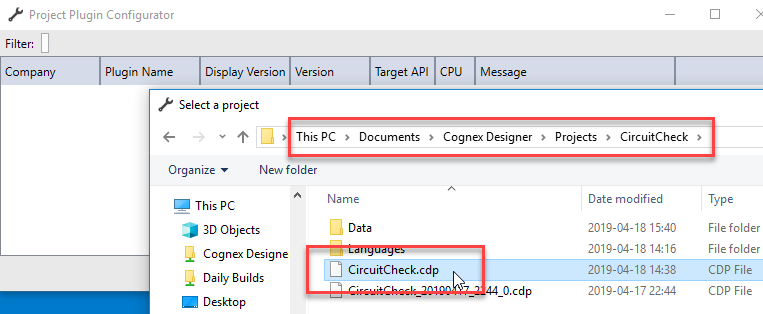
Click Open when you are done.
Tip:- By default, Cognex Designer saves projects into the \Documents\Cognex Designer\Projects folder. The name of the project folder is the same as the project name specified in Cognex Designer.
- In case the project you want to enable/disable plugins for is listed in the Recent Projects window of the Cognex Designer Launch Page, select it there before clicking the Project Plugin Configurator button. That way, the utility opens the browse dialog with the project's folder already open in it.
-
The Project Plugin Configurator dialog then gets populated with the list of installed plugins, with the checkboxes on the left indicating whether they are enabled or disabled in the selected project.
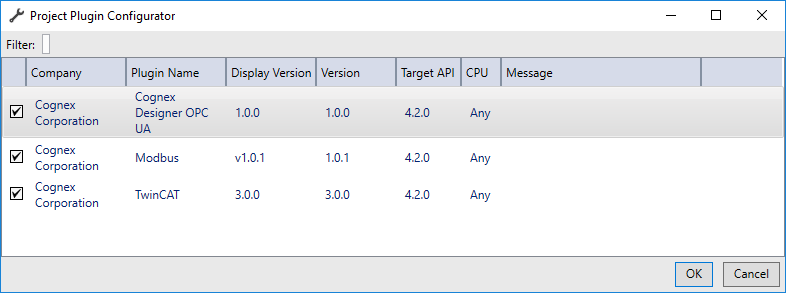
Use the checkboxes to enable or disable compatible plugins in the project as you need.
Tip: Cognex recommends removing all plugin-related Devices or Task Blocks from the project before disabling a previously enabled optional plugin. Failure to do so may result in unpredictable behavior when opening the affected project. -
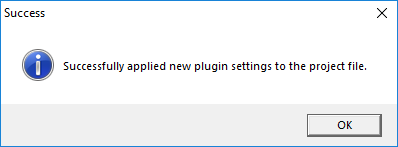
Once you are done, click OK to apply the changes. A backup of the project is created, and if the plugin settings were changed successfully, the Successfully applied new plugin settings to the project file message appears. Click OK again to close the message and the Project Plugin Configurator dialog.
See the Project Plugin Configurator topic for more information on how to use the utility.