Configure a TwinCAT Device
Perform the following steps to configure a TwinCAT client device.
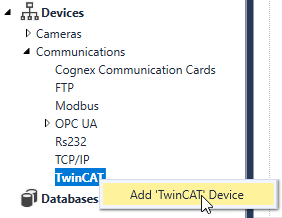
- In the Project Explorer, search for the Devices > Communications >TwinCAT node.
-
Right-click the TwinCAT node, and then left-click Add 'TwinCAT' Device.
-
The Parameter Configuration dialog appears.
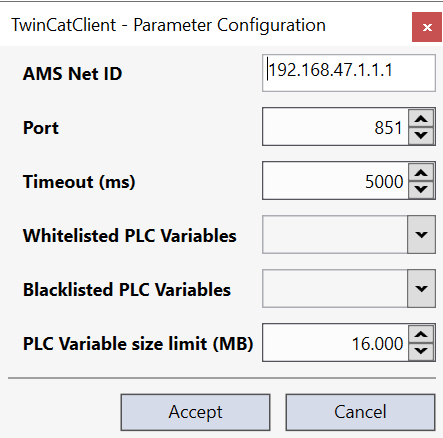
Fill the available properties as applicable.
Property Description AMS Net ID Specifies the identifier of the TwinCAT PC or bus controller you want to connect. The ID consists of the TCP/IP of the TwinCAT device plus the suffix .1.1. Port Specifies the port of the TwinCAT system that the configured TwinCAT client device will try to connect to. Set its value as follows:
- In case of TwinCAT 2, use the following ports:
- 801 for RuntimeSystem 1
- 811 for RuntimeSystem 2
- 821 for RuntimeSystem 3
- 831 for RuntimeSystem 4.
- In case of TwinCAT 3, use the following ports:
- 851 for RuntimeSystem 1
- 852 for RuntimeSystem 2
- 853 for RuntimeSystem 3
- 854 for RuntimeSystem 4, and so on.
Timeout (ms) Specifies the timeout threshold of the TwinCAT connection in milliseconds. The default value is 5000. Whitelisted PLC Variables Specify the PLC variables that Designer should load to this device's tag structure:
- If this list is left empty then all PLC variables are loaded by default.
- Each entry in the list needs to follow the <PROGRAM>.<TwinCat_PLCVariableName> format, where <PROGRAM> is the name of the PLC program that contains the variable and <TwinCat_PLCVariableName> is the name of the PLC variable e.g. MAIN.myInt
Blacklisted PLC Variables Specify the PLC variables that Designer should NOT load to this device's tag structure:
-
Each entry in the list needs to follow the <PROGRAM>.<TwinCat_PLCVariableName> format, where <PROGRAM> is the name of the PLC program that contains the variable and <TwinCat_PLCVariableName> is the name of the PLC variable e.g. GVL.myGlobalVariable
-
If an entry is present on both the Whitelisted PLC Variables and Blacklisted PLC Variables, then the whitelist will take precedence.
PLC Variable size limit (MB) Configurable setting that specifies the size limit (in MB) of PLC variables that will be loaded into Designer by the TwinCAT client device.
Any PLC variable with a size beyond this specified limit will be blacklisted and not loaded into Designer, unless explicitly added to the Whitelisted PLC Variables.
- In case of TwinCAT 2, use the following ports:
- Click Accept once all properties have been configured.
Once you are done, the configured TwinCAT client device automatically goes online with the configured properties, and becomes ready to read/write specified variables either through Tags or by the published TwinCAT $ functions. Successful connection is indicated with the  icon, while connection problems are shown with
  . In case of issues, see the Output window for diagnostics information.
You can quickly check the ADS state of the TwinCAT PLC you connected to by hovering the mouse cursor over the TwinCAT device in the Project Explorer, and checking the AdsState row of the tooltip, as shown below.
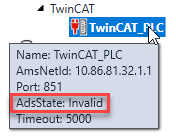
The ADS state of the TwinCAT PLC you connected to is also published with the $Devices.<TwinCAT_Device_Name>.AdsState tag, allowing you to observe the ADS state changes of the TwinCAT device.