A5000 Devices
As of release 4.1.0, Cognex Designer supports the A5000 device type.
Adding an A5000 Device
To add a A5000 device and configure it for image acquisition in conjunction with VisionPro, do the following:
- In the Explorer pane, click Devices > Cameras.
- Right-click Cameras.
- Select Add > A5000 Device.
- In the Parameter Configuration dialog box, enter the following.
- Assign a Name to the A5000 Device you are configuring.
- Select the Camera you are configuring.
- Select the Video Format you will use when acquiring images, either Mono or Mono16 Generic GigEVision. See your VisionPro documentation for more information on these formats.
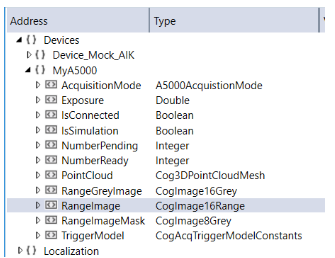
- Select your AcquistionMode, for example PointCloud. When you open Tag Manager and browse for your device, you will see a variety of new tags available for usage.
Note: Changing Acquisition Mode may cause existing links to break. Delete and redefine these links using parameters compatible with the A5000 Device. See your hardware or A5000 device software documentation for further information.
WARNING: The AcquisitionMode tag is read-only and can only be changed in the IDE. Altering the Acquisition Mode inside of VisionPro Custom Properties tab, will result in Designer going out of sync and may result in the Acquisition block failing.
No image recording or simulation is currently available.