Bend Points for Task Editor
Decrease the size and complexity of your task layouts while also increasing their usability by using bend points in your block connectors.
Using bend points, you graphically introduce flexibility to your block placement by bending and compacting your connector lines, enabling you to show more in a smaller space.
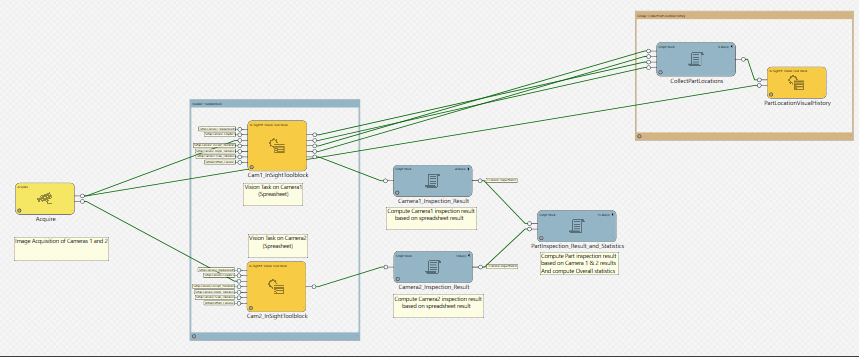
Task Layout not using Bend Points. Note the crossed connectors, crowded placement, and wasted space.
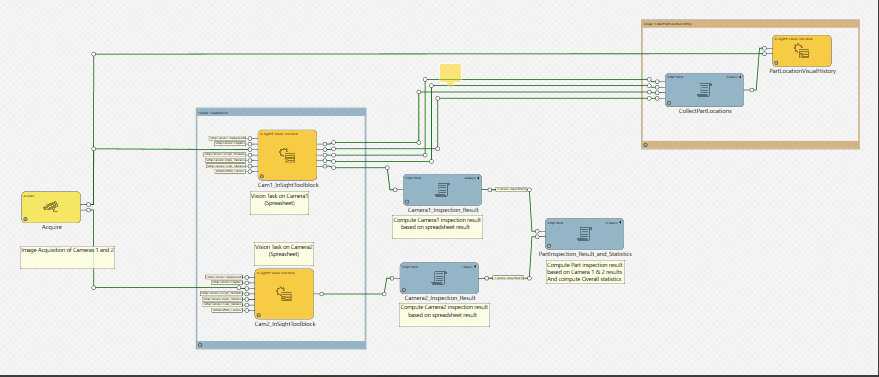
Task Layout using Bend Points. Note the traceable connectors, compact placement, and increased readability.
Add a Bend Point
Add a bend point to a connector by doing the following:
- Create a connector between two or more blocks.
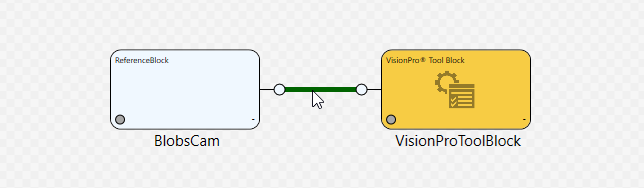
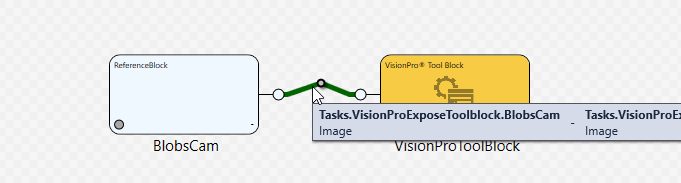
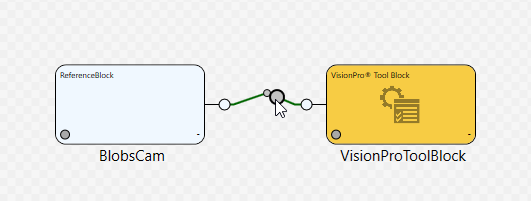
- Hover your mouse over the connector until the line appears to thicken.
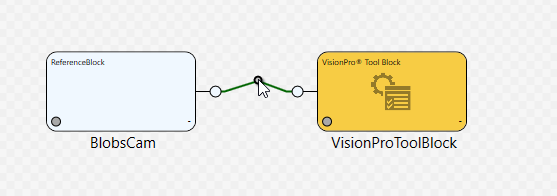
- Click on the connector while holding down the CTRL key and move the mouse up or down, creating a bend point in the connector. A small circle appears at the bend point.
Add a Bend Point to an Existing Bend Point
- Follow the steps in the procedure Add a Bend Point, above, to add a bend point to a connector.
- Select the circle marking the bend point you created.
- Hover your mouse over the connector. The connector appears to thicken.
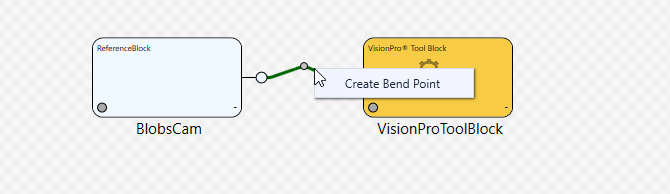
- Right-click. A context menu appears with the menu item Create Bend Point.
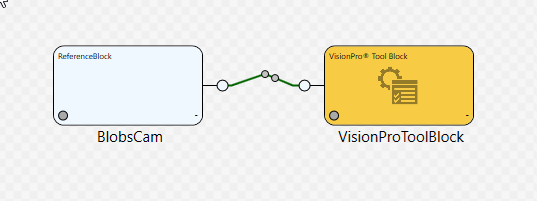
- Select Create Bend Point. A second bend point is created, adjacent to the first bend point.
Remove Select Bend Points
Remove select bend points from a connector by doing the following:
- Hover your mouse over the circle marking the bend point you want to delete. The circle gets larger as you hover your mouse over it.
- Right-click on the circle marking the bend point you want to delete. The context menu appears.
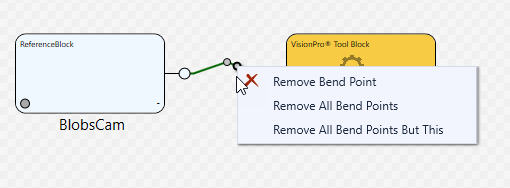
- Select Remove Bend Point. The selected bend point is deleted.
Remove All Bend Points from a Connector
Remove all existing bend points from a connector by doing the following:
- Hover your mouse over one of the bend points on the connector that you want to delete. The circle marking the bend point gets larger as you hover your mouse over it.
- Right-click on the circle marking the bend point. The context menu appears.
- Select Remove All Bend Points. All bend points on the connector are deleted.
Remove All Bend Points But One from a Connector
Remove only select bend points from a connector by doing the following:
- Hover your mouse over the circle marking the bend point you do not want to delete. The circle gets larger as you hover your mouse over it.
- Right-click on the circle marking the bend point you do not want to delete. The context menu appears.
- Select Remove All Bend Points But This. All bend points on the connector, with the exception of the bend point you clicked, are deleted.