Edit a Pattern During Runtime
This topic covers how to edit a pattern for a CogPMAlignTool during Runtime, without using a VisionPro Tool Editor or a VisionPro ToolBlock Editor. This example references a Task with a single Task, with a Camera Device and a VisionPro Tool Blocks, and a single Page, with a VisionPro Display and two Button elements, all using their default names.
-
Configure the Task.
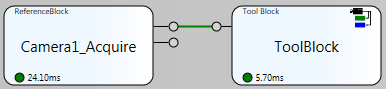
- Add a Camera Device (named Camera1) connected to a VisionPro Tool Block.
- Within the VisionPro Tool Block, add and configure a CogPMAlignTool.
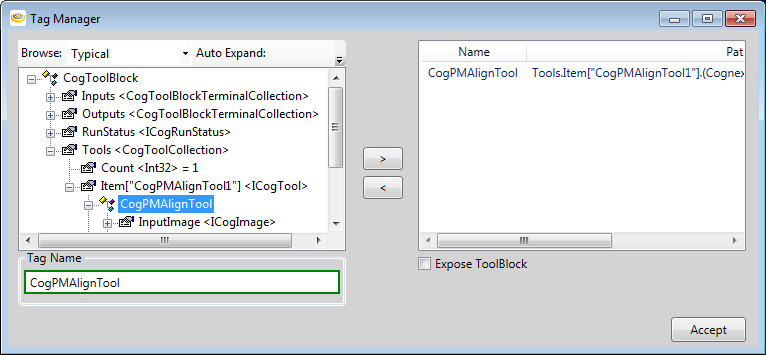
- From the VisionPro Tool Block, press the Edit Tags button and add the CogPMAlignTool as a tag (CogToolBlock > Tools > Item > CogPMAlignTool).
- Execute the Task.
-
Construct the Page.
- In the Page, add a VisionPro Display and configure the Subject property to the Input Image of the CogPMAlignTool (e.g. $Tasks.Task.Task.ToolBlock.LastRun.CogPMAlignTool1.InputImage).
- Add a Button, and for the Name property use "StartTrainButton" and for the Text property enter "Start Train".
- Right-click on the Button element, and from Scripts select On Mouse Click.
- In the On Mouse Click script properties, add Cognex.VisionPro.PMAlign and Cognex.VisionPro to the Using statements.
-
Add the following as References:
- Cognex.VisionPro.Controls.dll
- Cognex.VisionPro.Display.Controls.dll
- Cognex.VisionPro.PMAlign.dll
- Cognex.VisionPro.ToolGroup.dll
- System.Windows.Forms.dll
-
In the Script Editor, use the following script:
// Get the CogPMAlignTool from the VisionPro Tool Block
CogPMAlignTool patternTool = $Tasks.Task.Task.ToolBlock.CogPMAlignTool;

// Set the Train Image to the current image
patternTool.Pattern.TrainImage = $Devices.Camera1.Image;

// Generate the records for the tool
ICogRecord currentRecord = patternTool.CreateCurrentRecord();

// Retrieve the TrainImage record, which will include the rectangle and handles, so the user may edit
currentRecord = currentRecord.SubRecords["TrainImage"];

// Get the VisionPro Display control, and set its record
CogRecordDisplay display = (CogRecordDisplay)$System.GetInternalObject("Pages.Page.VisionProDisplay");
display.Record = currentRecord;
- Add a second Button, and for the Name property use "EndTrainButton" and for the Text property enter "End Train".
- Right-click on the Button element, and from Scripts select On Mouse Click.
- In the On Mouse Click script properties, add Cognex.VisionPro.PMAlign and Cognex.VisionPro to the Using statements.
-
Add the following as References:
- Cognex.VisionPro.PMAlign.dll
- Cognex.VisionPro.ToolGroup.dll
-
In the Script Editor, use the following script:
// Get the Pattern Tool
CogPMAlignTool patternTool = $Tasks.Task.Task.ToolBlock.CogPMAlignTool;

// Train the pattern
patternTool.Pattern.Train();
-
Enter Test Mode.
- Press the Start Train button to configure the pattern training region.
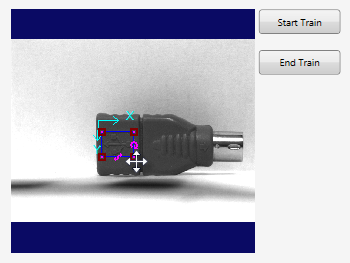
- Press the End Train button once you've properly configured the training region and you want to save the newly trained pattern.