VisionPro Tool Block Graphics Options
Each VisionPro Tool Block can be configured to disable or enable the Record Graphics and Composite Graphics. For the best performance at runtime, Cognex recommends disabling both Record Graphics and Composite Graphics.
Record Graphics
To edit the Record Graphics setting for a VisionPro Tool Block, double-click the Tool Block and select the appropriate option from the drop-down menu in the Properties window:
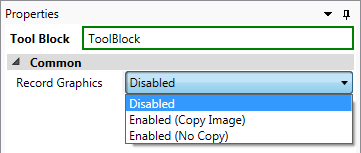
The time to create a record is not indicated in the CogToolBlock Edit Control or RunStatus.TotalTime, unless the edit control is open and the Show Composite Graphics checkbox is enabled. If performance is a concern, choose Disabled, because when one of the Enabled options is selected, it may cause the following:
- A record may need to duplicate the input image;
- A record may need to perform complex, and time-consuming, drawing functions on an image (e.g. drawing boundaries around a blob);
- A record executes on the UI thread, so timings may be unpredicatable.
| Setting | Description |
|---|---|
| Disabled |
For the best runtime performance of the Tool Block, disable the setting. Sample Time: ~25ms |
| Enabled (Copy Image) |
Choose this option if you want to display the record and/or perform post-processing on different threads. Sample Time: ~70ms |
| Enabled (No Copy) |
Choose this option if you want to use the record for further processing on the same thread. Sample Time: ~60ms |
Composite Graphics
To edit the Composite Graphics setting for a VisionPro Tool Block, double-click the Tool Block and select the Graphics tab of the CogToolBlock Edit Control.
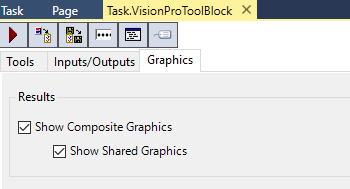
When the project is deployed, for the best performance, disable Show Composite Graphics, because when enabled, it will force the Create Records function to run (see the above table for the approximate impact to the Tool Block execution when enabled).
Merge Graphics
To merge images from multiple VisionPro tool block graphics into a single CogRecord, use the Merge Graphics block.
Supported Source Images and Graphics
Merge Graphics is supported for the following image formats:
- ICogImage objects contained within block output pins
- VisionPro Tool Block Graphics
- ICogGraphic and CogGraphicCollection objects contained within ICogRecord block output pins
- Source images and graphics in SubTasks
Consolidating Graphics with the Merge Graphics Block
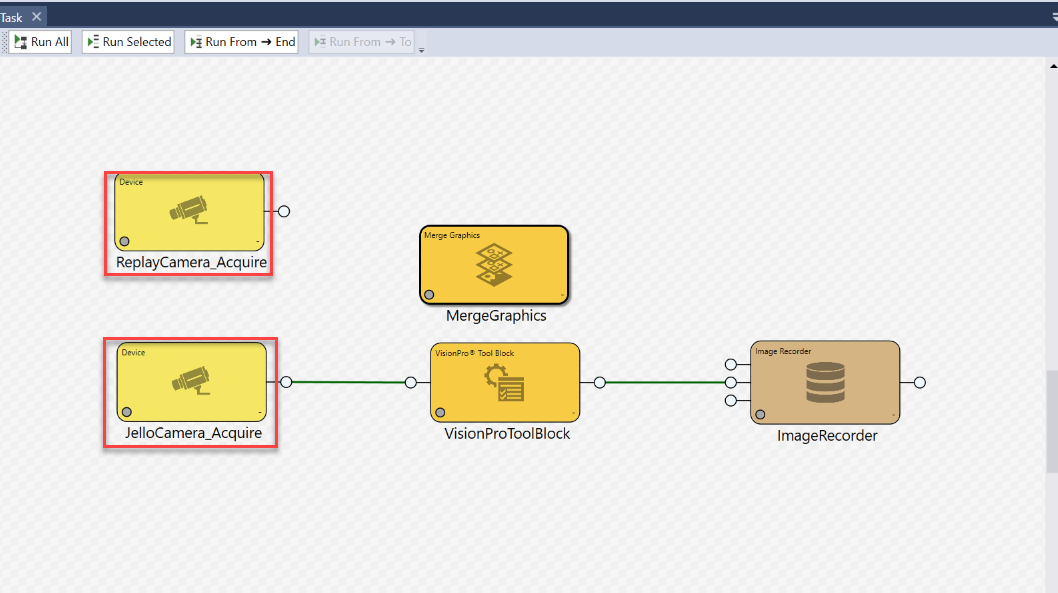
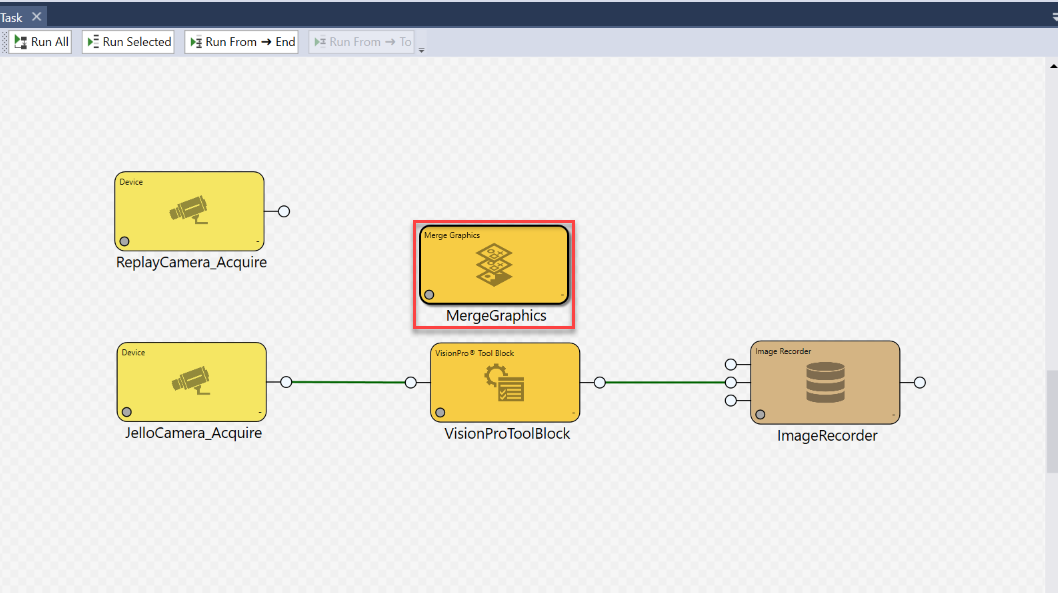
Suppose you have acquired images from two different sources, defined to two blocks, JelloCam_Acquire and ReplayCamera_Acquire.
- In the upper-right corner of the Cognex Designer interface, select the Toolbox tab.
- From the Toolbox, select Vision > Merge Graphics and drag the Merge Graphics tool block into your Task window.
- In the Task window, select the MergeGraphics block and double-click it. The Merge Graphics Configuration Window opens.
- From the Selectable Images, select the images you want to consolidate. When an image is able to be consolidated, it is listed in the Selected Graphics area and an image preview also appears in the Consolidate Graphics Preview area of the Merge Graphics Configuration Window.
-
Click Accept to consolidate the selected images and graphics into a single CogRecord, which is saved as a Property of the MergeGraphic block. The consolidated graphic is accessed as a tag with the following name structure: $Tasks.[PathToMergeGraphicBlock].[NameOfMergeGraphicBlock].Record (for example, $Tasks.MergeGraphics_Task.MyMergeBlock.Record.
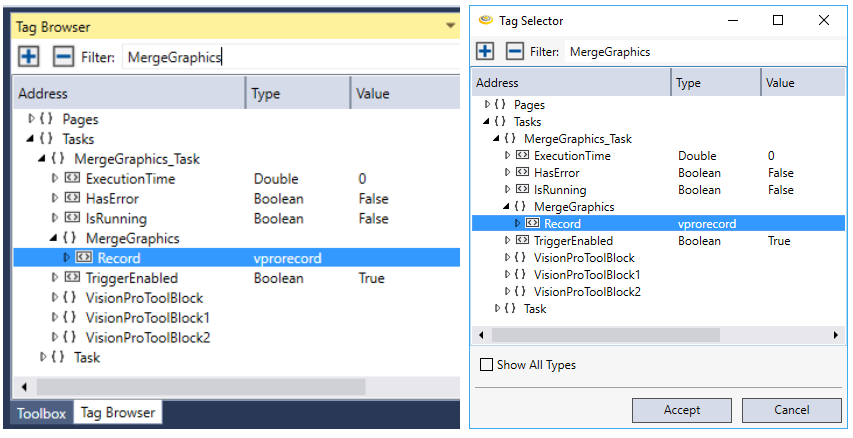
When a Task containing the MergeGraphics block is run, the consolidated graphic and subsequent tag are automatically updated.
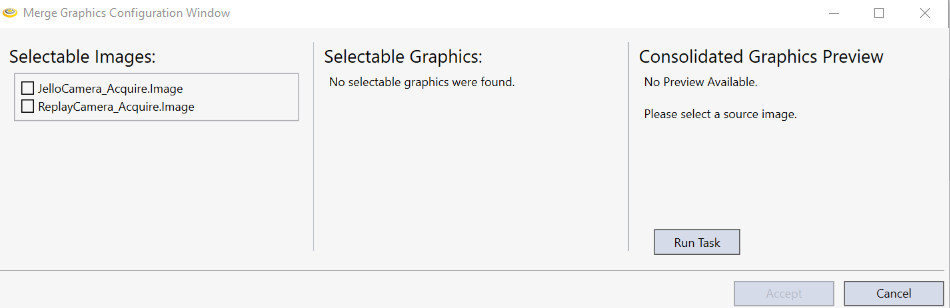
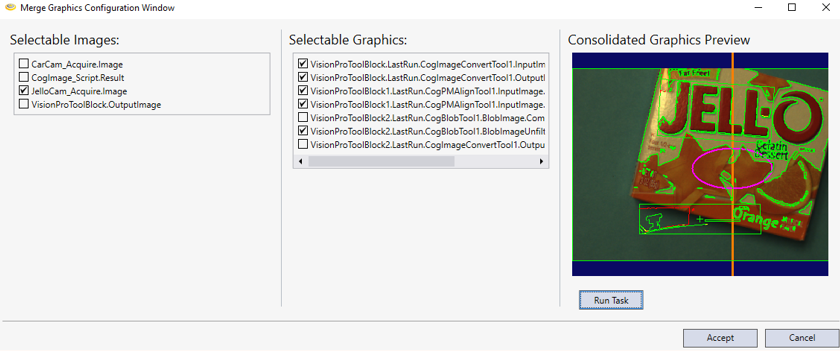
If a MergeGraphic block contains a previously saved consolidated graphic, then the configuration window opens with the saved image and graphics preselected. The preview is only generated and displayed if it is available. From the Consolidation Window, click Run Task to execute the task a single time without having to close the configuration window and run the task from the Task editor.
Binding Consolidated Graphics to Displays
As you would with any object you wanted to present on a WPF or WebHMI display, bind the MergeGraphics record by its tag to the display.