Modbus Server Device
The Modbus Server device represents a server-role device connection, according to the Modbus Protocol terminology. A Modbus Server device does not initiate communication with other Modbus Devices, but stores data that is accessible locally and remotely through Modbus Client devices. A Modbus Server device can accept requests from multiple Modbus Client devices simultaneously.
You can create a Modbus Server device as follows:
-
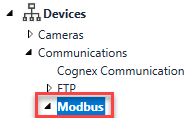
In the Project Explorer, search for the Devices > Communications > Modbus node.
-
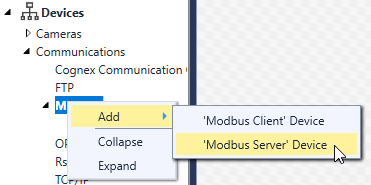
Right-click on the Modbus node, and select the Add > 'Modbus Server' Device option, as shown below.
-
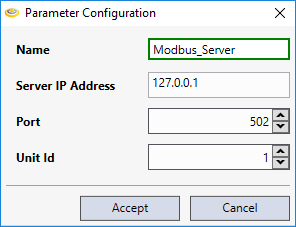
The Parameter Configuration dialog appears, allowing you to configure the properties of the server. These are listed below in the next step.
-
Configure the properties according to their description:
Parameter Type Description Name String The name used to list the Modbus Server device in the Project Explorer. Server IP Address String The host name or IP address (in standard IPv4 format) of the Modbus Server device. The default value is 127.0.0.1 (localhost).
Tip: Cognex recommends setting an IP address for the Modbus Server in this setting if you have multiple network cards, or you want to specify a server address that will be valid in another environment as well. When using an IP address, you can select which one of your local network interfaces to use.Port Integer The port on which the Modbus Server device listens. The default value is 502 (which is the standard Modbus communication port) Unit Id Integer The Modbus Unit Identifier of the Server. The available value range is 1 – 247, while the default it is 1. -
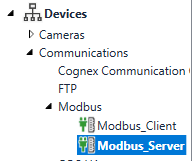
Once you are done, the newly-configured Modbus Server device will appear under the Modbus node, as shown below.
 Note: Unlike cameras and image file devices, the Modbus Server Device is not listed in the Toolbox window of the Task Editor. It is only listed in the Project Explorer.
When the Modbus Server device is created, it automatically starts listening on the specified port. If the specified port is already occupied by another device, you receive an error message, and the new device will not be established. After successfully creating a Modbus Server, it stays connected as long as you do not change the value of its Server IP Address or Port properties.
In case you need to edit the properties of the Modbus Server device later, right-click on the device in the Project Explorer, and click the Reconnect option. The Connection Properties dialog then appears, allowing you to modify the Server IP Address, Port and Unit Id properties of the Modbus Server.
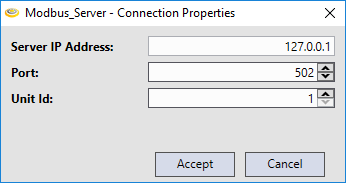
Note that if the Server IP Address or Port property is modified in the dialog, then the Modbus Server device stops and restarts with the new properties.
- The Modbus Server device does not support Devices simulation, nor the Cognex Designer Internal Object API.
- Although Modbus Client devices automatically detect Modbus Server devices right after the connection is set up, actual Modbus communication (including IO operations through Modbus Client devices initiated by Scripting, Task Blocks, or bound Tags) will only be performed in Test Mode or when the project is deployed.
-
The Modbus Server device affects the Project Verification and Tags Search features of Cognex Designer. In case a tag that was bound to the Modbus Servers storage gets deleted, Cognex Designer will generate an error during project verification.
-
Similar to the HMI bindings, tag associations are also found by Tags Search when you try to find the references for a tag.