Modbus Client Device
The Modbus Client device represents a client-role device connection, according to the Modbus Protocol terminology. A Modbus Client device does not store data, but it can poll and write the data of a connected Modbus Server device.
Create a Modbus Client device as follows:
-
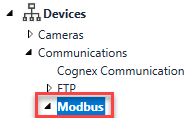
In the Project Explorer, search for the Devices > Communications > Modbus node.
-
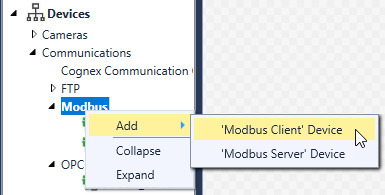
Right-click on the Modbus node, and select the Add > 'Modbus Client' Device option, as shown below.
-
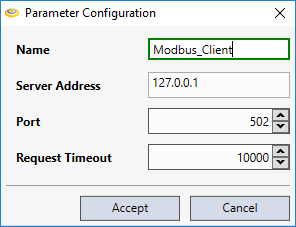
The Parameter Configuration dialog appears, allowing you to configure the name of the client and the define the information of the Modbus Server device that the Modbus Client will poll and write.
-
Configure the properties according to their description:
Parameter Type Description Name String The name used to list the Modbus Client device in the Project Explorer. Server Address String The host name or IP address (in standard IPv4 format) of the Modbus Server device you want to poll or write with the currently configured client device. The default value is 127.0.0.1 (localhost). Port Integer The port on which the Modbus Server device listens. The default value is 502 (which is the standard Modbus communication port) Request Timeout Integer The timeout in milliseconds for server requests. If no response is received for a request within the specified time interval, the configured Modbus Client hangs up the request and warns the user. The default value is 10000 ms. -
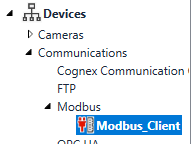
Once you are done, the newly-configured Modbus Client device will appear under the Modbus node, as shown below.
 Note: Unlike cameras and image file devices, the Modbus Client Device is not listed in the Toolbox window of the Task Editor. It is only listed in the Project Explorer.
The icon of the Modbus Client device indicates the status of the underlying TCP connection, based on the outcome of its latest communication attempt:
| Icon | Description |

|
This icon indicates that the Modbus Client device is in a connected state. In other words, the Modbus Client was able to send messages to the Modbus Server the last time. |

|
This icon indicates that the Modbus Client device is in a disconnected state. In other words, the latest IO operation failed due to a network error when the Modbus Client device tried to communicate with the specified Modbus Server, and therefore the connection has been closed. When the Modbus Client device is disconnected, it tries to re-establish the connection once in every 30 seconds. |
Right after the Modbus Client device is created, it checks the availability of the remote Modbus Server you specified for it in Step 3 above. The Modbus Client device closes the connection if there is no response within the time specified by the Request Timeout property of the Parameter Configuration dialog.
In case you need to edit the properties of the Modbus Client device later, right-click on the device in the Project Explorer, and click the Reconnect option. The Connection Properties dialog then appears, allowing you to modify the Server Address and Port properties of the Modbus Server you want the Modbus Client device to communicate with, along with the length of the Request Timeout interval.
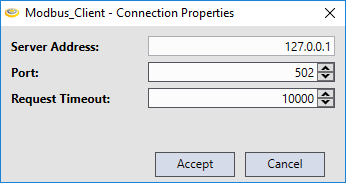
Note that if the Server Address or Port property is modified in the dialog, then the Modbus Client disconnects from the Modbus Server it is connected to, and tries to re-connect with the updated properties.
- The Modbus Client device does not support Devices simulation, nor the Cognex Designer Internal Object API.
- Although Modbus Client devices automatically detect Modbus Server devices right after the connection is set up, actual Modbus communication (including IO operations through Modbus Client devices initiated by Scripting, Task Blocks, or bound Tags) will only be performed in Test Mode or when the project is deployed.