Adding VisionPro Tools
Vision tools are added and configured from within the VisionPro Tool Block, and utilizes the CogToolBlock to construct the vision processing steps.
- If a CogToolBlock is going to be imported into a Designer project, ensure that the GC is disabled prior to being imported, because it cannot be disabled in Designer.
- The number of VisionPro tools added inside a CogToolBlock affects the runtime performance of a Designer project. Before a VisionPro tool and/or a CogToolBlock is run, their input terminals need to be set, and it takes time as the new value propagates through tools in the CogToolBlock. A total of between approximately 0.2-0.4ms is added per tool connection in a CogToolBlock (though on rare occasions it can spike to between 3-8ms); the total overhead is directly proportional to the number of connections in a CogToolBlock (i.e. 10 tools = 2-4ms of overhead). The QuickBuild Job Editor does not report this time, nor is it included in the RunStatus.TotalTime property of a CogToolBlock.
-
Double-click the Tool Block to open the Designer Tool Block, which will open in a new tab beside the Task. From this tab, pre-configured Tool Blocks can be imported, and configured Tool Blocks can be exported. In addition, the VisionPro Script Editor and VisionPro Tag Manger may be launched and you can also password-protect your ToolBlock.
 Note: If password protection is enabled, the Tag and Script buttons are disabled for the VisionPro ToolBlock. This setting persists when the ToolBlock is exported as a template as well. For more information on password protection, see the Creating a Vision Application: Using the Application Wizard topic in VisionPro Help | Application Development Guide.
 -
With the Designer Tool Block open, from the Toolbox, drag the desired vision tool between the [Inputs] and [Outputs], and connect the [Inputs] Image to the tool's InputImage.
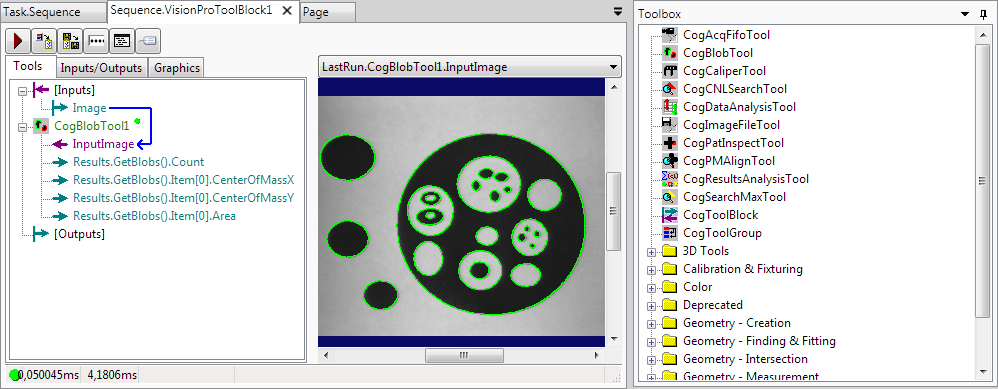
-
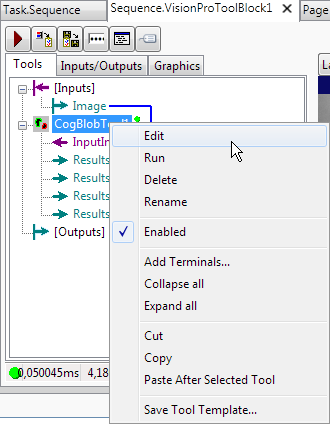
After adding the tool and linking the image, right-click the tool name and select Edit to open the QuickBuild Job Editor.
-
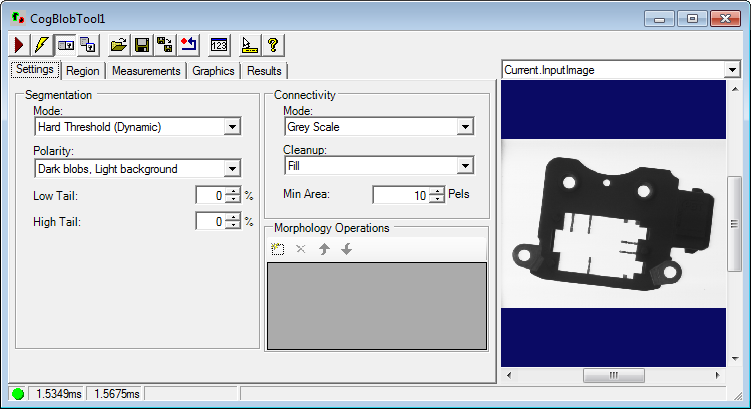
Configure the vision tool using the QuickBuild Job Editor.
- Once the tool has been configured, return to the Task and add tags and link the Tool Block's input and output pins to the desired Reference or Tool Blocks.