Define a Region for Inspection with CogImageConvertTool
Now that you have selected FileCamera as the device from which to obtain your images, let's refine the inspection scope with VisionPro's CogImageConvertTool.
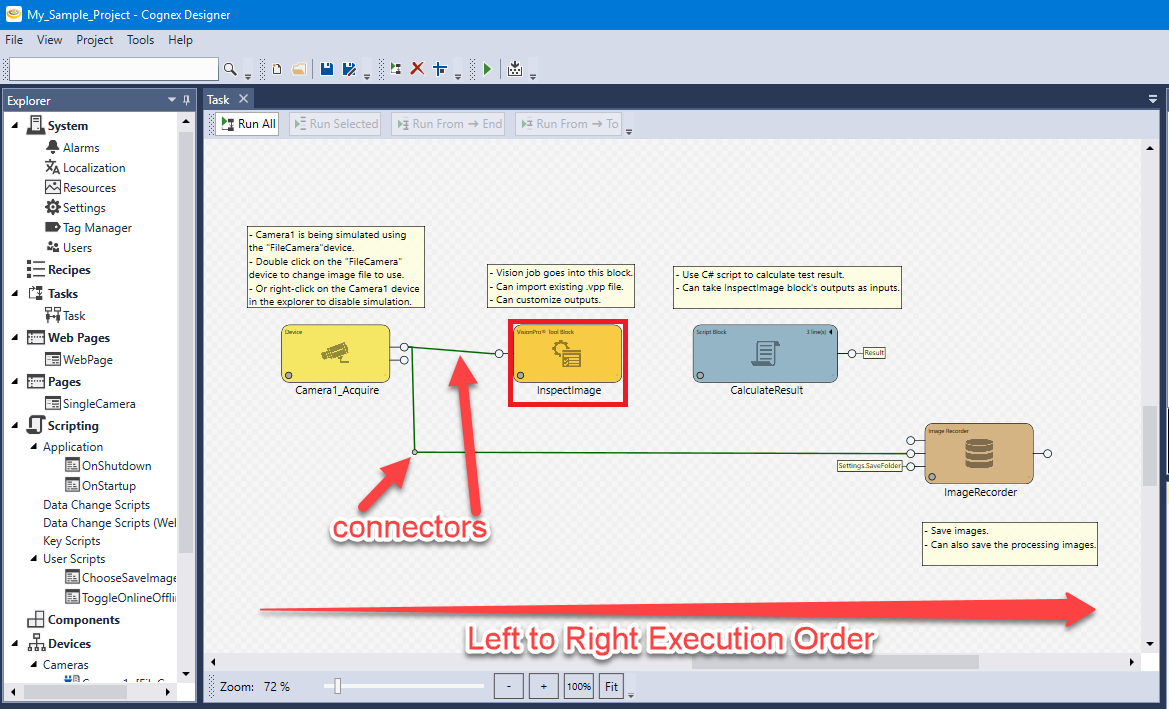
Before doing this, take time to become familiar with the landscape in which your task blocks exist: the Task window.
The Task Window
When you create a Single Camera project, a Task window opens in the Sequence Editor area of Cognex Designer, prepopulated with task blocks that depict processing within a common single-camera vision application.
The Task window graphically describes how your vision application processes images and data, from acquiring the image (acquisition) through processing and output, each block representing a task that performs a discrete function.
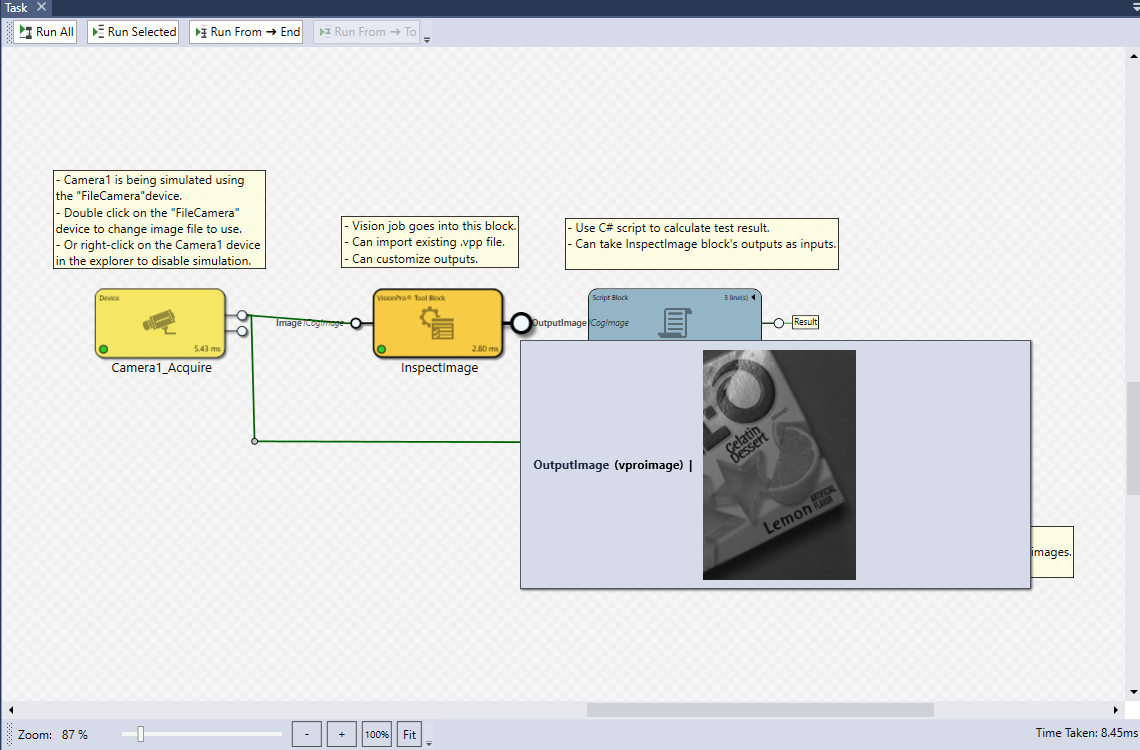
The task blocks execute left-to-right across the grid of the Task window, which acts as a graphical time-line. For example, in the window below, the task block Camera1_Acquire executes before the task block InspectImage because, in left-to-right sequence, the Camera1_Acquire block has been placed first.
There are already connectors drawn by default between Camera1_Acquire and InspectImage and ImageRecorder, Connectors pass links to data between task blocks.
You assign tags to those links to enable your data to be referenced in Cognex Designer applications.
Let's start by configuring the VisionPro tool block InspectImage, which runs CogImageConvertTool.
We'll use CogImageConvertTool to isolate a specific part of the Jell-O box image for further processing by CogBlobTool, later in this tutorial.
Configure InspectImage Tool Block
Define the image area that you want to inspect by configuring the InspectImage tool block
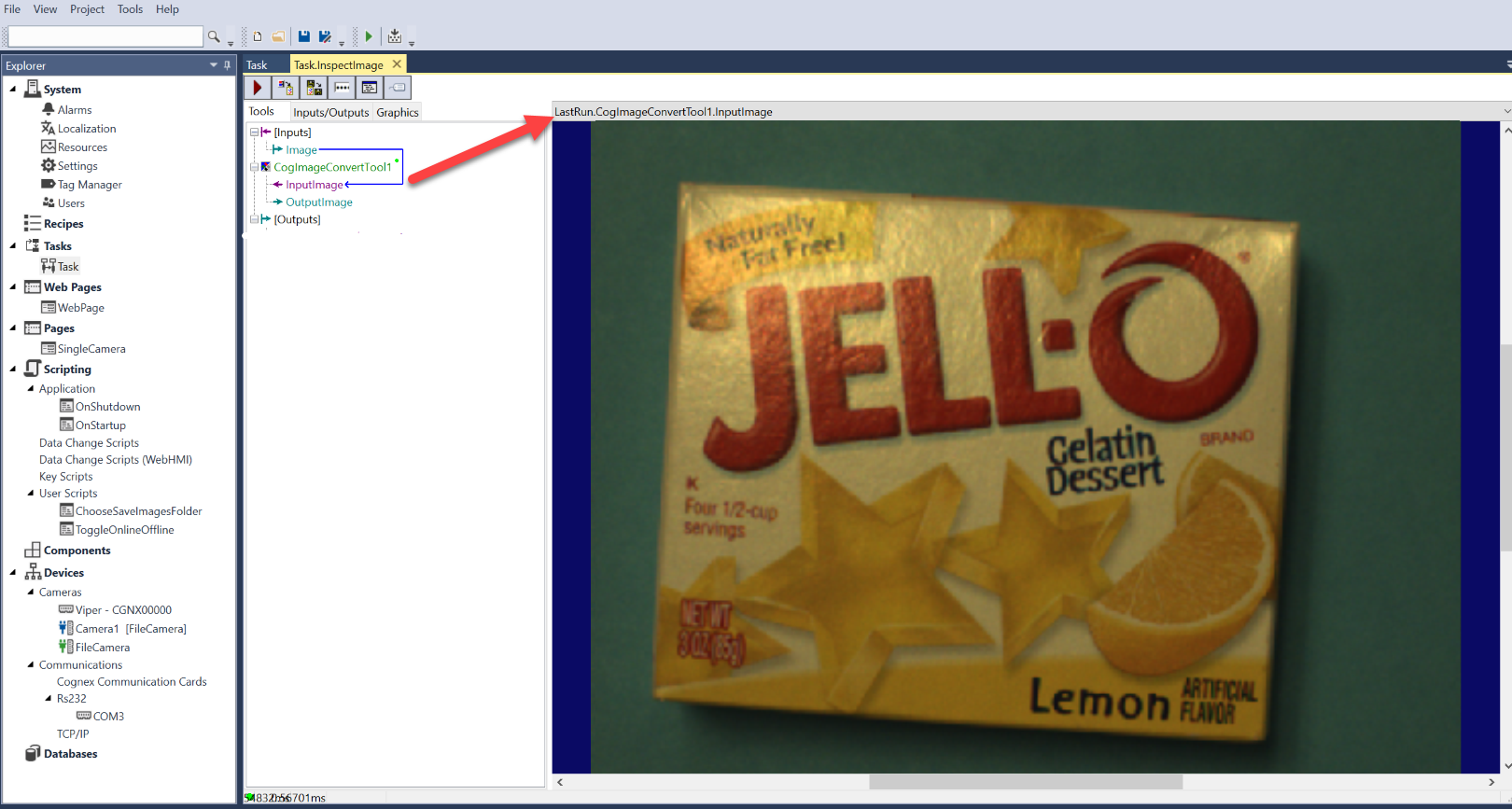
- In the Task window, double-click the InspectImage tool block. An instance of VisionPro Quick Build opens in the Sequence Editor. The tab associated with this instance is labeled Task.InspectImage.
- Verify that an image has been acquired. in the right-pane preview area of the Task.InspectImage window, as shown below. If it has not been acquired, select the Task window and Run All tasks.
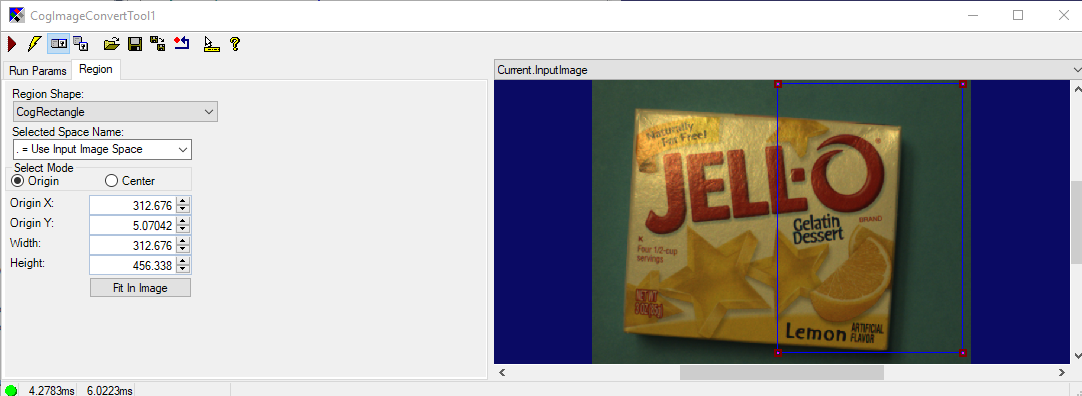
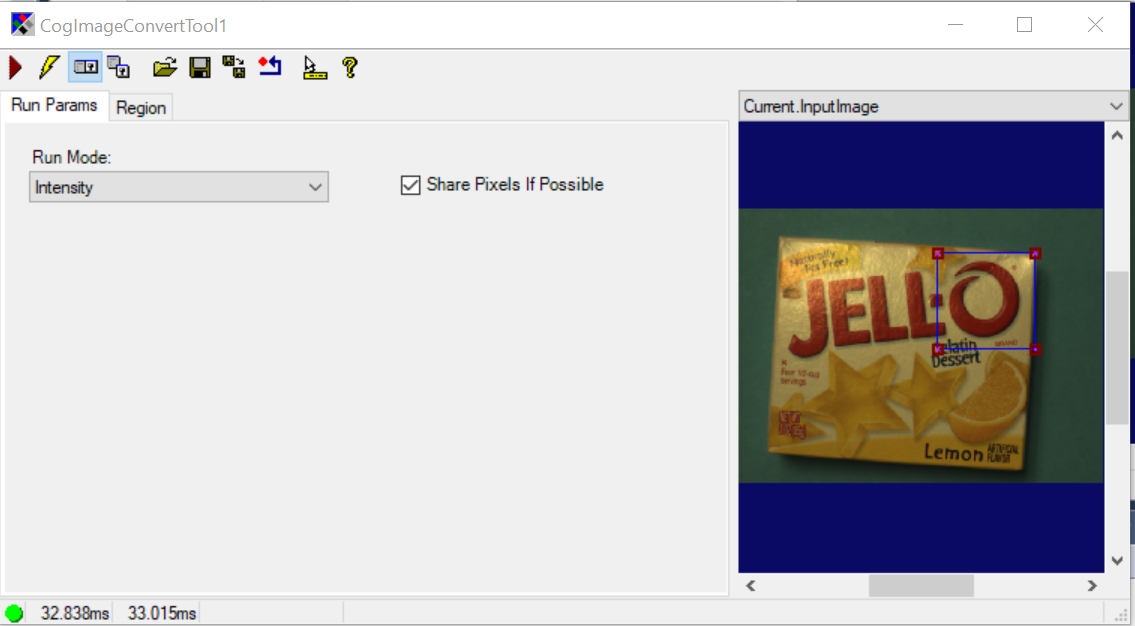
- Do the following to isolate a particular region of the Jell-O box. In the Task.InspectImage window, double-click CogImageConversionTool1. The CogImageConvertTool1 dialog box opens.
- Select the Region tab
- Select CogRectangle from the Region Shape drop down box.
- Select and re-size the blue Cogrectangle in the image until it overlays the entire right-side of the frame containing the Jell-O box. You may have to increase the size of the CogImageConvertTool1 dialog box to do this.
- Close theCogImageConvertTool1 dialog box.
- Run Task.InspectImage by clicking the Run button (
 ).
). - In the Task.InspectImage window, draw a connector between CogImageConvertTool1's OutputImage and [Outputs] to indicate that this partial image is the output you want this task block, InspectImage, to produce as output.
- Select CogImageConvertTool1 > OutputImage. Notice the black-and-white preview image, CogImage8Grey, that is displayed.
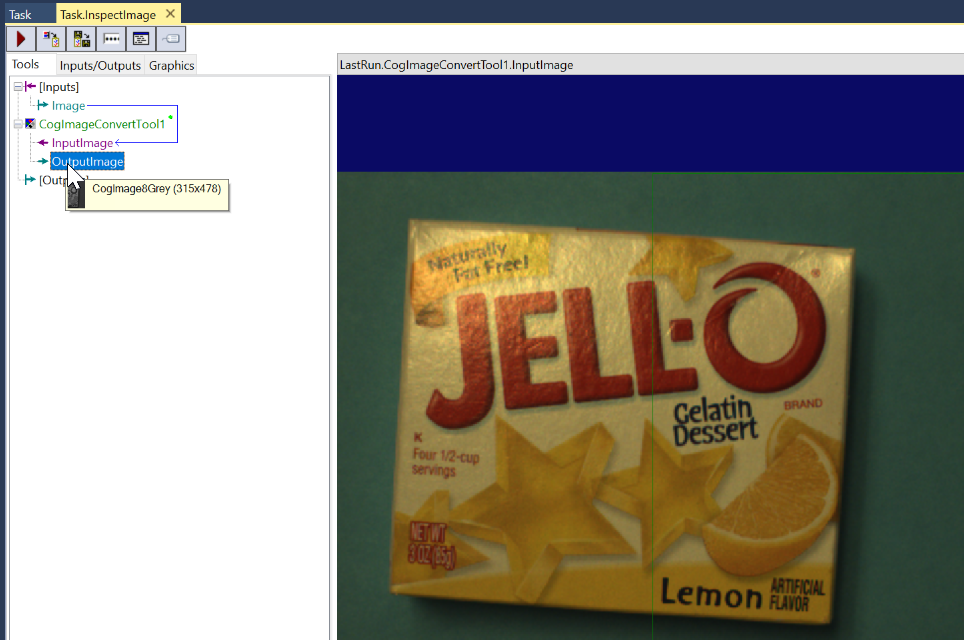
- Hold and drag CogImageConvertTool1's OutputImage to [Outputs]. Under [Outputs], OutputImage is created. Verify that OutputImage contains the right-side of the Jell-O box by pointing your mouse at the OutputImage label. Again, a black-and-white preview (CogImage8Grey) of the partial image should display, as in the previous step.
- Select CogImageConvertTool1 > OutputImage. Notice the black-and-white preview image, CogImage8Grey, that is displayed.
- Select the Task window and click Run All to re-run the task sequence since you modified CogImageConvertTool. Notice the right connector now protruding from the InspectImage block. Point your mouse at this connector and notice that both the link to the data (OutputImage) and the value's tag (vproimage) are displayed along with the cropped image preview you defined.
- Close the Task.InspectImage window.
- Before moving on the next step in this tutorial, save your project by clicking File > Save All.
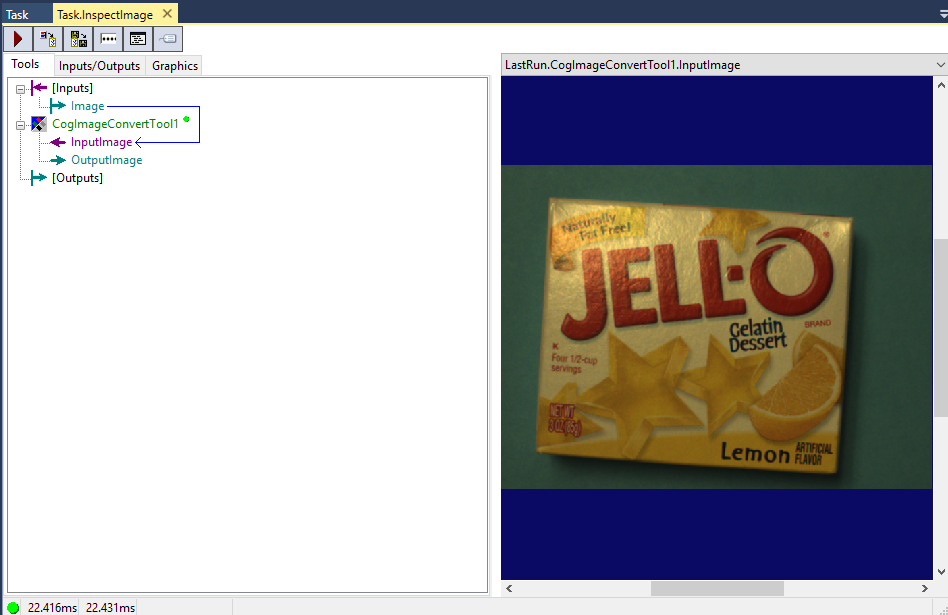
In the Task.InspectImage window, note the arrow that has been pre-connected between [Inputs] > Image and CogImageConvertTool1 > InputImage. This connection mirrors the connection between the Camera1_Acquire block and the InspectImage block in the Task window of Cognex Designer. Note that the same image from the database, displayed in the VisionPro QuickBuild tool as LastRun.CogImageConvertTool1.InputImage, is the same image acquired by the Camera1_Acquire block.
In this step, you cropped the image you acquired in the previous step by modifying the VisionPro tool CogImageConvertTool.
In the next step, we'll process this cropped image for defects (blobs) by using another VisionPro tool, CogBlobTool.