Create Training Set
Once you have your images categorized and collected, you can create an image sample set, and use the them in your Training Set. The default behavior for all tools is to train using 50% of the images in the image set, with the images selected at random. The Testing/Training image set splits refer to the portion of labeled images that are used for training Training is the process that your tool, which is a neural network, is learning about the features (pixels) based on the labels you made. For example, a tool will learn the defect/normal pixels in each image based on the defect/normal labels you drew. The goal of the tool Training is learning enough to give the correct inspection results of whether an unseen image is defective or not. The key to training is to ensure that you include all possible variations within your training set, and that your images are accurately labeled. Training times vary by the application, tool setup and the GPU in the PC being used to train the network. and testing. By default, VisionPro Deep Learning uses a 50% testing/training split in the Training Set dialog. However, this can be modified, based on the application needs.
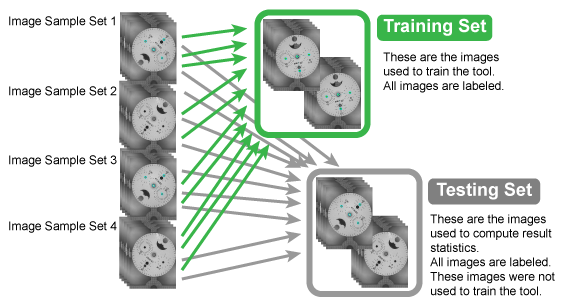
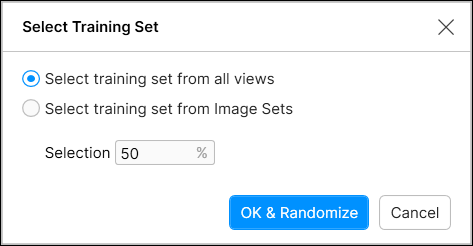
The Select Training Set dialog is used to determine the composition of the samples that will be used to train your VisionPro Deep Learning tool. To do this, the Select Training Set dialog allows you to define a tool's training set based on either all of the views in your image database or one or more image sets, and a percentage of those images/views. The tool will use the designated Selection percentage to randomly select a portion of the labeled images for training, while the remainder of the images will be used to compute result statistics about the tool, which means that the remainder of the images will automatically be the test set.
A view A view of an image is a region of pixels in an image. Tool processing is limited to the pixels within the view. You can manually specify a view, or you can use the results of an upstream tool to generate a view.'s membership in the training set is graphically illustrated by the Train indicator at the top right corner of the Image Display View (as shown below).

- Before a tool can be trained, all views must be labeled.
- Ideally, prior to training your tool, you have set up Image Sample Sets.
- The training set is set at the stream level, since each stream can have its own image database.
- You can also use the "trained" to view all of the views that have the train flag set.
Here are the steps for initializing the training set:
-
When you first add a tool, but have not defined a training set, if you press the Train icon, you will see the following:
Note: Before pressing the Train icon, first label one or more views.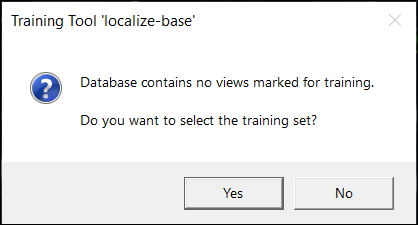
-
This launches the Select Training Set dialog.
Note: You can also launch the Select Training Set dialog by pressing the Edit link on Tool Parameters panel. - If you have not previously defined Image Sample Sets, use the Select training set from all views option.
- Then define the Selection, which determines the percentage of labeled images/views from your training set which will randomly be selected to be used to train the tool.
-
If you have previously defined Image Sample Sets, use the Select training set from Image Sets option.
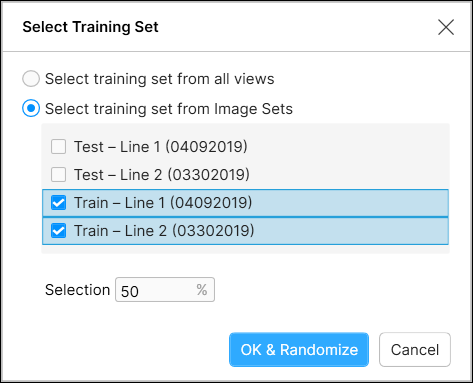
- Select the previously defined Image Sample Sets from the list.
-
Define the Selection, which determines the percentage of labeled images/views from your training set which will randomly be selected to be used to train the tool.
Note: When using the Select training set from Image Sets option, the selection percentage is based on the combined total number of images/views from the selected image sets, not a percentage from each individual set. The selection is done to best ensure coverage of all classes trained. For example, if you have three training image sets, where A contains 20 samples, B contains 10, and C contains 40 (70 total), and your Selection is the default 50%, the tool may randomly select 5 images from A, 8 from B and 22 from C (35 views). - Press the OK button to accept the training set configuration.
-
Images that are included in the training set will be denoted at the top right corner of the Image Display View.