Red Analyze
The Red Analyze tool can perform tasks such as:
-
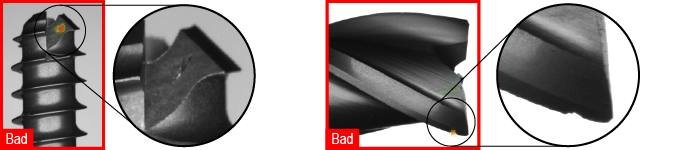
Detecting anomalies and aesthetic defects
-
Segmenting defects or other regions of interest by learning the varying appearance of the targeted zone
-
Identifying scratches on complex surfaces, incomplete or improper assemblies, and even weaving problems on textiles by learning the normal appearance of an object
Tool Types
When you know that you need a Red Analyze tool to solve your machine vision problem, you must choose the type of the tool you want to train. You can do so by setting the Type parameter in the Tool Parameters sidebar.
The Red Analyze tool is available in the following types:
-
Standard type to solve an anomaly detection or a segmentation Segmentation is the process of selecting a view from an image. problem.
-
Unsupervised type to solve anomaly detection problems.
-
Legacy type for compatibility with Focused mode tools from earlier VisionPro Deep Learning software versions.
The different tool types correspond to different types of neural network models. If you want more accurate results at the expense of increased training Training is the process that your tool, which is a neural network, is learning about the features (pixels) based on the labels you made. For example, a tool will learn the defect/normal pixels in each image based on the defect/normal labels you drew. The goal of the tool Training is learning enough to give the correct inspection results of whether an unseen image is defective or not. The key to training is to ensure that you include all possible variations within your training set, and that your images are accurately labeled. Training times vary by the application, tool setup and the GPU in the PC being used to train the network. and processing times, use the Standard type. The Standard type tool randomly examines patches in the image, while the Legacy type tools use a Feature Sampler, which makes them selective, focusing on the parts of the image with useful information. Due to this focus, the tool can miss information, especially when the image has important details everywhere.
You can use the types in combination in a tool chain. For example, you can use an Unsupervised type tool first to filter the visual anomalies, and one or more downstream Standard type tools to find defects like scratches, low contrast stains or texture changes.
Standard Type
The Standard type tool can detect regions of an image that show defects. For example, it can find cracks and scratches on a metal surface. You teach the tool what to look for by labeling Labeling is the process of annotating an image with "ground truth". Depending on the tool that you are using, labeling can take different forms. You label an image set for two reasons: to provide the information needed to train the tool and to allow you to measure and validate the performance of the trained tool against the ground truth. the defects on the training images. After training, the tool can mark the same kind of defects on unseen images.
The Standard type has the following benefits:
-
Effectively detects line-type defects like scratches, cracks, or fissures.
-
Detects specific defect types.
-
Detects measurable defect parameters, such as size and shape.
-
Has higher tolerance to parts that have different types or orientation.
-
Monitors validation Validation refers to a process during the training of a tool that helps to evaluate performance. Validation is like a mock exam that the tool takes during the training phase, separate from the final test. For example, validation helps you to recognize overfitting and avoid wasting time when training a tool. If you recognize that the tool is overfitting, you can stop the training early. loss The Loss refers to validation loss, which is a metric that shows how a tool performs on the validation set. Loss can have a value between 0 and 1. The VisionPro Deep Learning application calculates the Loss based on the errors the tool makes when processing the images in the validation set. During training, you can check the Loss in real-time using the Loss Inspector., using a validation image set in training, and supports the Loss Inspector feature A feature is a visually distinguishable area in an image. Features typically represent something of interest for the application (a defect, an object, a particular component of an object)..
-
Supports multiclass segmentation, which means that you can create different classes of defects for the tool to identify. For example, you can have a class of defects called "blobs" and another called "scratch".
-
Supports processing speed optimization using NVIDIA Tensor RT for runtime.
-
Supports robust mode. Select this mode if you want to use the tool on different production lines and new products without retraining the tool. This mode allows the tool to adapt to changes on the production line and to product variants that have similar kinds of defects.
Note: In robust mode, processing time increases with image size.
The Standard type tool supports the following features:
| Mode | NVIDIA Tensor RT Speed Optimization | Outlier Score | Multi-Class Segmentation |
| Fast | Yes | No | Yes |
| Accurate | Yes | No | Yes |
| Robust | No | No | Yes |
When training a Standard type tool, keep the following in mind:
-
Using "Good" images trains the tool to ignore non-defective parts.
-
Ensure that you have a training image set A collection of images of your specific application. A training image set represents images of a specific part or process acquired in a consistent way using the lighting, optical, and mechanical characteristics of your runtime system. The training image set includes images that represent the range of image appearances that you expect to see in normal operation. that includes all the defects you expect during runtime as well as defect-free images. The tool only finds defects that it learns from the training image set. For example, if you only teach the tool what stains look like, the tool will not find scratches.
Unsupervised Type
You train the Unsupervised type tool to recognize defects with images that show good parts. This means that the Unsupervised type tool learns the appearance of the good parts and it recognizes bad parts based on that.
The Unsupervised type has the following benefits:
-
Reliably finds unforeseen defects.
-
Requires only images of good parts for training.
The Unsupervised type has the following challenges:
-
Sensitive to parts that have different types or orientation. Such variances can prevent the tool from finding certain defects.
-
Has a lower chance of finding line-type defects like scratches, cracks, or fissures.
-
Cannot detect defect types.
-
Cannot detect measurable defect parameters, such as size or shape.
For the best results, include images in the training image set that show defects. Unsupervised type tools ignore images labeled as "Bad" during the training phase, but these images are useful when testing and validating the performance of the tool. Images of defective parts help you to determine how accurately the tool finds defects.
The Unsupervised type tool samples pixels with a feature sampler that is tied to a sampling region. You define the sampling region with the sampling parameters in the Tool Parameters sidebar. If a sampling region does not include any defect pixels, then the network should produce no response.
Legacy Type
The Legacy type tool is a less advanced version of the Standard type tool.
-
The Legacy type tool might have faster processing time than Standard type tools but the segmentation performance is lower.
-
Supports multiclass segmentation, which means that you can create different classes of defects for the tool to identify. For example, you can have a class of defects called "blobs" and another called "scratch".
The Legacy type tool samples pixels with a feature sampler that is tied to a sampling region. You define the sampling region with the sampling parameters in the Tool Parameters sidebar. If a sampling region does not include any defect pixels, then the network should produce no response.