Disable Selective Suspension of USB Devices
Disable the selective suspension of USB devices in Windows to prevent the Security Key being suspended by the operating system.
- Open the Edit Power Plan Settings window through Control Panel > Hardware and Sound > Power Options > Edit Plan Settings. Alternatively, open the Windows Search window with the
 button, and type Edit power plan into the dialog to get a shortcut to the window.
 -
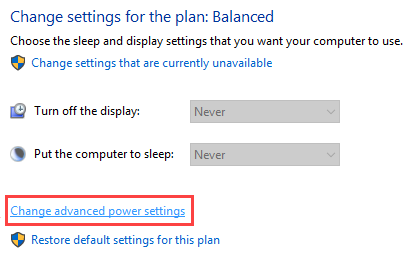
Click the Change advanced power settings link.
-
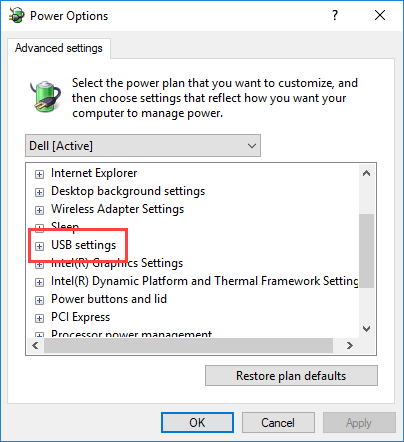
The Power Options dialog appears. Scroll to the USB settings node.
-
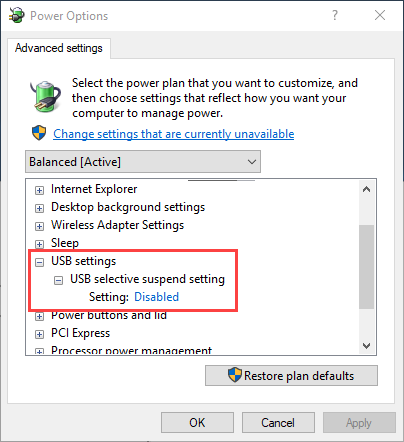
Expand the USB settings node, and then expand the USB selective suspend setting node as well.
-
Set the Setting to Disabled. Click the Apply button and then the OK button to apply the change.
- In case you use multiple Windows power plans, perform the steps for all configured plans.
-
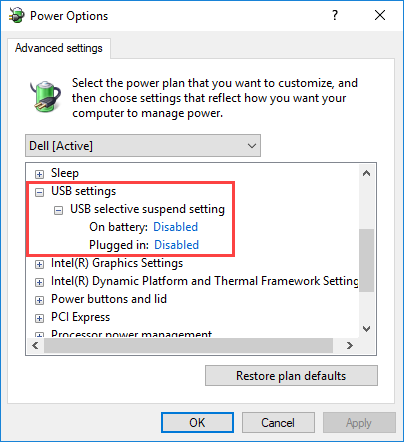
When using a notebook or a laptop, the USB-selective suspend setting has separate On battery and Plugged in settings. Set both to Disabled.