Creating Models in Blue Read
In instances where the characters in your image are organized into regular, consistent groups, defining a model will improve performance.
To create a model, from the Tool menu, select Edit Models, which will launch the Model Editor dialog. Select the type of model to create.
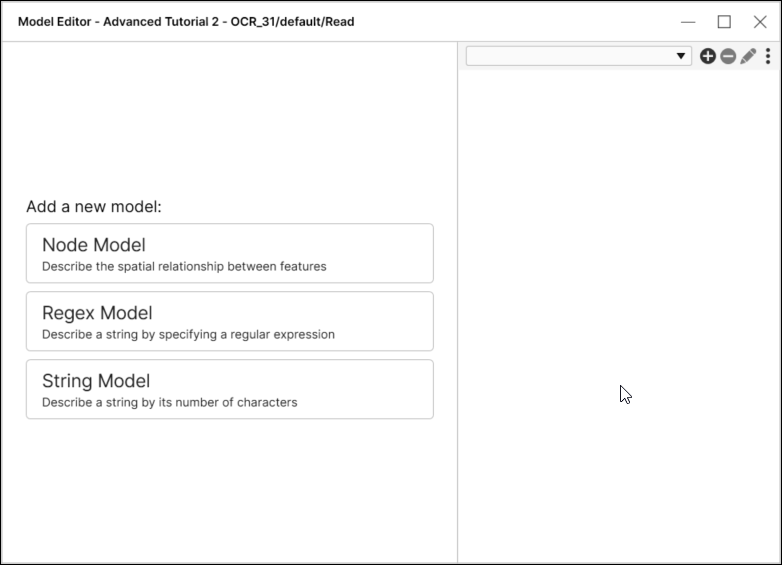
Blue Read Node Model
You can create node models that describe the spatial relationship between a group of characters, and also which character values (a digit or an uppercase letter) are legal for each node in the model. The node model is for use with strings that should contain the same number of characters in each image. They are also useful in situations where the characters are situated along an arc, for example.
Blue Read String Model
The string model is the simplest model to use and define; you simply define the minimum number of characters you expect to find, along with the angular variation of the characters from the horizontal boundary of the ROI that you expect to encounter in your images.
Blue Read Regex Model
Regex models provide a flexible control for defining the exact format of the strings that you are interested in by allowing you to define the characters you want to find via a regular expression.
- If you have defined one or more models, the tool will use the model information to improve its performance by attempting to fit found characters to the models that you have defined, using the model with the best score.
- In terms of performance, the Regex model is generally the fastest to execute, while the Node model is typically the slowest.
Working with Models
If you have defined one or more models in your Blue Read tool, then labeling images is simplified and accelerated in some important ways.
-
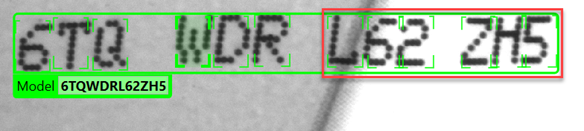
When you start to label an image that has no found features, as soon as you have labeled a few characters the tool will suggest a likely Model location, including the locations of all the features in the Model:
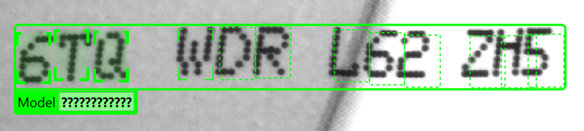
Once the Model has appeared, you can simply type the correct character values into the text field and the tool will automatically create all of the labels:
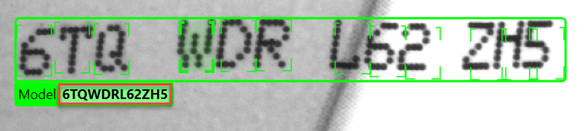
After specifying the character values, you also need to adjust the feature positions so they are correct:
-
When you are starting from an image with found features, the process is even simpler. Simply right-click and select Accept View:
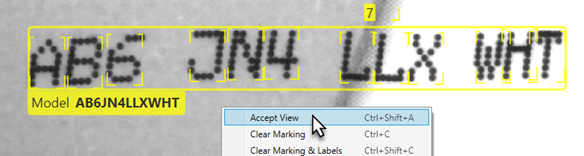
In this case, only the features that were matched by the Model or Models are converted to labels: