Parameter Search
The Parameter Search Utility is a separate utility from VisionPro Deep Learning that allows you to iterate through the parameter combinations on the Tool Parameters to determine the optimal parameter combination(s) for your specific tool and workspace. The application automates a grid-search over a selection of parameters and settings.
-
System Memory (RAM)
More than 64GB is recommended.
-
System Storage
We recommend 100GB + as a free space. The more storage you secure, the better the performance of Parameter Search.
Home
Home is the start page for Parameter Search, where you can load a workspace, stream, and a tool into Parameter Search. The tool parameters and their value ranges of the loaded tool are tested in the Parameter Search.
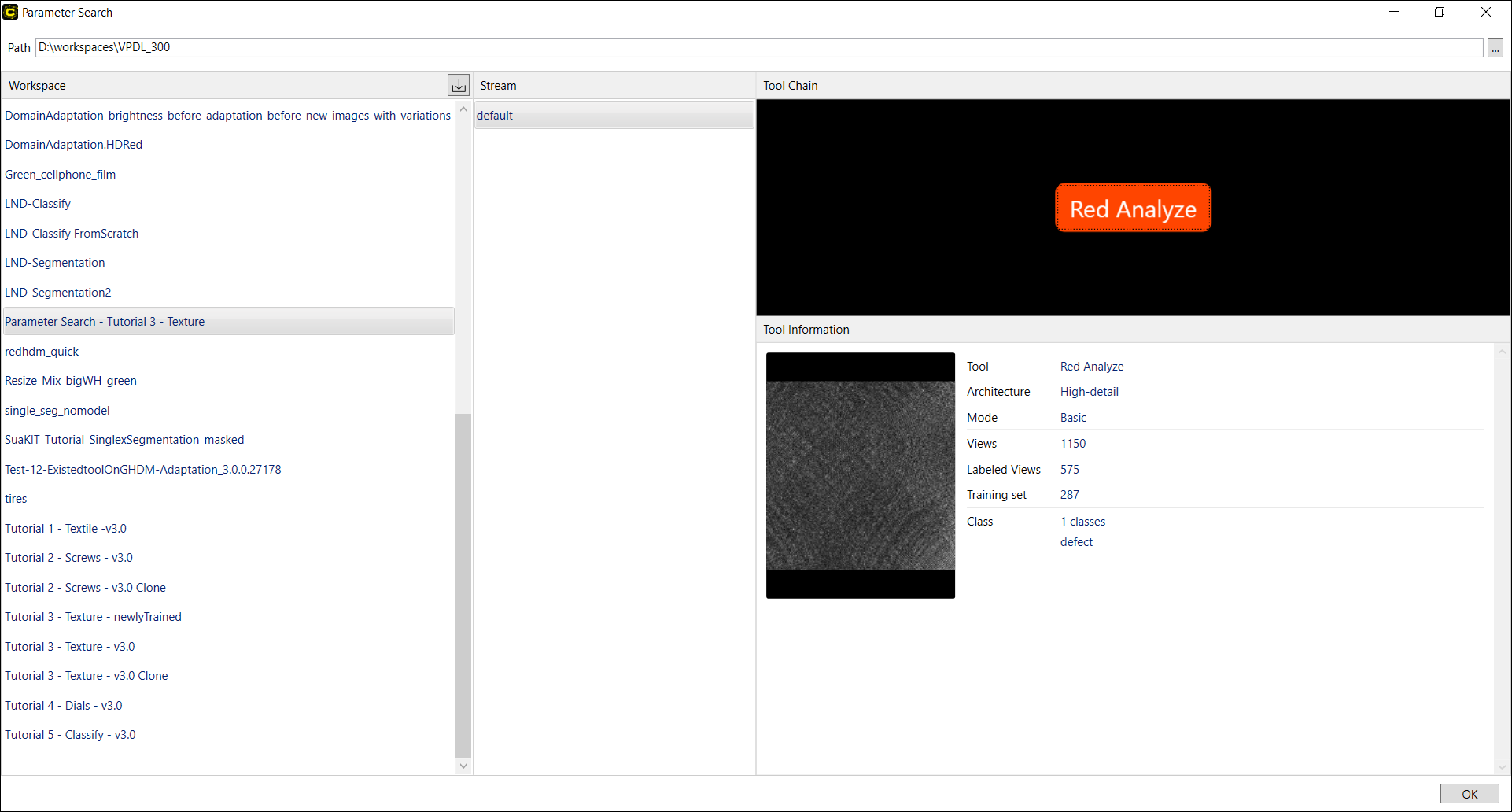
On the Home page, you can:
-
Select the path for loading workspaces
-
Select a workspace among the loaded workspaces
-
Select a stream in the selected workspace
-
Select a tool to be used in Parameter Search in that stream.
Manual Mode
The manual mode is a grid-search mode which runs tests on every parameter combination generated from the list of parameters and their value ranges you entered in the Search page. The manual mode trains and processes a VisionPro Deep Learning tool with every possible combination of given parameters and their value ranges, so to optimize the search schedule, you have to "manually" stop the test and change the list of parameters or their value ranges to get the best results within a certain time limit. The manual mode is basically the same Parameter Search that has been offered in the previous versions of VisionPro Deep Learning 3.0.
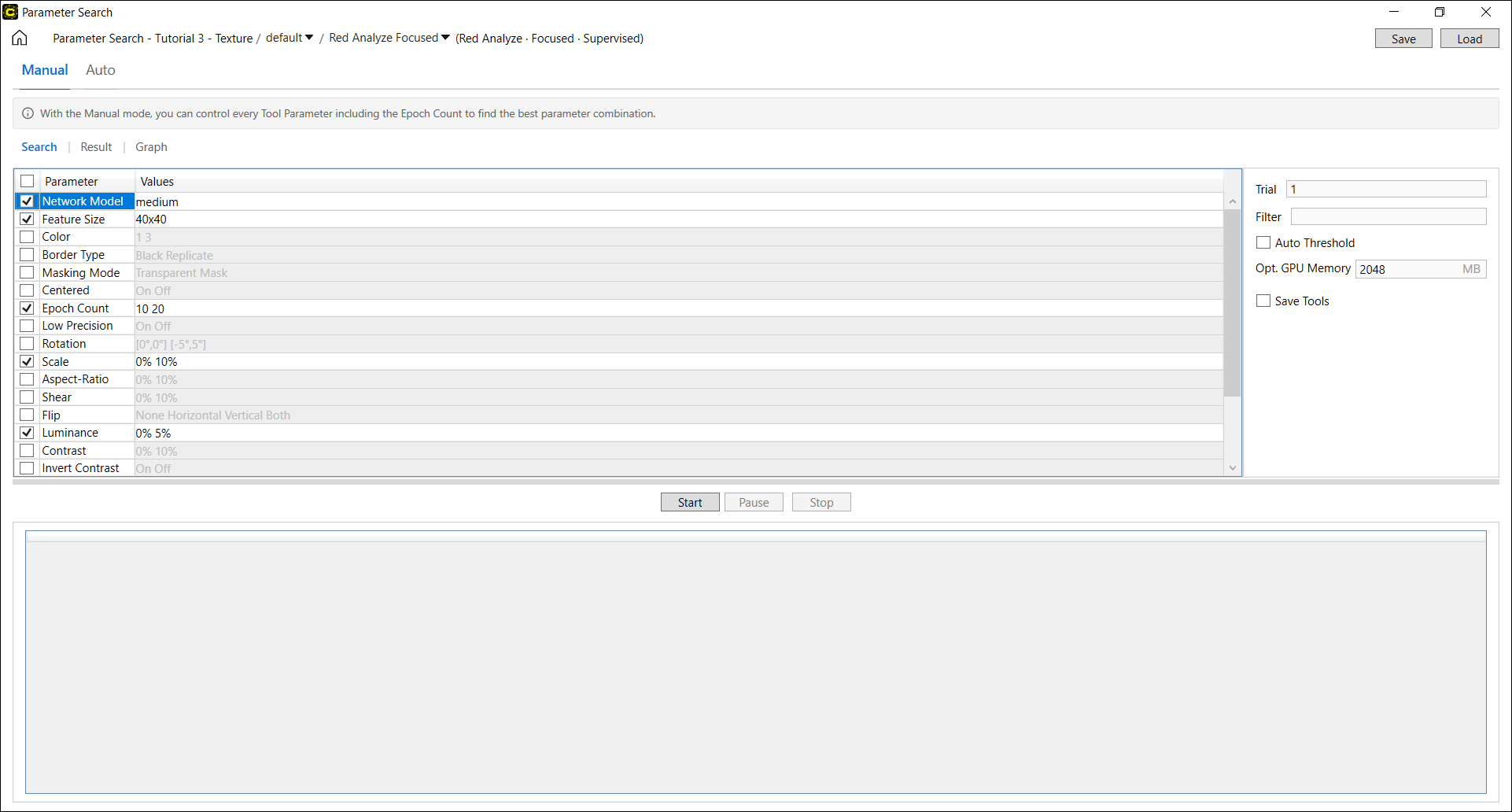
The manual mode consists of 3 pages: Search, Result, and Graph.
Search
Search is the page where you can choose the tool parameters of the loaded tool, define their value ranges or values, and start the test. All combinations of the selected parameter values will be tested with the loaded tool. You can setup the combination of parameter set, their value ranges, and other options including the number of search trials and optimized GPU memory.
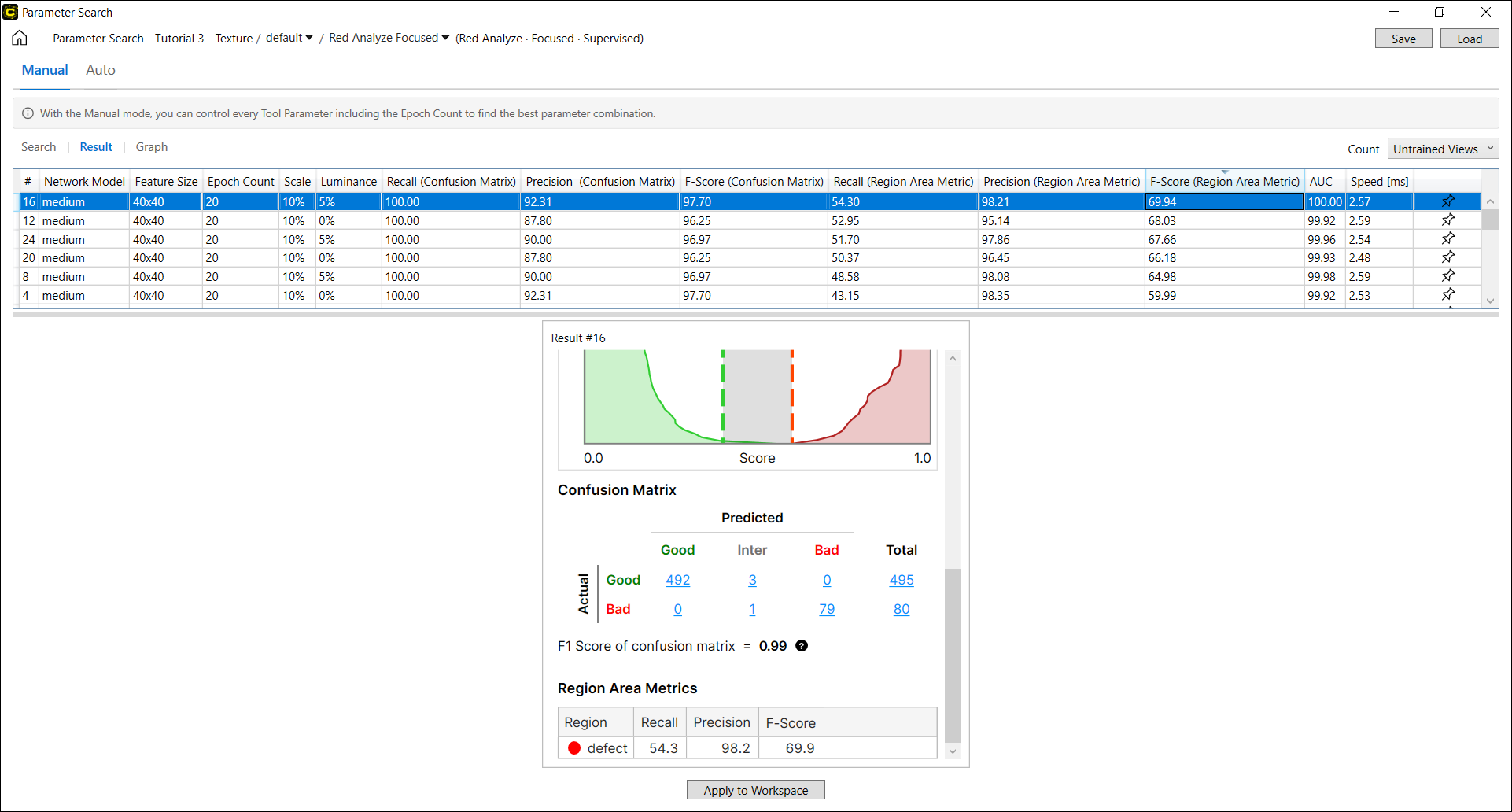
Result
The Result page display the search results (Precision, Recall, F-Score, and others) of the loaded tool per the values of selected parameters tested. You can view the test results (F-score, AUC, and others) with the Database Overviews for the tool. The types of result metrics are different by tool type.
Graph
The Graph page display the interactive contour plots describing the variation of the results when the values of selected parameters (x-axis, y-axis) change. This page also provides a table that displays the statistical measures (Mean, STD, Median, ...) for each metric (Precision, Recall, F-Score, and others) below when the test was run more than 1 time (multiple runs, Trial > 1). You can view the test results with a table that describes the result statistics for multiple trials, and with contour graphs that explain the relationships between each tested parameter and how it affects the test results.

Auto Mode
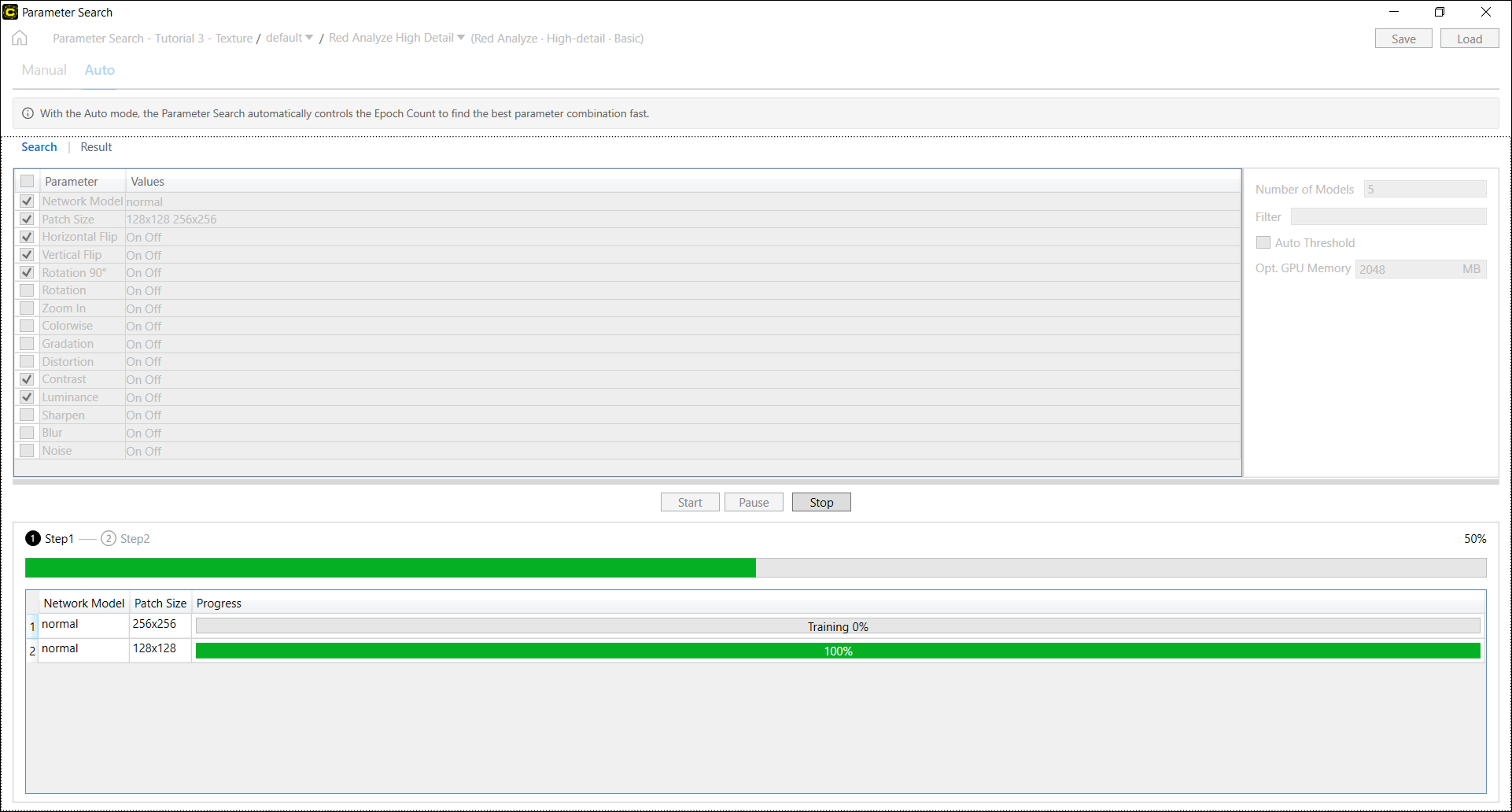
The auto mode is also a grid-search mode but it automatically optimizes the search schedule by adopting a policy that obtain the best results with minimizing the search time. Given a list of parameters and their values, the auto mode "automatically" stops training the loaded tool and move on to training with another parameter values when it finds no reason for better results from the current parameter values. The auto mode is newly introduced in VisionPro Deep Learning 3.0 and it is supported only for Red Analyze High Detail and Green Classify High Detail.
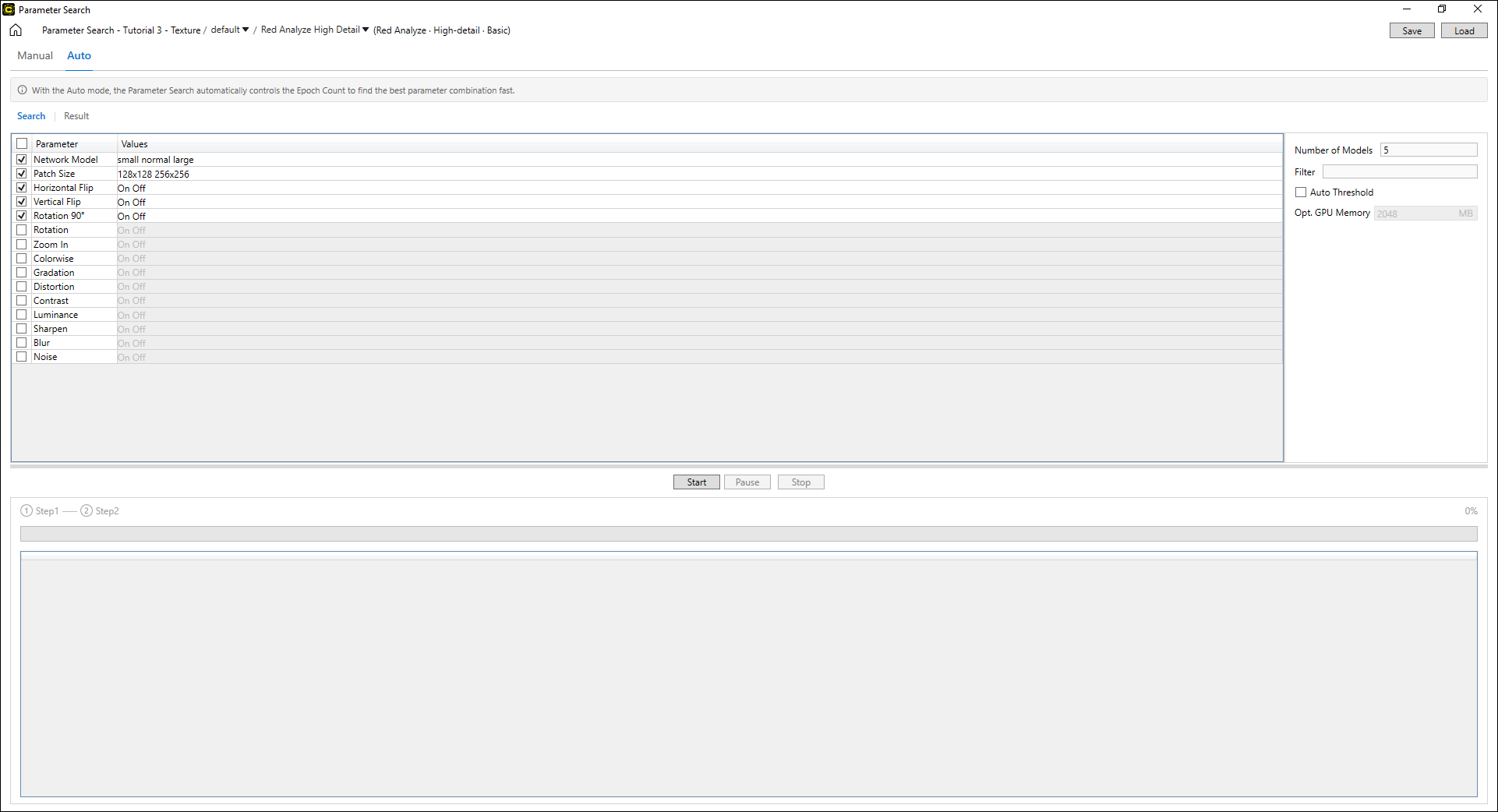
The auto mode consists of 2 pages: Search and Result.
Since it can take a considerable amount of time to complete the entire Search,
- It is recommended to focus on selecting parameters with potential rather than choosing all parameters.
- Even if all parameters are selected, it is recommended to pause and resume to check whether satisfactory performance is achieved even if the progress of the Search is low.
Search
Search is the page where you can choose the tool parameters of the loaded tool, define their value ranges or values, and start the test. All combinations of the selected parameter values will be tested with the loaded tool. You can setup the combination of parameter set, their value ranges, and other options including the number of best results returned.
Result
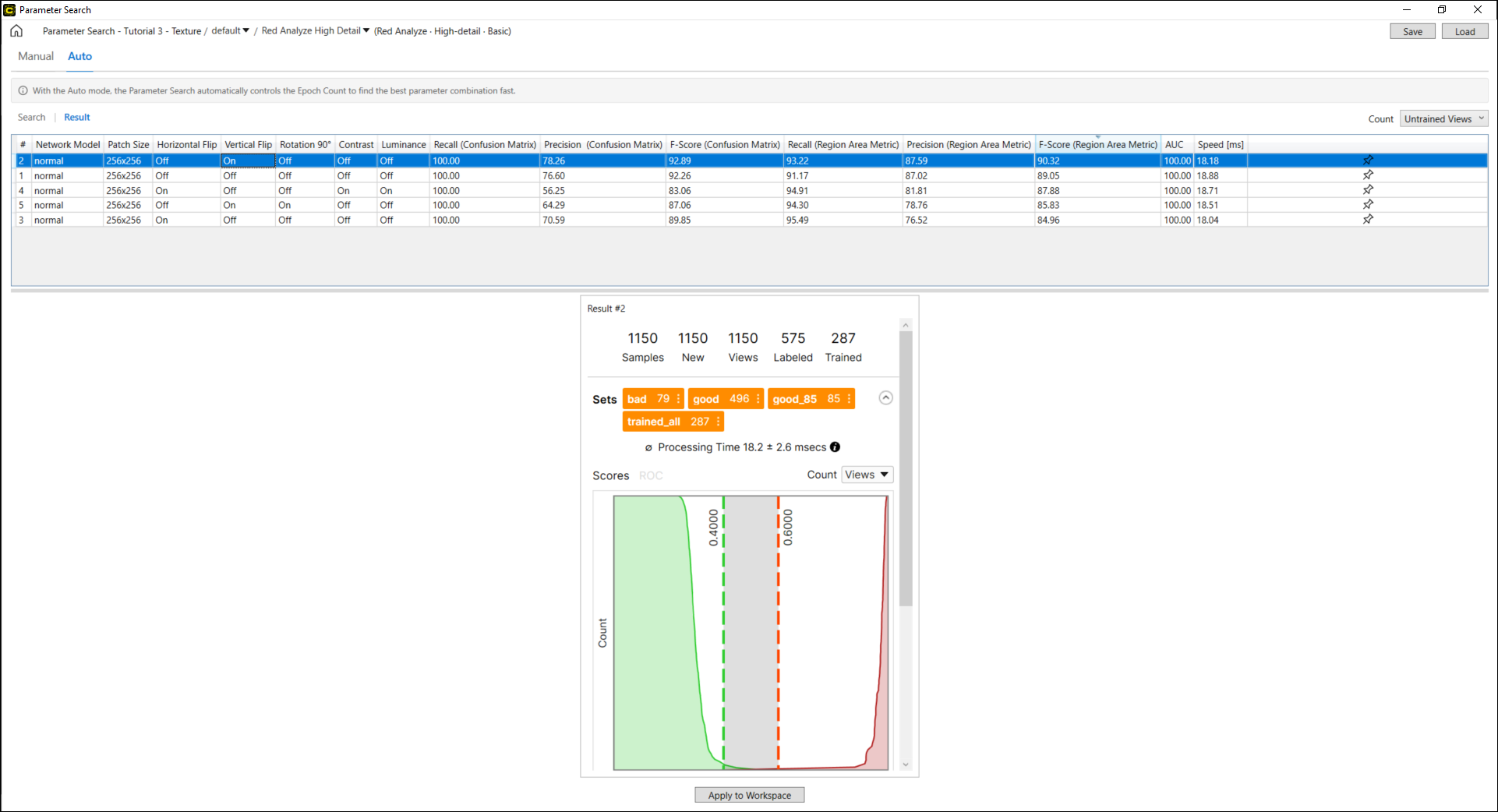
The Result page display the search results (Precision, Recall, F-Score, and others) of the loaded tool per the values of selected parameters tested. You can view the test results (F-score, AUC, and others) with the Database Overviews for the tool. The types of result metrics are different by tool type.
Unlike the manual mode, the auto mode does not offer the search results from every possible combination of Tool Parameters you set up on Search page. Instead, the auto mode picks only the best search results in terms of the validation loss of the tool, whose number is chosen on Search page. Also, while you can monitor the search results live in the manual mode, in the auto mode you can see the search results only after a search is done or paused.
Parameter Search General Workflow
To use this utility, you have to go through the 3 steps below:
-
Setup workspace, stream, and tool for search in Home.
-
Select the path for loading workspaces
-
Select a workspace among the loaded workspaces
-
Select a stream in the selected workspace
-
Select a tool to be used in Parameter Search in that stream.
-
-
Select the search mode (Manual or Auto), select a set of tool parameters and provide the value range of them to be searched through, and start searching.
Note: The auto mode is supported only for Red Analyze High Detail and Green Classify High Detail. -
Examine the results. After the searching is done, check Database Overview results for each combination of parameters, investigate the contour graphs that displays the relationships between the selected parameters in terms of the tool performance metrics, and decides which set is the best combination of the parameters for the current tool.