Review Markings
Once the tool is trained, it can process images in the database, as well as newly acquired images, and place Markings on the features it finds. Markings are the VisionPro Deep Learning-generated outputs which are used to graphically display the neural network model's interpretation, along with generating the statistical results. They are the graphical elements that the tools place over characters, features and/or areas of the image that the tool identified, based on the Labeling done prior to being trained. The Green Classify Tool provides a list of available class tags alongside their likely matches.
You can toggle the display of labels and markings by either using the Alt + Left arrow and Alt + Right arrow keys, or from the right-click menu in the image.
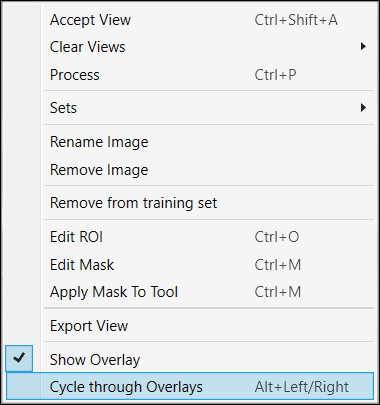
You can also show overlay with enabling the "Marking" at the Overlay Checkbox.

Markings and Results
After the classification tags have been applied, and the tool has been trained, you can review the results to ensure that the tool correctly marked the images.
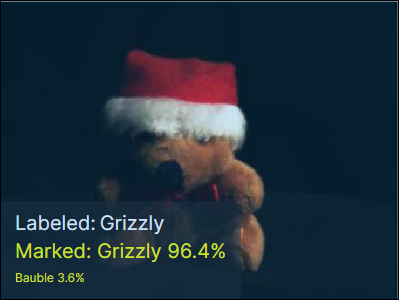
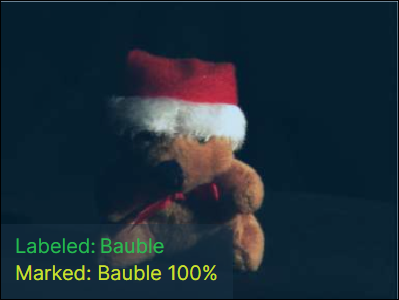
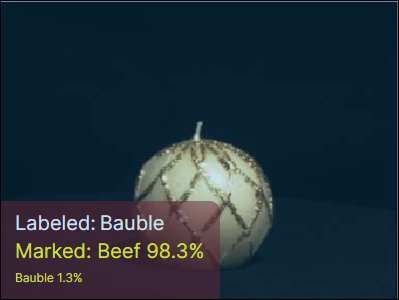
The label (aka tag), in white text, represents the "actual" class, and the marking, in yellow, represents the "predicted" class returned by the tool.
| Labeled | Not labeled |
|
|
|
|
This indicates that the image was labeled as Grizzly (the white text), and the tool marked it as Grizzly with a 96.4% certainty that the correct tag is "Grizzly," while it has a 3.6% certainty that the correct tag is "Bauble." |
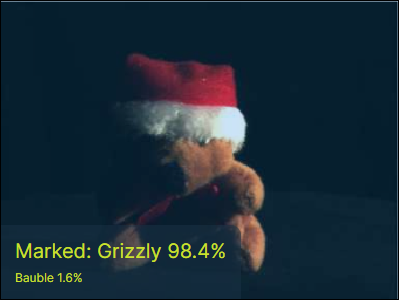
This indicates where an image was not labeled, and the tool marked the image. |
| Trained | Mismatch |
|
|
|
|
The green text indicates that the image was used as a training image. |
The red indicates a mismatch, where the label (the white text) and the marking (in yellow) are in disagreement. The tool is reporting with 98.3% certainty that the correct tag is "Beef" while the label is "Bauble." |
Overlay Checkbox
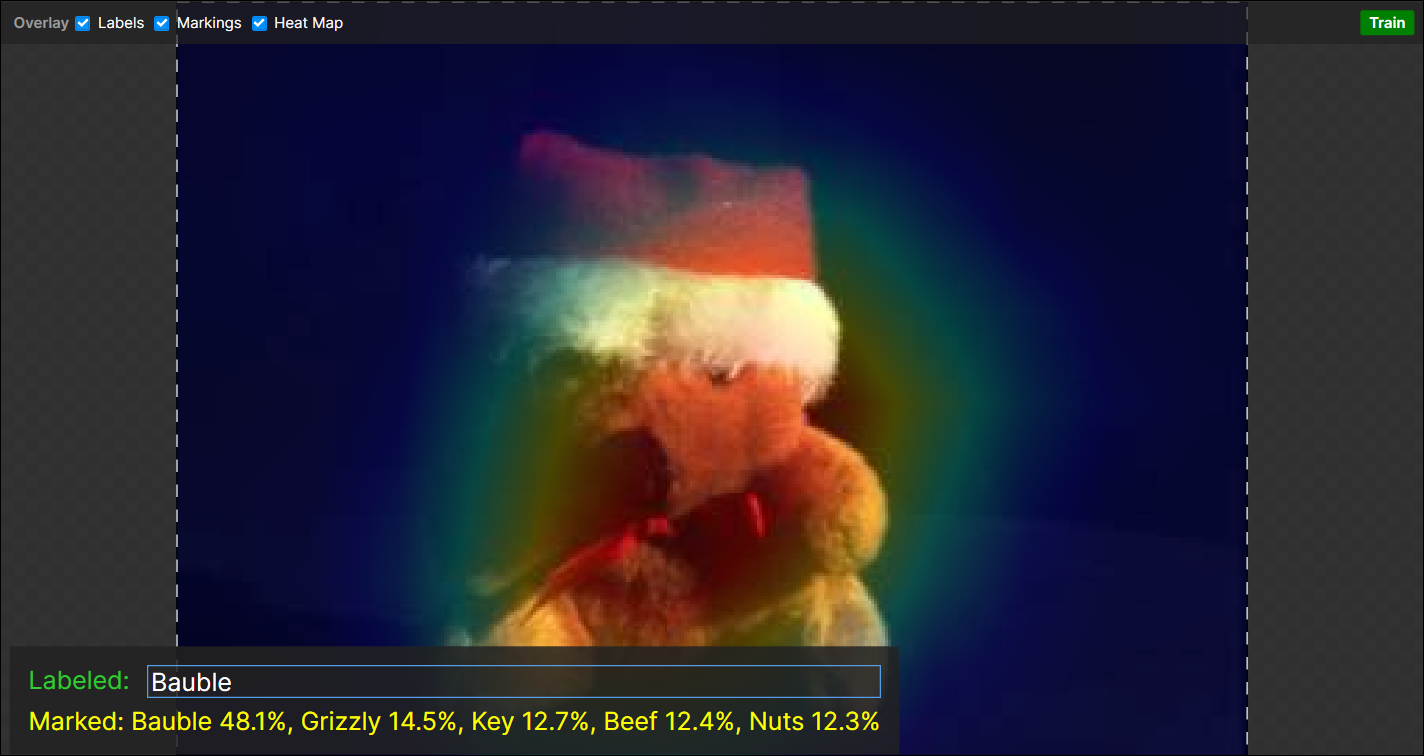
The 2 tables above are shown back and forth or side by side, with the overlay graphics of labels and markings, whenever you press Alt + Left/Right (Keyboard Shortcuts When Working with an Image) or enable each checkbox (Labels and Markings) on Overlay Checkbox.

Heatmap
Green Classify provides Heatmap for each view which gives the clues of classification the tool produced. The heatmaps can be viewed in View Inspector.
Note that Green Classify High Detail and Green Classify High Detail Quick also project their heat maps directly onto the image viewer when you enable both the Heat Map checkbox in Processing Parameter and the one in Overlay Checkbox.