Preparation
This topic covers the computer operating systems, hardware requirements, dongle configuration, licenses, and legal notices you need to be prepared with before using VisionPro Deep Learning for your application.
Pre-requisites: Operating System
| Microsoft® Windows® Operating System | English | Chinese | Japanese | Korean | French | German | Spanish |
|---|---|---|---|---|---|---|---|
| Windows 11 Professional (64-bit) | ✓ | ✓ | ✓ | ✓ | ✓ | ✓ | ✓ |
| Windows 10 Professional (64-bit) | ✓ | ✓ | ✓ | ✓ | ✓ | ✓ | ✓ |
| Windows Server 2019 | ✓ | ✓ | ✓ | ✓ | ✓ | ✓ | ✓ |
- Due to the issues from the NVIDIA driver, Windows Server 2016 is not supported for VisionPro Deep Learning 3.2.1 Server/Client mode. See Known Issues for more details and the workaround.
Pre-requisites: Training PC Requirements
The following requirements describe the suggested system for the VisionPro Deep Learning application training and development PC.
-
CPU
We recommend the higher specification than Intel Core i7. When selecting a CPU, a higher CPU clock speed rate and multiple core processors will result in faster runtime tool execution. If your application will be relying on the Blue Locate tool, it is more sensitive to clock speed rates, particularly with complex model matching applications.
-
GPU
When selecting a GPU, Cognex only supports NVIDIA GPUs.
For training, we recommend GPUs that have 10GB or larger GPU Memory (1080 Ti, 2080 Ti, 3080). For the processing of High Detail modes and High Detail Quick modes, GPUs that have 8GB or larger GPU Memory are recommended.
-
System Memory (RAM)
First, 32GB or more than 32GB is recommended.
When selecting the system RAM, specify the greater of:
- The sum of all GPU memory. For example, if you have four NVIDIA GeForce® RTX™ 3080 Ti GPUs, which each have 10 GB of memory, the PC should have 40 GB of RAM.
- The RAM should be one and a half times the typical workspace size. For example, if your typical workspace is 20 GB, the PC should have a minimum of 30 GB of RAM.
Note: You should have more than 50GB to train the tool with 15,000 images of 1K X 1K. -
System Storage
Cognex recommends the use of a solid-state drive (SSD), we recommend 100GB + as a free space.
-
Power Supply
When selecting your power supply, include a 25% margin above the requirement to accommodate the system and GPU power requirements, in other words, select a power supply that is 1.25 times the system and GPU power requirements.
-
USB 2.0
USB port for a permanent Cognex Security Dongle (containing the training license) connection via USB 2.0.
Note:The VisionPro, Designer and VisionPro Deep Learning software require that a valid Cognex Security Dongle be installed directly to PCs running the software during all phases of operation (programming, processing, training, testing, etc.). Any attempts to temporarily remove, substitute, or share a Cognex Security Dongle may cause your system to operate incorrectly, and may result in the loss of data.
Note: When VisionPro Deep Learning is configured for the Client/Server functionality, and a computer has been configured as a server, the Cognex Security Dongle must be attached to the server, but the client(s) does not need a Cognex Security Dongle.
Pre-requisites: Deployment PC Requirements
The following requirements describe the suggested system for the deployment of your VisionPro Deep Learning application on a runtime PC.
-
CPU
We recommend the higher specification than Intel Core i7. When selecting a CPU, a higher CPU clock speed rate and multiple core processors will result in faster runtime tool execution. If your application will be relying on the Blue Locate tool, it is more sensitive to clock speed rates, particularly with complex model matching applications.
For High Detail modes and High Detail Quick, if you have only CPU; not GPU, you cannot process the tool.
If a single core performs multi-tasks, processing may be jumped up. Therefore, it is necessary to use a sufficient amount of resources or allocate the single task to a single core.
-
GPU
When selecting a GPU for processing, VisionPro Deep Learning 3.2.1 only supports NVIDIA GPUs. Consider the following when choosing an NVIDIA GPU:
At a minimum, an NVIDIA® CUDA® enabled GPU is required.
When selecting an NVIDIA GPU, a unit with a higher core clock frequency, CUDA cores and Tensor cores will result in faster computational speeds. Due to this, Cognex strongly recommends the use of NVIDIA RTX / Quadro® and Tesla GPUs for the following reasons:
- These GPUs support the compute-optimized Tesla Compute Cluster (TCC) mode.
- These GPUs are designed and tested for continuous duty-cycle operation.
- These GPUs undergo rigorous testing and qualification by NVIDIA.
In addition, these GPUs offer longer-term availability and driver stability.
8 GB of GPU memory is recommended for runtime. For the processing of High Detail modes and High Detail Quick modes, GPUs that have 8GB or larger GPU Memory are recommended.
-
System Memory (RAM)
We recommend 32GB or higher.
-
PCIe Lanes
Cognex recommends a minimum of x8 PCIe lanes. However, a PCIe x16 has the potential to reduce cycle time by approximately 10 ms, relative to a PCIe x8 (based on a 5 MP image).
-
Power Supply
When selecting your power supply, include a 25% margin above the requirement to accommodate the system and GPU power requirements, in other words, select a power supply that is 1.25 times the system and GPU power requirements.
-
USB 2.0
USB port for a permanent Cognex Security Dongle (containing the runtime license) connection via USB 2.0.
Note:The VisionPro, Designer and VisionPro Deep Learning software require that a valid Cognex Security Dongle be installed directly to PCs running the software during all phases of operation (programming, processing, training, testing, etc.). Any attempts to temporarily remove, substitute, or share a Cognex Security Dongle may cause your system to operate incorrectly, and may result in the loss of data.
When VisionPro Deep Learning is configured for the Client/Server functionality, and a computer has been configured as a server, the Cognex Security Dongle must be attached to the server, but the client(s) does not need a Cognex Security Dongle.
Pre-requisites: NVIDIA® GPU Device Requirements
The following information covers the requirements when utilizing an NVIDIA GPU with your VisionPro Deep Learning application. The GPU is utilized by Deep Learning during the development of your application, typically with the training of tools. In addition, a GPU can also be used during runtime deployment, where it increases performance of runtime workspaces.
VisionPro Deep Learning 3.2.1 aims to support the most common GPU families, but it’s not practical to test every model or driver. The table below indicates those models we have explicitly tested and confirmed work, as well as those few models and families that do not work. Most other common NVIDIA GPUs other than very new models have been used successfully by customers, even if they haven’t been explicitly tested. In addition, we share specifications for minimum GPU capability, as well as recommendations high performance GPUs for demanding applications, such as those using Green Classify High Detail or Red Analyze High Detail.
- Minimum recommended performance: GTX 1060 6GB
- Recommended for high performance: GTX 1080 Ti / RTX 2080 Ti / RTX 3080
| GPU | Model | Tested by Cognex | Recommended for High Performance |
|---|---|---|---|
| NVIDIA GeForce® | GTX 1060 6GB | Tested | |
| GTX 1070 | |||
| GTX 1080 | Tested | ||
| GTX 1080 Ti | Tested | Recommended | |
| RTX™ 2070 | |||
| RTX 2080 | |||
| RTX 2080 Ti | Tested | Recommended | |
| RTX 3060 | |||
| RTX 3060 Ti | |||
| RTX 3070 | |||
| RTX 3070 Ti | |||
| RTX 3080 | Tested | Recommended | |
| RTX 3080 Ti | Tested | ||
| RTX 3090 | Tested | Recommended | |
| RTX 4070 Ti | |||
| RTX 4080 | Tested | ||
| RTX 4090 | Tested | ||
| NVIDIA RTX / Quadro® | P2000 | ||
| P4000 | Tested | ||
| P5000 | Recommended | ||
| GV100* | Recommended | ||
| RTX 4000 | |||
| RTX 5000 | Recommended | ||
| RTX 6000 | Recommended | ||
| RTX 6000 Ada | |||
| RTX 8000 | Recommended | ||
| Titan V* | Recommended | ||
| Titan RTX | Recommended | ||
| NVIDIA Tesla® | V100* | ||
|
Models known not to work:
|
|||
|
Note:
|
|||
Pre-requisites: NVIDIA® GPU Driver
-
GeForce® RTX driver range from 528.02 to 532.03.
-
Tested version is 528.02.
-
Using driver versions beyond 532.03 may result in slower training and processing times in High Detail.
-
-
NVIDIA RTX / Quadro® / Data Center driver between 528.02 and 532.03(Optimal Driver for Enterprise).
-
It is highly recommended to visit https://www.nvidia.com/Download/Find.aspx to find the right versions for your GPU as your GPU may require higher version than 528.02.
-
Pre-requisites: API Development Requirements
The following software and components are necessary for developing VisionPro Deep Learning custom applications through the VisionPro Deep Learning API:
- Microsoft® Visual Studio® 2015, 2017 or 2019
- Microsoft .NET Framework 4.7.2
Install VisionPro Deep Learning
To successfully install VisionPro Deep Learning, perform the following:
- Attach the Cognex Security Dongle to a USB port on the computer that will be used to develop the vision application.
- Download the CognexVisionPro Deep Learning installer from the Cognex support page.
- Run the VisionPro Deep Learning installer and follow the prompts.
Choosing the Custom option will allow you to install selected features:
- The Wibu Runtime Server, which is needed to connect to the USB Cognex Security Dongle.
- The main VisionPro Deep Learning application (this is required).
- The VisionPro Deep Learning Developer API.
-
The VisionPro, Designer and VisionPro Deep Learning software require that a valid Cognex Security Dongle be installed directly to PCs running the software during all phases of operation (programming, processing, training, testing, etc.). Any attempts to temporarily remove, substitute, or share a Cognex Security Dongle may cause your system to operate incorrectly, and may result in the loss of data.
When VisionPro Deep Learning is configured for the Client/Server functionality, and a computer has been configured as a server, the Cognex Security Dongle must be attached to the server, but the client(s) does not need a Cognex Security Dongle.
Launch VisionPro Deep Learning
When launching the Deep Learning GUI, there are several options that you can use to control the GPU Mode, which GPU device to use and the allocation of GPU memory, in addition to project settings.
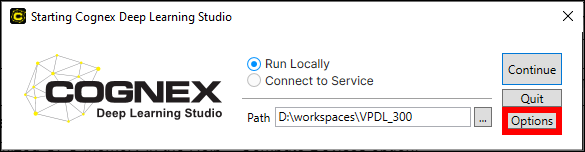
At the Starting Cognex Deep Learning screen, press the Options button.
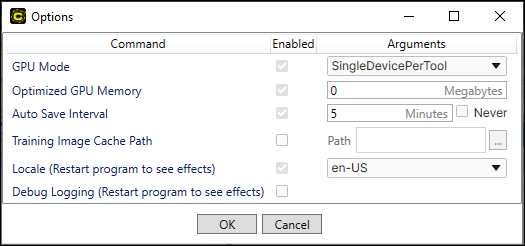
| Command | Settings | ||||||
|---|---|---|---|---|---|---|---|
| GPU Mode | Specifies the GPU mode to be used by the application.
|
||||||
| Optimized GPU Memory | Specifies the size of the pre-allocated optimized memory buffer. This setting is activated by default, with the default size of 2GB.
Tip: Compute Devices You can set Optimized GPU Memory in the Help > Compute Devices option. Compute Devices window contains the information about computing resources.
|
||||||
| Auto Save Interval | Specifies how often a workspace will be auto-saved. The default is every 5 minutes. | ||||||
| Training Image Cache Path | Specifies a cache location for training images. This is useful if the images in a stream are in non-raster format (for example JPG, PNG, or GIF), since they must be converted to a raster (BMP) format for training. By default, this conversion happens multiple times for each image. By enabling the Training Image Cache Path, the conversion is only performed once and the converted images are stored in a local cache directory. The cache directory should be local, and preferably on a Solid-State Drive (SSD).
This option can also speed up training in cases where the workspace is stored on a slower drive or a remote storage device. |
||||||
| Locale | Specifies the language to use throughout the VisionPro Deep Learning GUI. | ||||||
| Debug Logging | Specifies whether or not debug logs should be activated for the project. |
Play with VisionPro Deep Learning Tutorials
The tutorials introduce you to the different VisionPro Deep Learning tools and concepts through concrete application examples.
Cognex provides several tutorials to help you learn how to use the VisionPro Deep Learning software, as well as understand some of the key concepts.
- Download the VisionPro Deep Learning tutorials from Cognex support website.
- Start the VisionPro Deep Learning graphical user interface (GUI).
- Import a tutorial workspace from the Workspace menu, which launches the Import Workspace dialog.
-
Navigate to the directory where you stored the downloaded tutorials, and select a workspace to get started.
Note:To navigate to a previously created workspace, expand the Workspace container by pressing the
 icon, and then select the desired workspace from the list and press the arrow icon:
 Note: You can consult the Cognex Deep Learning Tutorials topics for additional information.
For more details of VisionPro Deep Learning tutorials, see each topic of Training Red Analyze, Green Classify, and Blue Locate/Blue Read.
Cognex VisionPro Support
VisionPro Deep Learning is qualified to support the following CognexVisionPro release:
- VisionPro 9.20
- Designer 4.4.3
For more information about the integration with Cognex VisionPro, see Integration with Cognex VisionPro.