VisionPro Deep Learning Service Application
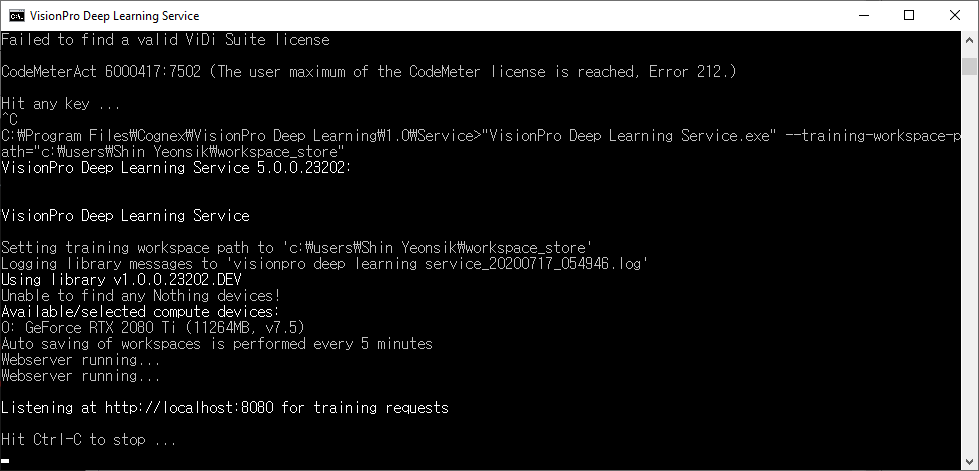
The VisionPro Deep Learning Service allows remote training or runtime operations of VisionPro Deep Learning, and multiple clients can access the service. As a training service, it hosts workspaces and can perform training. As a runtime service, it hosts runtime workspaces and processing. When using the client/server functionality, the VisionPro Deep Learning Service application supports active connections, is run on your server device, and must be run with administrator privileges.
The application is located at:
-
C:\Program Files\Cognex\VisionPro Deep Learning\3.2\Service
VisionPro Deep Learning Client/Server Functionality
The VisionPro Deep Learning client/server functionality allows you to use the training and runtime implementations of the VisionPro Deep Learning software on multiple PCs, through the use of a server/client model. With this model, you define a device as your server, and then multiple PCs can be configured as clients that connect to the server. During the setup of a VisionPro Deep Learning project, the Workspace resides on the server, and the client connects to the server, using the Workspaces stored on the server. In this scenario, the clients do not need to have a Cognex Security Dongle; only the server must have a Cognex Security Dongle attached.
This functionality gives you the option of using a remote service for runtime inference and/or training, instead of using the GPU on your local PC. This can be useful if you have a more powerful GPU on the server, or perhaps you do not have a GPU installed locally.
When configured, up to 4 clients can be used for deployment operation, and up to 8 clients can connect for development purposes. Configuring the VisionPro Deep Learning client/server functionality involves the following:
- Install the VisionPro Deep Learning software on the server and client PCs.
- Configure the server and client devices.
- Manage the workspace(s) on the server.
- On the server, launch the Deep Learning Service application.
- Connect to the server with the client PCs.
Configuration Prerequisites
Before attempting to configure the server/client functionality, ensure that the following have been accomplished:
- Installation of the VisionPro Deep Learning software on the server device and client devices.
-
Connect the Cognex Security Dongle, with the client/server licenses, on the server device.
The following licenses must be present on the Cognex Security Dongle:
- ViDi.Remote
- ViDi.Remote.Service
- ViDi.Remote.Client
To ensure that the licenses are enabled, use the Wibu CodeMeter WebAdmin. The licenses will be listed in the License Monitoring tab. Contact your Cognex sales representative if they are not present.
Managing Workspaces in the Server/Client Model
In the VisionPro Deep Learning client/server model, the workspaces and image databases are stored on the server, and the clients connect to the server and edit the workspaces that are stored on the server. Multiple clients can connect to the server (at the same time) and access the workspaces residing on the server. When multiple clients are connected to the server, there is a lock mechanism to prevent multiple users from making changes to the same workspace, at the same time.
A previously saved workspace on a client device can be uploaded to the server from the client, using the Import dialog. Once the workspace has been exported from the client to the server, the workspace will be stored on the server.