Save or Export Workspace/Tool
You can save and export your workspace or tool to load and use them in other PCs.
Save Workspace
By expanding the Workspaces window, you will see a list of the workspaces associated with the VisionPro Deep Learning software. There are color-coded icons that denote that state of the workspace:
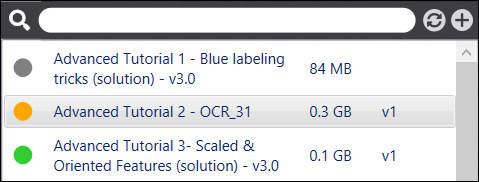
- Orange indicates that there are pending changes that need to be saved.
- Green indicates that there are no pending changes and the workspace has been saved.
- Grey indicates that the workspace is closed.
- A blinking icon indicates that the workspace is busy.
Export Workspace
-
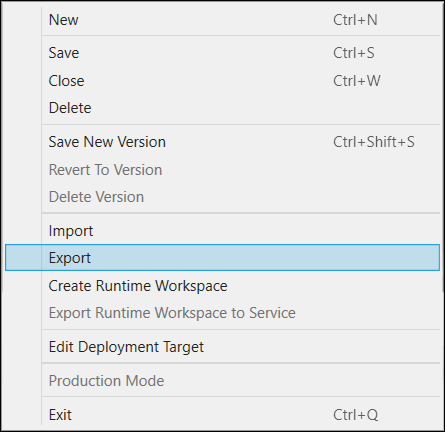
To export a workspace, from the Workspace menu select Export.
-
This will open the Export Workspace dialog, where you can specify a location to store the Deep Learning Workspace Archive (.vwsa) file.
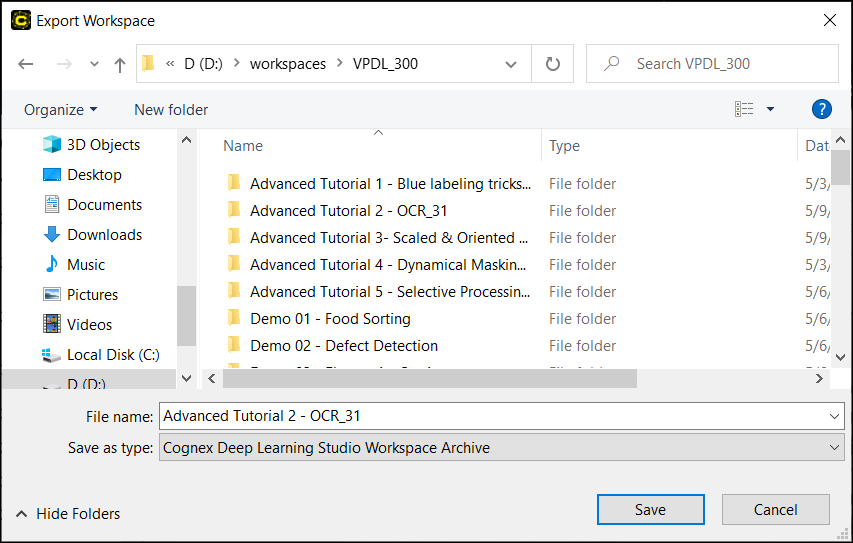 Note: Export workspace in .vwsa format to load it in parameter search. For more details, see Workspace, Stream, Tool .
Save and Export Tool
A VisionPro Deep Learning tool is automatically saved when you save the workspace that contains this tool. To export a tool, follow the steps below:
-
Before exporting a tool, the workspace contains this tool must be saved. To export a tool, right-click a tool icon and click Export Tool.
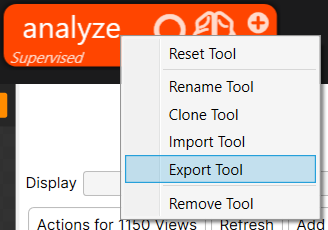
-
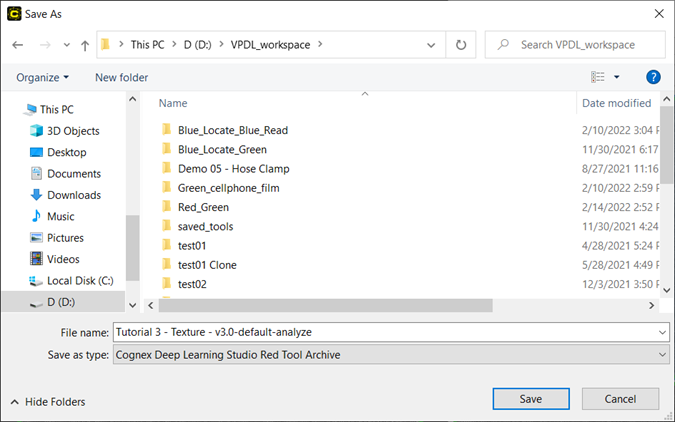
This will open the Save as dialog, where you can specify a location to store the Deep Learning tool archive file.