Interacting with Blocks
Basic Blocks
Here is the brief example of how to use the Cognex Deep Learning Studio Runtime Workspace with Designer. These blocks can be added using the Toolbox on the right side.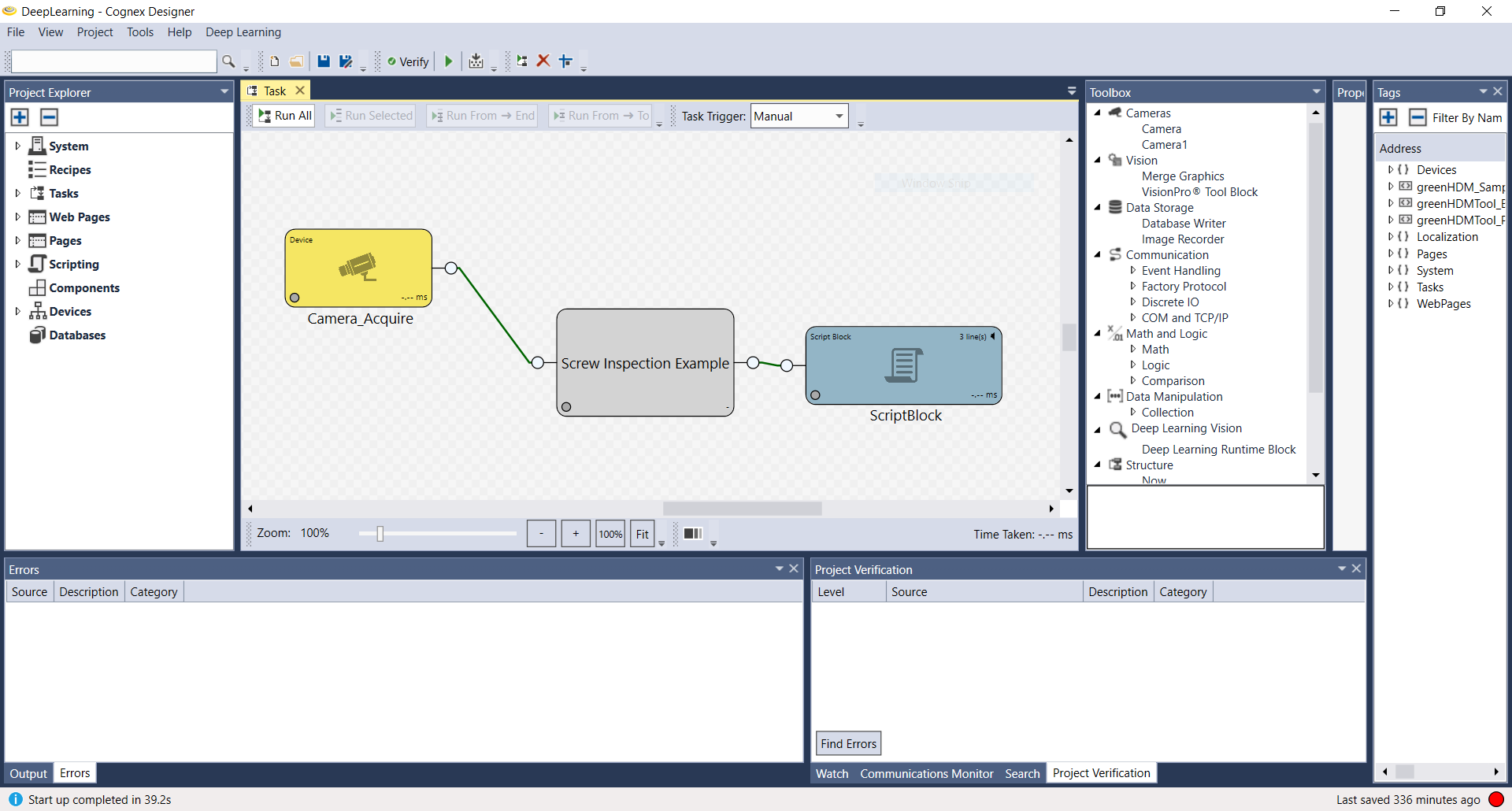
- Camera_Acquire: You can add sample image. You can choose file or directory here.
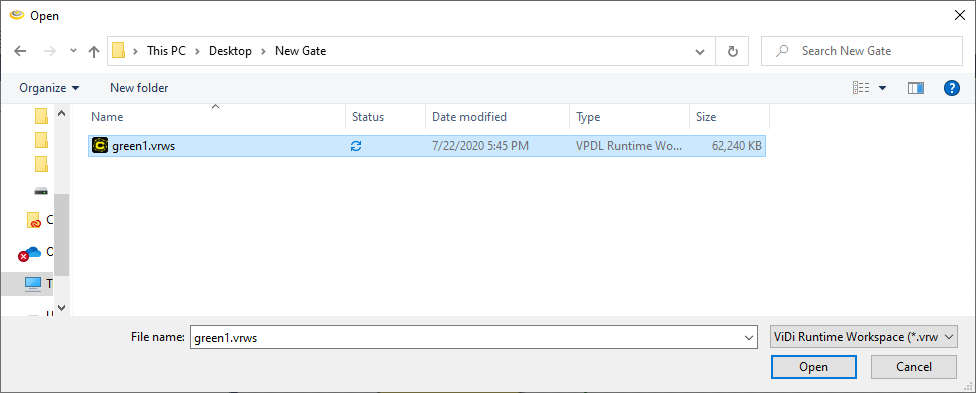
- Deep Learning Runtime Block: Please double click the block and you can choose the runtime workspace that you want to use.
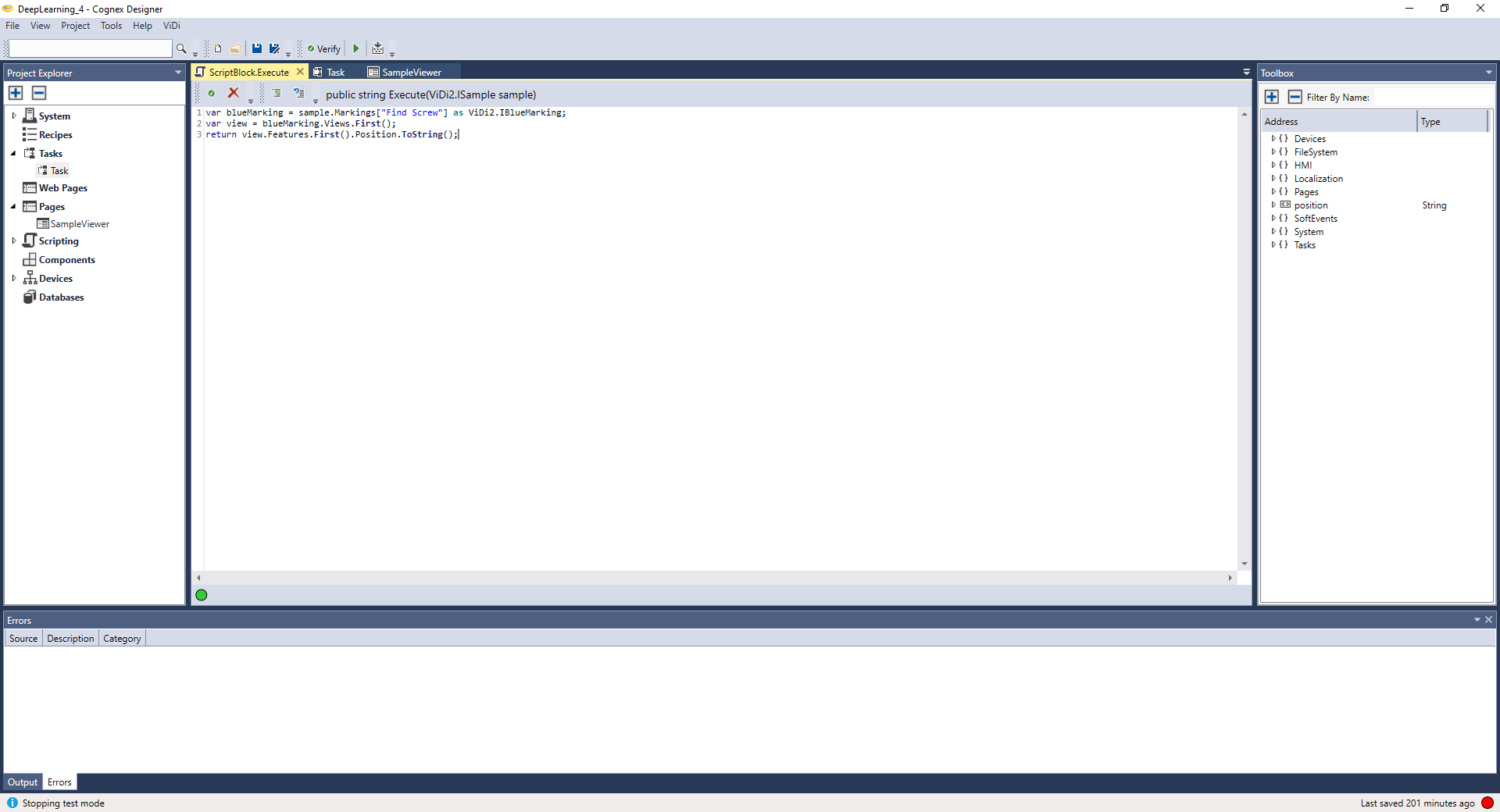
- ScriptBlock: Using this, you can create custom scripts to interact with the data and tools in the project. You can get the “position” with this script below as an example.
Add the Script Block and References
To access the data, a Script block must be used.
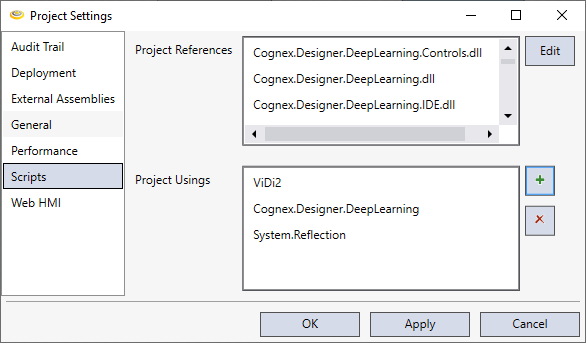
- In the Designer, go to Project - Settings.
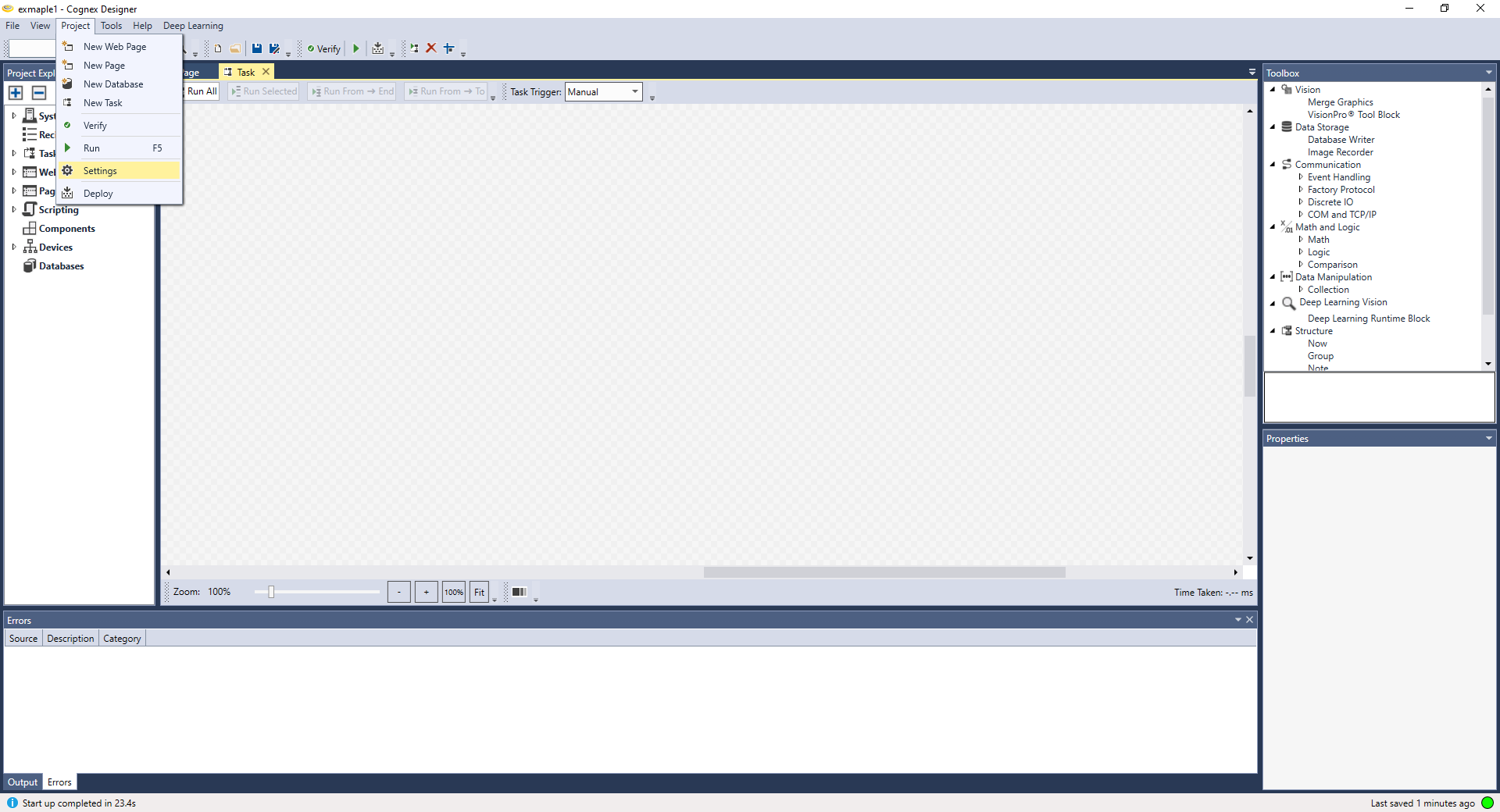
- Click Scripts.
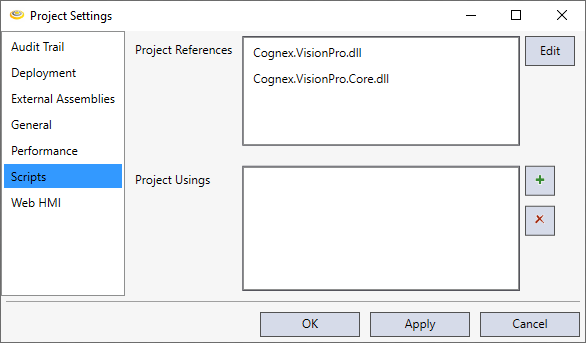
- Click Edit and add the followings:
Cognex.Designer.DeepLearning.Controls.dll
Cognex.Designer.DeepLearning.dll
Cognex.Designer.DeepLearning.IDE.dll
Cognex.Designer.DeepLearning.IDE.VisionPro.dll
Cognex.Designer.DeepLearning.VisionPro.dll
Cognex.VsionPro.Core.dll
Cognex.VisionPro.dll
netstandard.dll
System.Collections.dll
System.Data.dll
System.Reflection.dll
ViDi.NET.dll
ViDi.NET.interfaces.dll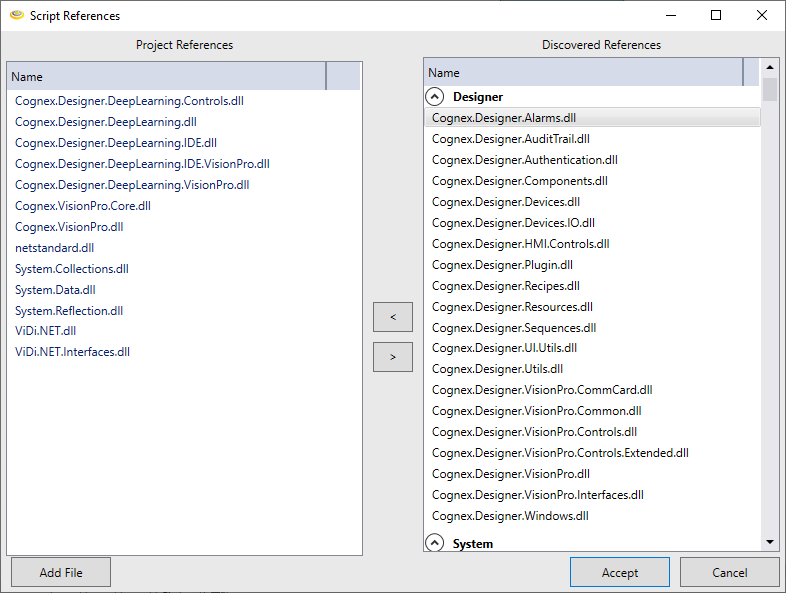
- Click Plus
 icon to manually add the followings:
ViDi2
Cognex.Designer.DeepLearning
System.Reflection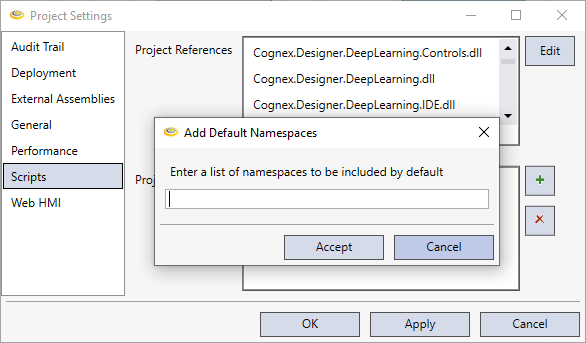
- Click OK if everything mentioned above was added.
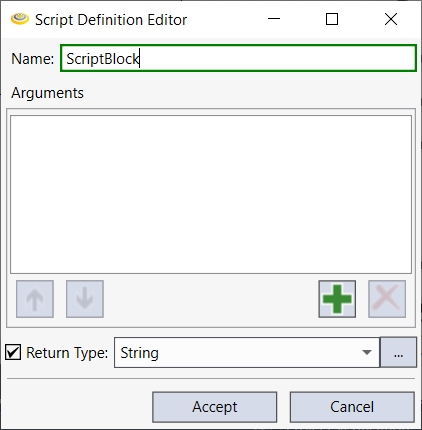
Script Definition Editor
You can setup Script Block and Return Type.
If the script will return a data type, check the Return Type checkbox, and then use the Data Type Selector to configure the type of data to be returned by the script.