Create or Import Workspace/Tool
Create and Navigate Workspaces
- Open the VisionPro Deep Learning GUI, and in the Workspace menu, select New.
-
In the New Workspace dialog, provide a name for your workspace.
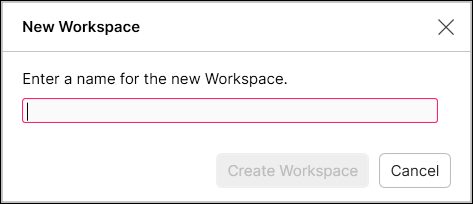
- The new workspace you created will be the active workspace.
To navigate to a previously created workspace, expand the Workspace container by pressing the  icon, and then select the desired workspace from the list and press the arrow icon:

The VisionPro, Designer and VisionPro Deep Learning software require that a valid Cognex Security Dongle be installed directly to PCs running the software during all phases of operation (programming, processing, training, testing, etc.). Any attempts to temporarily remove, substitute, or share a Cognex Security Dongle may cause your system to operate incorrectly, and may result in the loss of data.
Import Workspaces
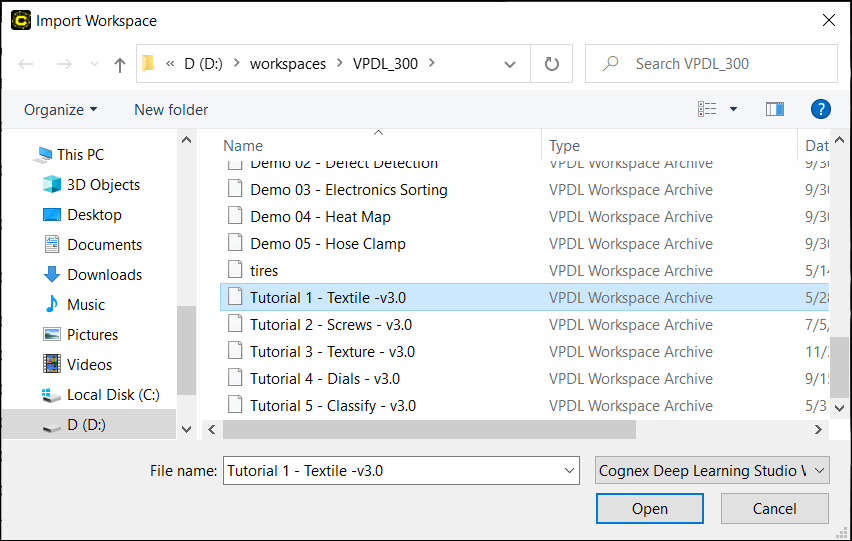
From the Workspace menu select Import. This will open the Import Workspace dialog, where you can navigate to the desired .vwsa file and import it into the workspace.
Create a Tool
-
In the workspace's configuration area, press the Input+ icon to display the available tools.

-
Click the tool icon to add the tool.
