Script Block Examples – Red Analyze
This topic contains sample codes that stores the center of the first defect region.
To run the example codes below that use 'tag,' go to Project Explorer - Tag Manager to add the tags first.
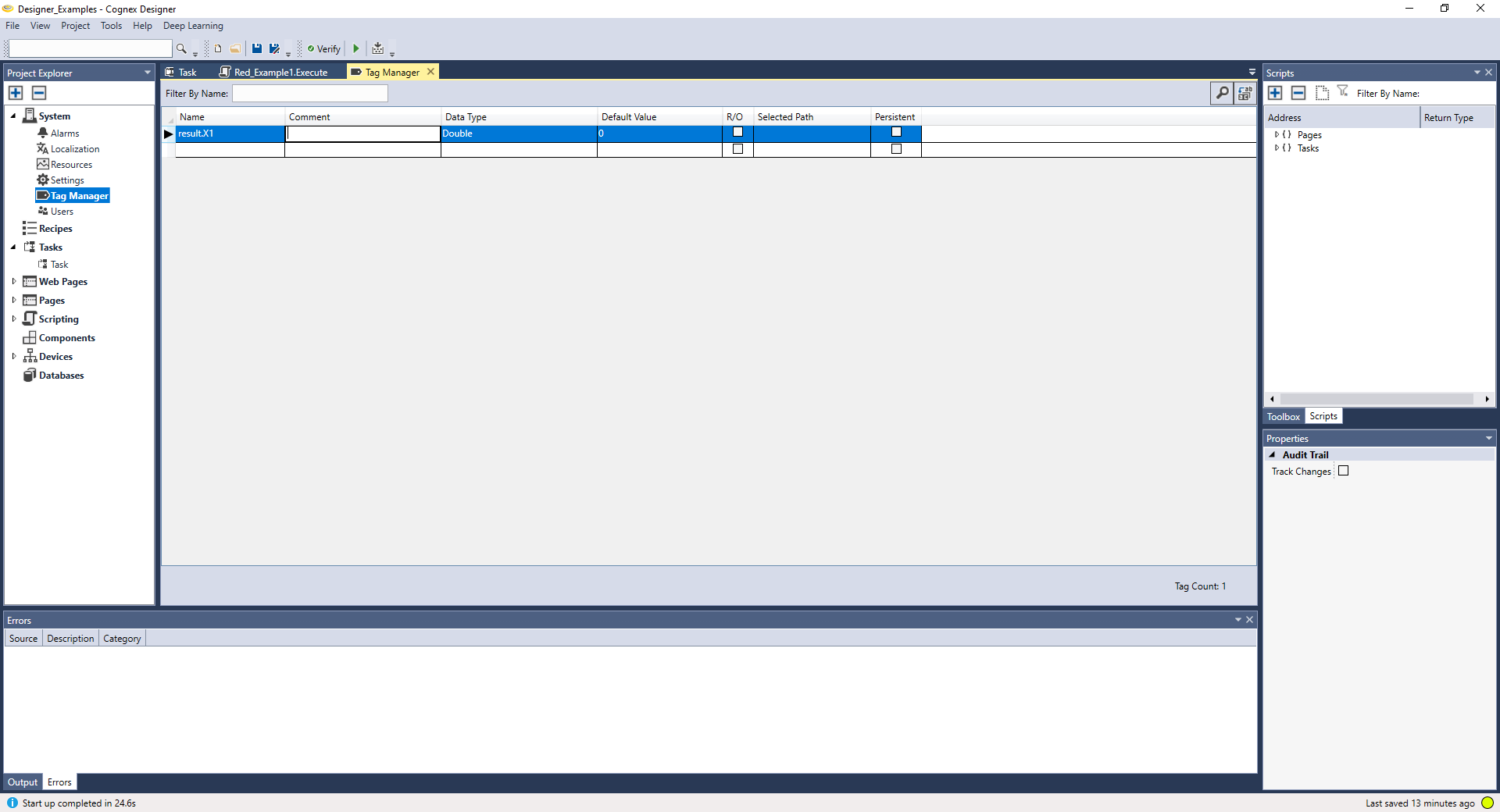
Then, write the example codes and run the script.
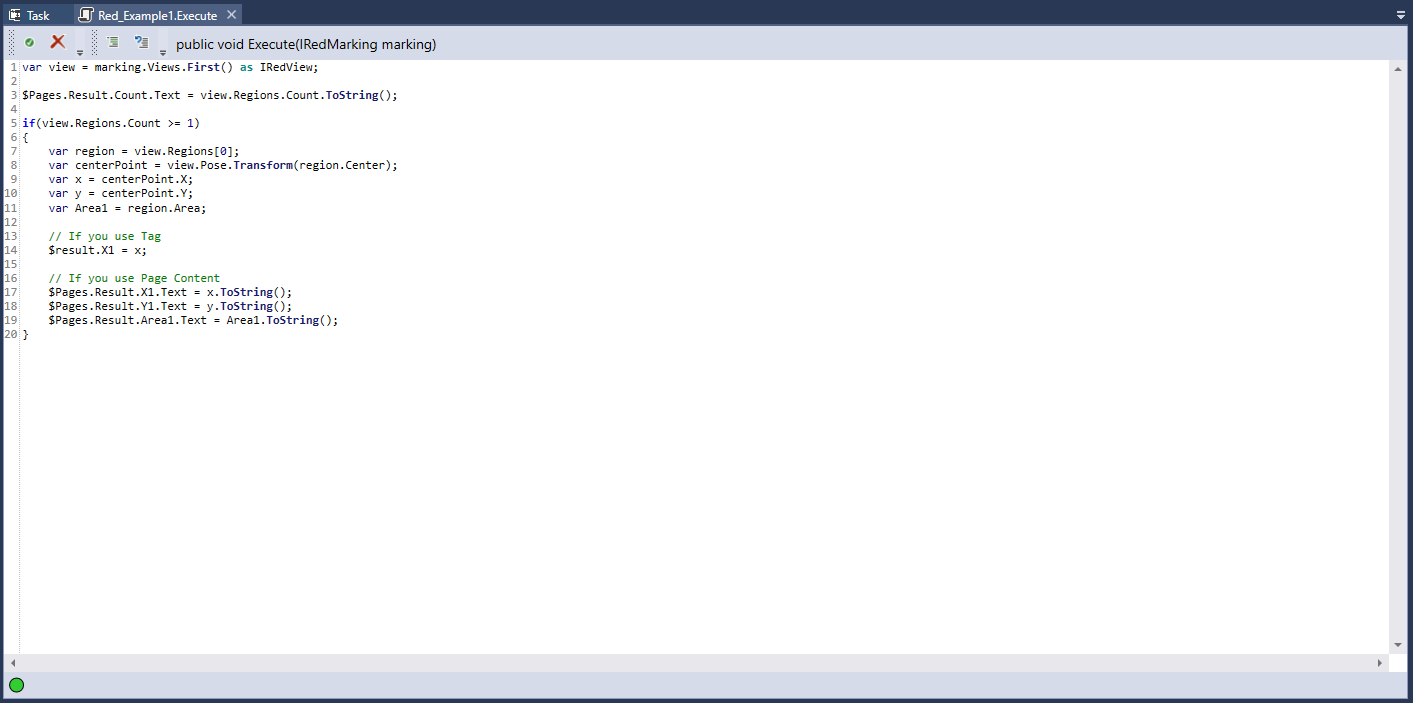
var view = marking.Views.First() as IRedView;
//Returning the number of markings:
$Pages.Result.Count.Text = view.Regions.Count.ToString();
if(view.Regions.Count >= 1)
{
//Choosing the region:
var region = view.Regions[0];
//Return the center-point (X, Y) of the region:
var centerPoint = view.Pose.Transform(region.Center);
var x = centerPoint.X;
var y = centerPoint.Y;
//Return the area of the region:
var Area1 = region.Area;
// If you use Tag
//Write the variables to the tags:
$result.X1 = x;
// If you use Page Content
$Pages.Result.X1.Text = x.ToString();
$Pages.Result.Y1.Text = y.ToString();
$Pages.Result.Area1.Text = Area1.ToString();
}
Here is another sample script for Red Analyze. If your script code doesn't use any tag, right-click the script block, click Reconfigure Script I/O. to run the example below. It will open the Script Definition Editor window and there set Return Type as String.

Then, write the example codes and run the script.
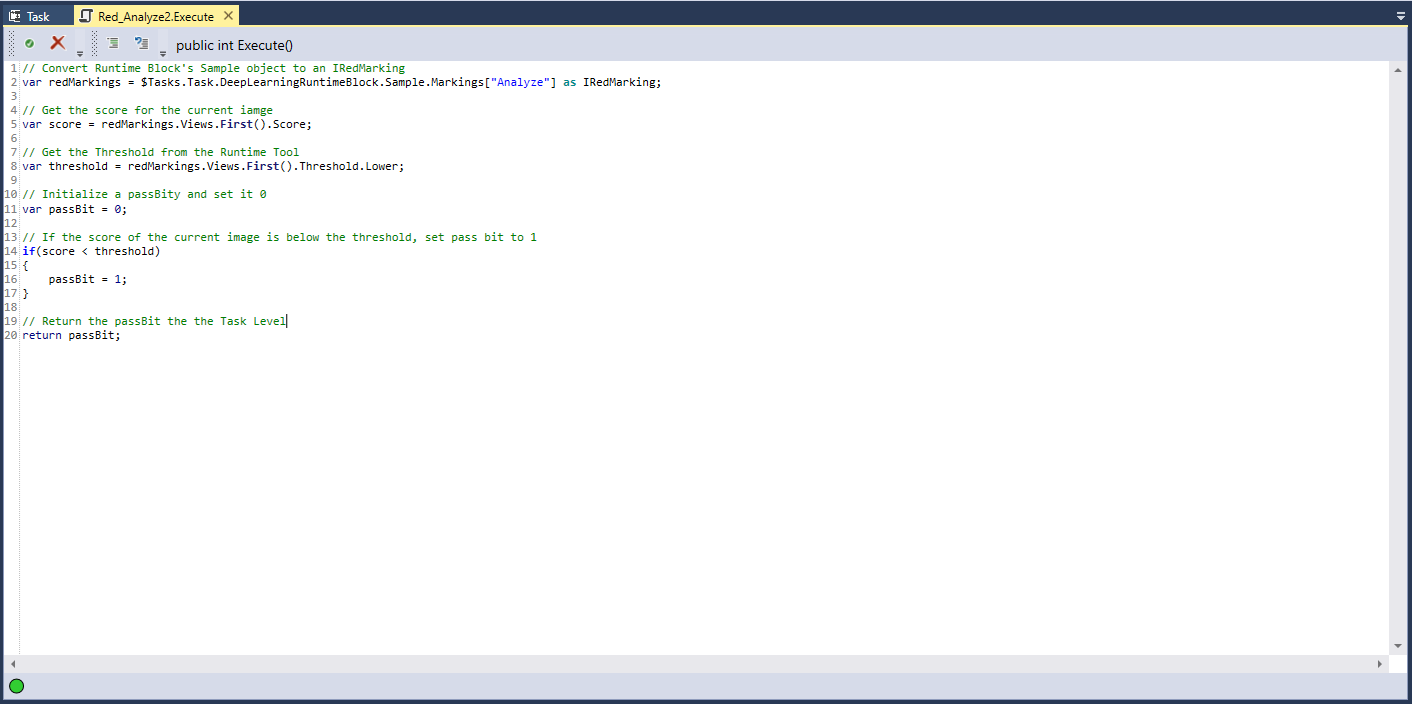
Example Codes 2
//Convert Runtime Block's Sample object to an IRedMarking.
var redMarkings = $Tasks.Task.DeepLearningRuntimeBlock.Sample.Markings["Analyze"] as IRedMarking;
//Get the score for the current image.
var score = redMarkings.Views.First().Score;
//Get the Threshold from the Runtime Tool.
var threshold = redMarkings.Views.First().Threshold.Lower;
//Intialize a passBit and set it 0.
var passBit = 0;
//If the score of the current image is below the threshold, set pass bit to 1.
if (score < threshold)
{
passBit = 1;
}
//Return the passBit to the Task Level.
return passBit;
Whole Image Processing Support for Red Analyze High Detail
The Whole Image Processing parameter adopted in VisionPro Deep Learning 3.0 is also supported in Designer. If your Deep Learning Runtime Block is a Red Analyze High Detail tool, you can enable the Whole Image Processing checkbox.
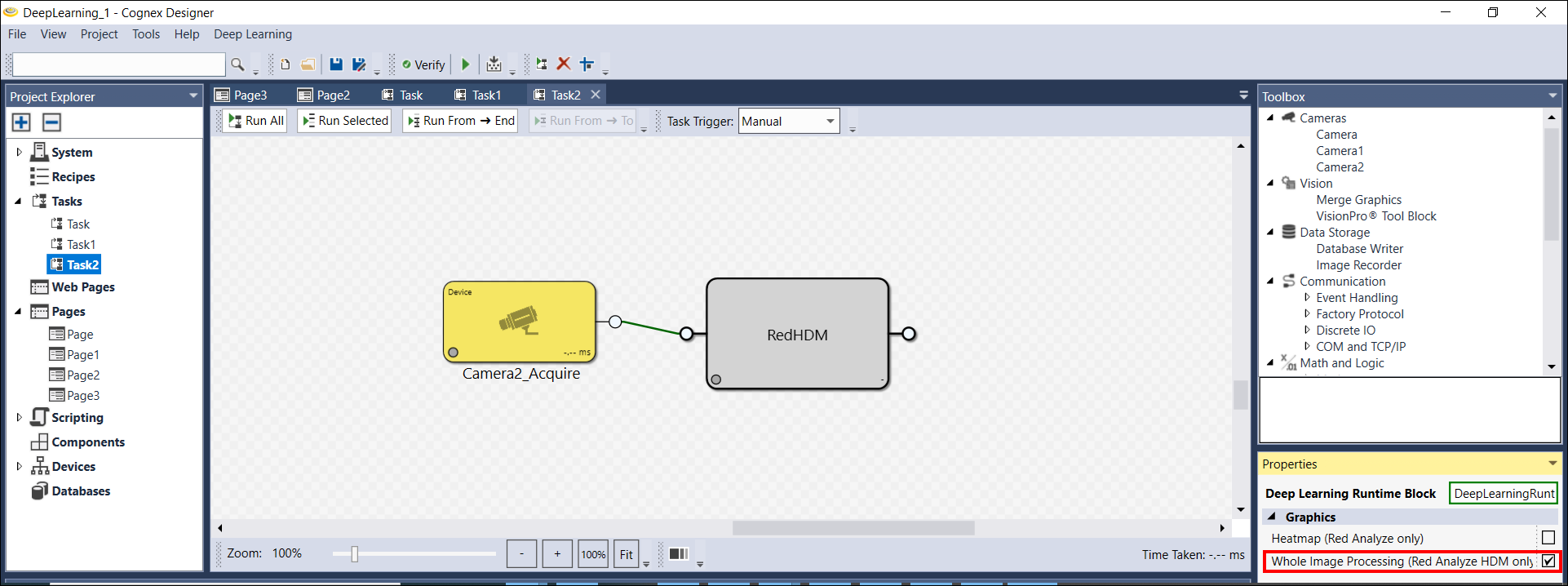
If you enable this checkbox, the Red Analyze High Detail tool processes each image as a whole. For more details, see Configure Processing Parameters.