Integration with Cognex VisionPro
In VisionPro 10.0, you can leverage the power of VisionPro Deep Learning with the existing VisionPro toolkits for various tasks.
VisionPro Deep Learning supports the integration with VisionPro by importing a VisionPro Deep Learning runtime workspace, which contains one or more trained VisionPro Deep Learning tools, as a tool block from VisionPro side.
Integrate VisionPro Deep Learning Runtime Workspace in VisionPro
To import and use trained VisionPro Deep Learning tools in VisionPro, follow the steps below.
-
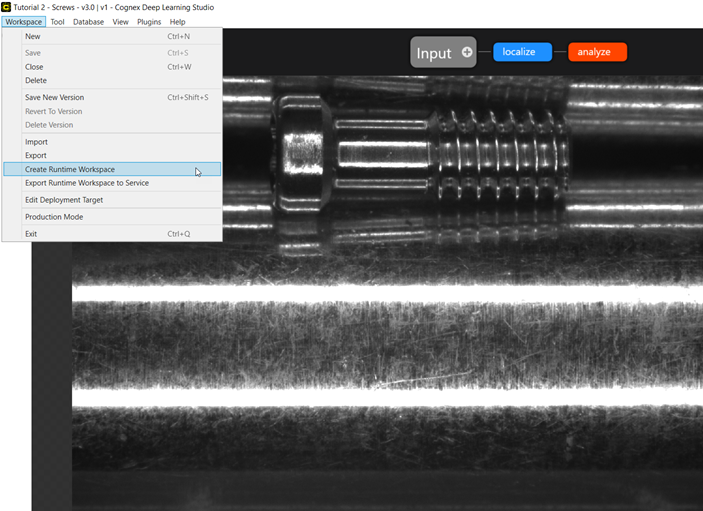
In VisionPro Deep Learning, open the workspace that contains the tool(s) you want to use in VisionPro, and create a runtime workspace (.vrws) from it.
-
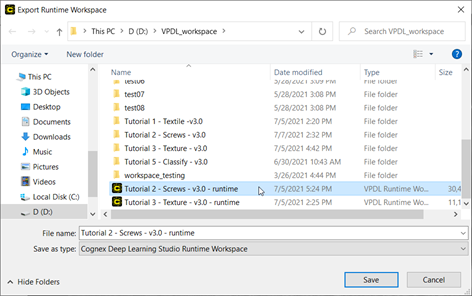
Save the runtime workspace in a directory, which will be revisited later.
-
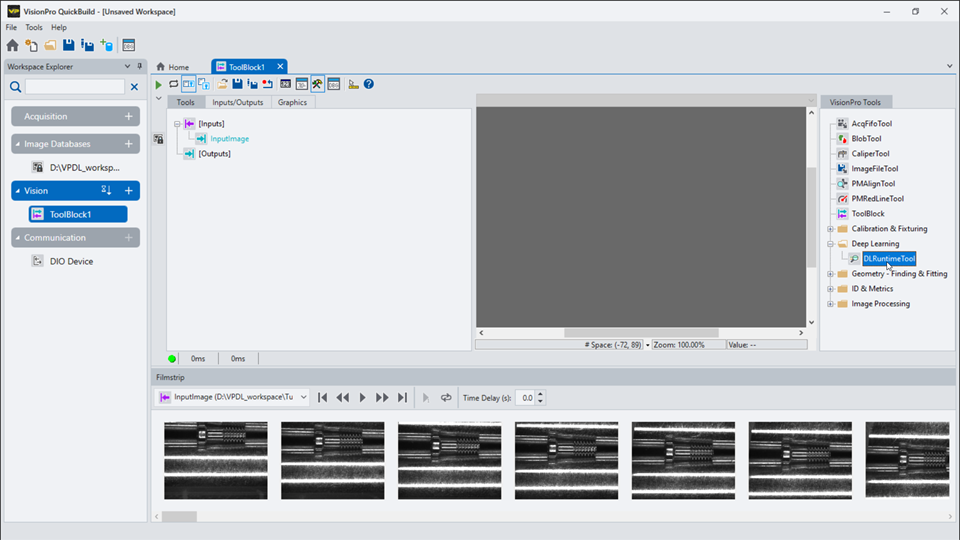
Run VisionPro 10.0 QuickBuild, go to VisionPro Tools pane, and double-click DLRuntimeTool in the Deep Learning folder to add this tool.
-
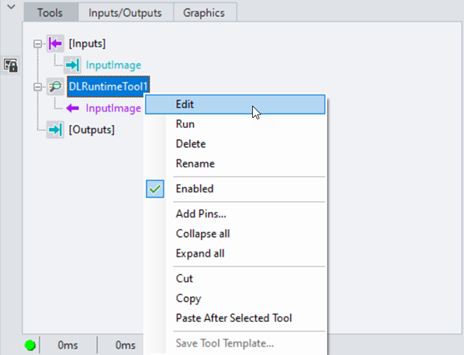
Right-click DLRuntimeTool1, and click Edit.
-
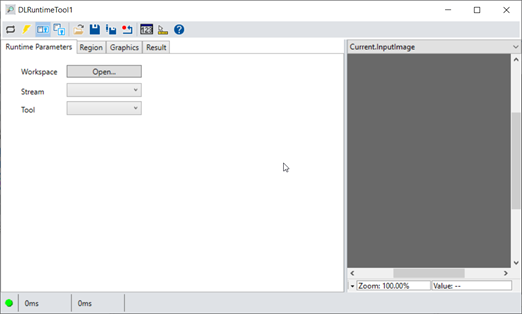
In DLRuntimeTool1 Edit Control panel, click Open to import the previously saved VisionPro Deep Learning runtime workspace. After it is loaded, select the stream and the tool you want to use.
-
After the runtime workspace, the stream, and the tool are all set, exit Edit Control. Later, you can revisit this Edit Control anytime to configure or change the processing parameters for this VisionPro Deep Learning tool.
Tip: When your VisionPro application was deployed, the runtime of deployed application could be slowed down a little by changing the processing parameter for a VisionPro Deep Learning tool in Edit Control. It is recommended to set in advance the final processing parameter value in VisionPro Deep Learning and import the runtime workspace with the final value in VisionPro for deployment.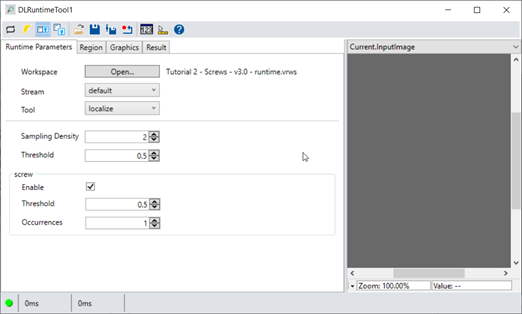
-
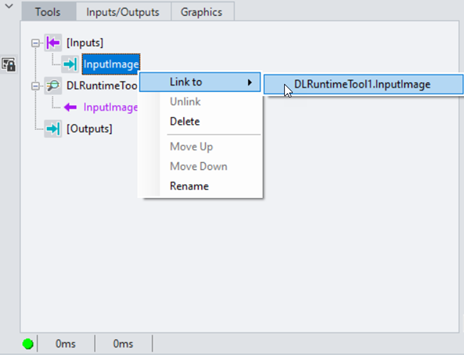
In VisionPro QuickBuild, make a link between DLRuntimeTool1.InputImage and Inputs.InputImage.
-
To add the output of the desired VisionPro Deep Learning tool as a pin, right-click DLRuntimeTool1 and select Add Pins....
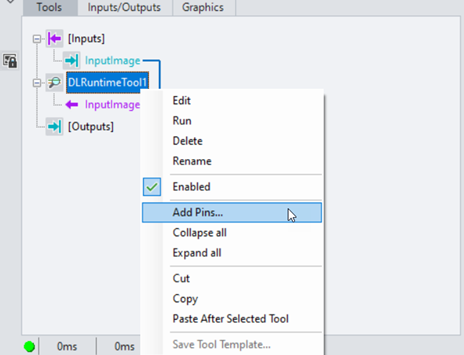
-
Select the output of the desired tool (example: BlueToolResults) and click Add Output. The result variable for a tool will be exposed under DLRuntimeTool1.
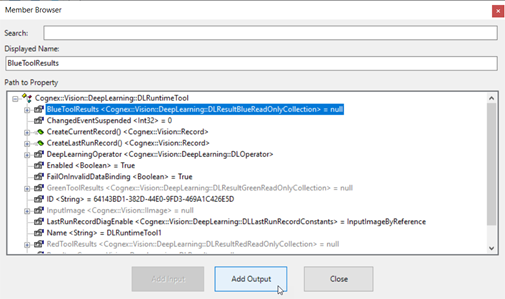
-
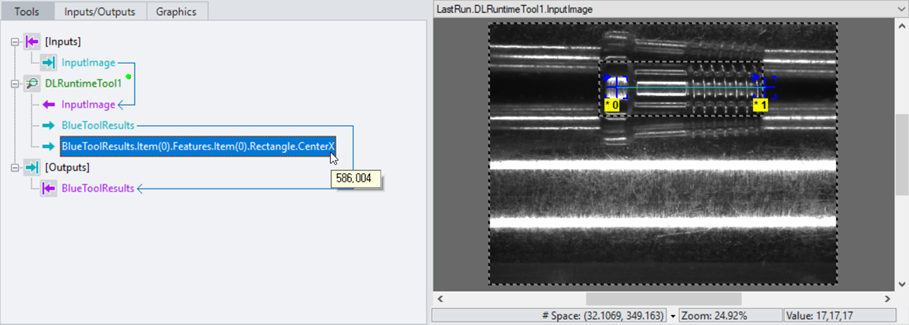
Drag a result of a tool (example: BlueToolResults) down to Outputs to make a new output, and click Run.
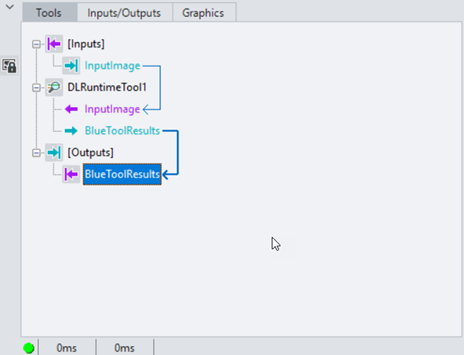
-
You will see the result of the processing from the selected tool on the LastRun.DLRuntimeTool1.InputImage. Please see the VisionPro documents for how to use DLRuntimeTool with other VisionPro tools.
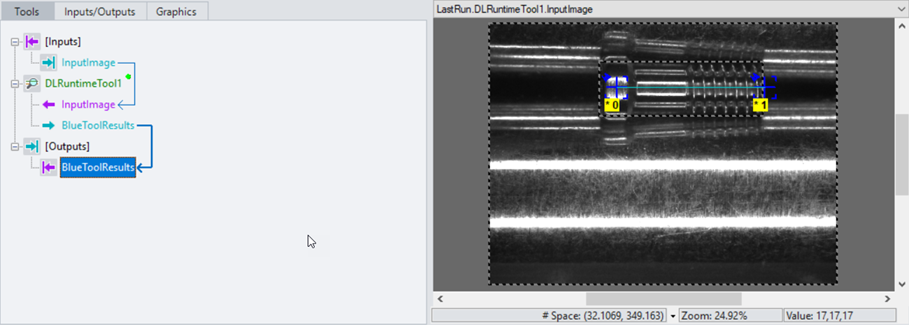
Expose Values of a VisionPro Deep Learning tool
DLRuntimeTool provides various parameter values and the results of processing in VisionPro Deep Learning for you. You can expose them and pass them to other VisionPro tools. To do this, you first need to put those values into your DLRuntimeTool output using Member Browser:
-
Right-click DLRuntimeTool1, and click Add Pins....
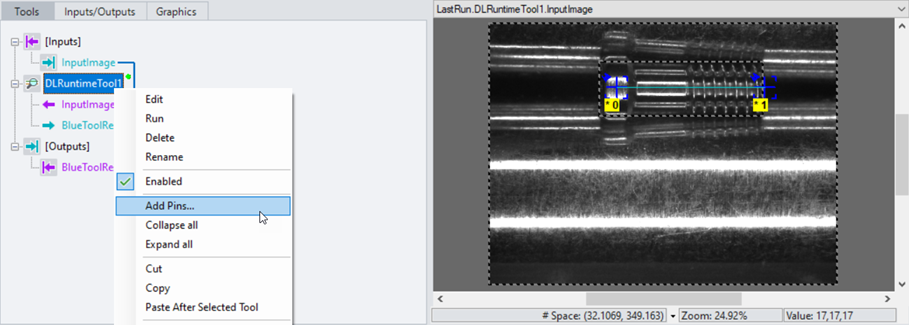
-
In Member Browser panel, find the value you wish to expose, and click Add Output.
Tip: You can navigate for all the supported parameters and results, select the desired member variable, and choose whether the member appears as an input to the loaded runtime workspace which can be found in Edit Control (Add Input), or an output to pass the member to another VisionPro tool (Add Output). See VisionPro Deep Learning documentation for the details of input parameters in Edit Control.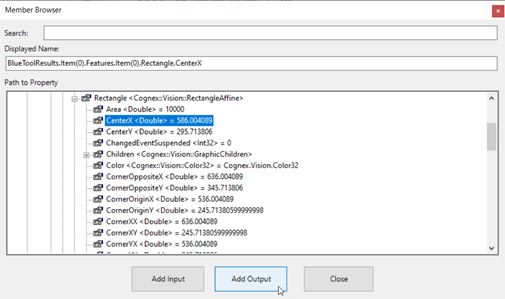
-
You will see the desired value is now exposed under DLRuntimeTool1.