Server VisionPro Deep Learning Service Configuration
After configuring the server using the CodeMeter WebAdmin, you will need to configure and launch the VisionPro Deep Learning Service application, which will allow the clients to run the inference and training processes.
- Navigate to the VisionPro Deep Learning Service application, located in C:\Program Files\Cognex\VisionPro Deep Learning\1.1\Service.
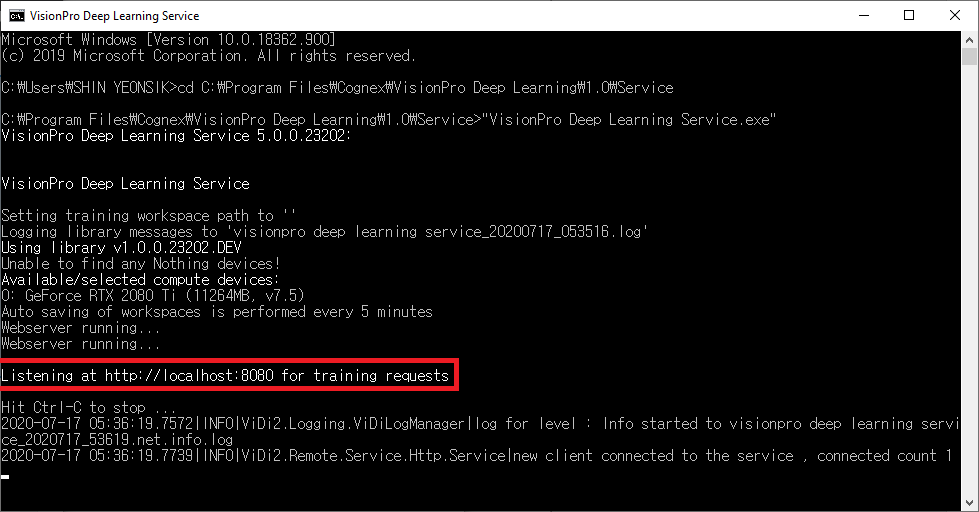
- Launch the VisionPro Deep Learning Service application(VisionPro Deep Learning Service.exe) to determine what port number the service will be using, which will be indicated by the "Listening at http://localhost:PortNumber" line (where "PortNumber" will be the port number assigned to the service, e.g. 8080) after the service starts.
- Write down the port number and close the service.
- Right-click the VisionPro Deep Learning Service application and create a shortcut to the application.
- Navigate to the shortcut version of the VisionPro Deep Learning Service application, right-click the application and select Properties.
-
Select the Shortcut tab, and in the Target field, append the --http-address=http://*:8080 argument to the target.
The Target field should be the following: "C:\Program Files\Cognex\VisionPro Deep Learning\1.1\Service\VisionPro Deep Learning Service.exe": --http-address=http://*:8080
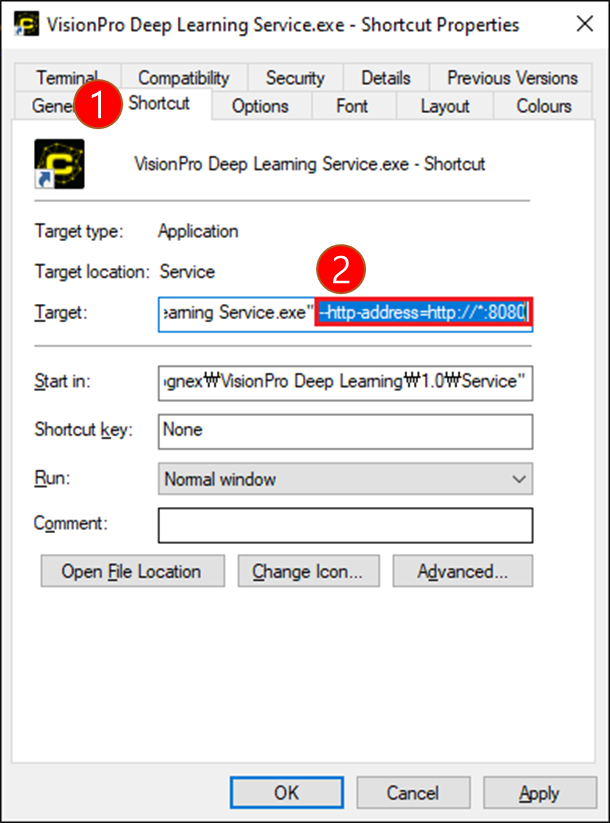 Note: You can also specify the exact IP address of the server, using the following argument: --http-address=http://10.10.10.10:PortNumber
 - Press OK to close the Shortcut Properties dialog.
-
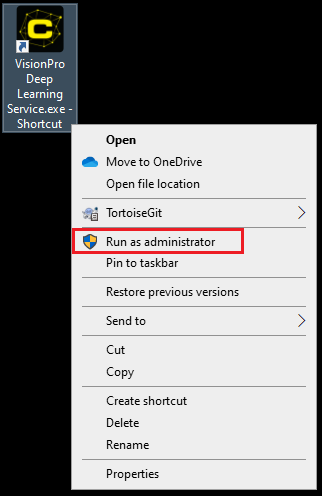
When you are ready to start the service, select the shortcut, right-click and select Run as administrator.
 Note:
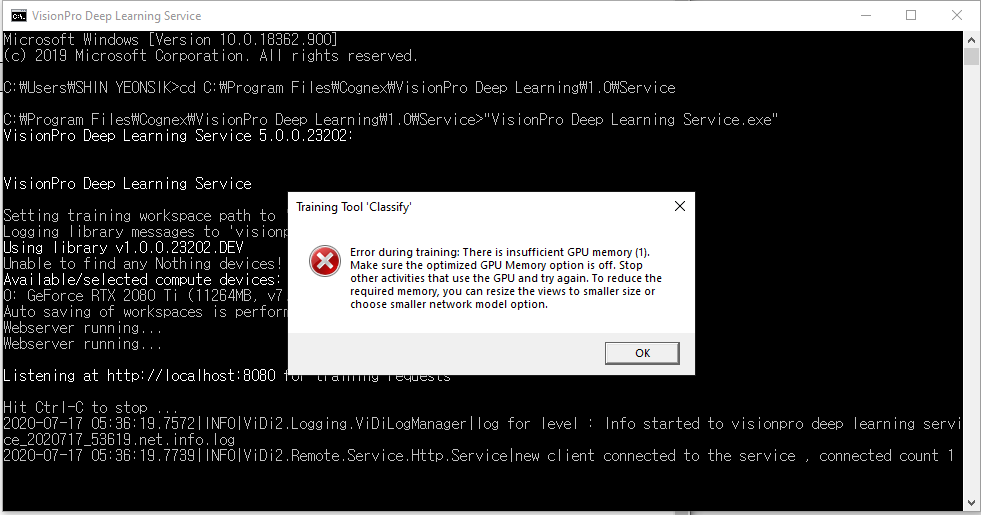
Note:If you do not run the service as an administrator, you will get an error and be unable to connect.
-
After launching the service as an administrator, configured clients will be able to connect to the server. The VisionPro Deep Learning Service will display the port number that it is listening to for training requests. Clients will need the IP address and port number of the server to be able to connect to the server.