Edit Audit Logging Service Settings
The Audit Logging Service dialog allows you to create a datastore for audit messages, enable the audit logging service, and configure the service binding the web application uses to listen for audit messages.
- In the Audit tab, click Audit logging service configuration to open the Audit logging service settings pop-up window.
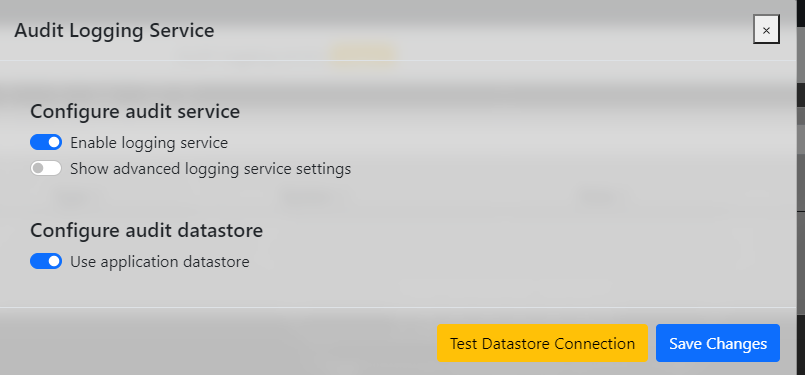
- Enable the Enable logging service toggle to enable the logging service.
- Enable the Show advanced logging service settings toggle to manually configure the service bindings.
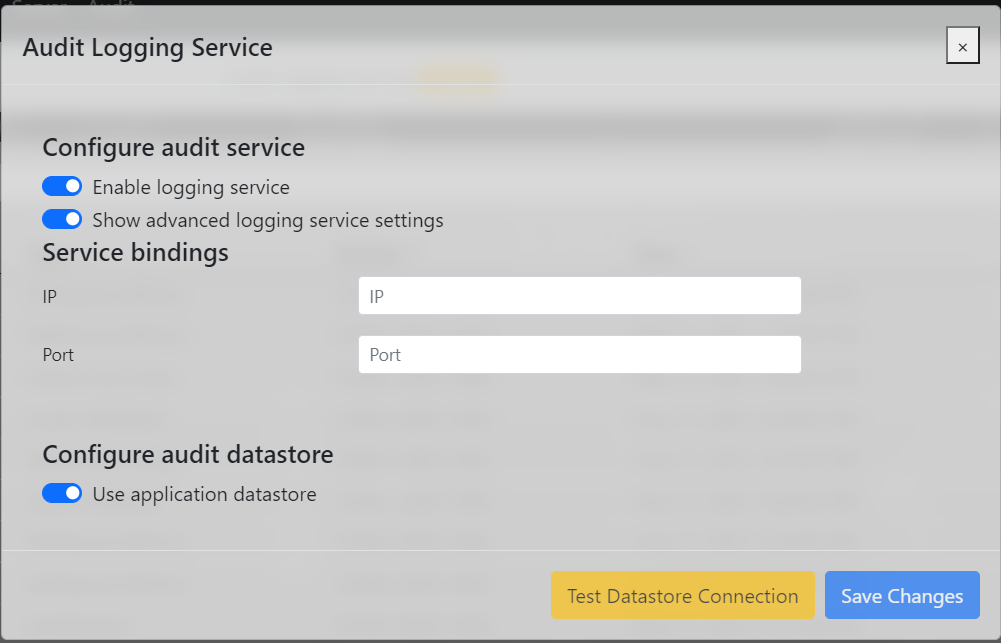
You can configure the following service binding settings:
- IP - an IP of the server host to bind the listening service to
- Port - the port of the IP to listen for audit messages on
Note: Use service bindings when you configure the audit message settings of a device. You can access device audit message settings under the Sensor tab in In-Sight Explorer. See Audit Message Settings Dialog in the In-Sight Explorer Help Documentation. - Disable the Use application datastore toggle to configure a remote datastore.
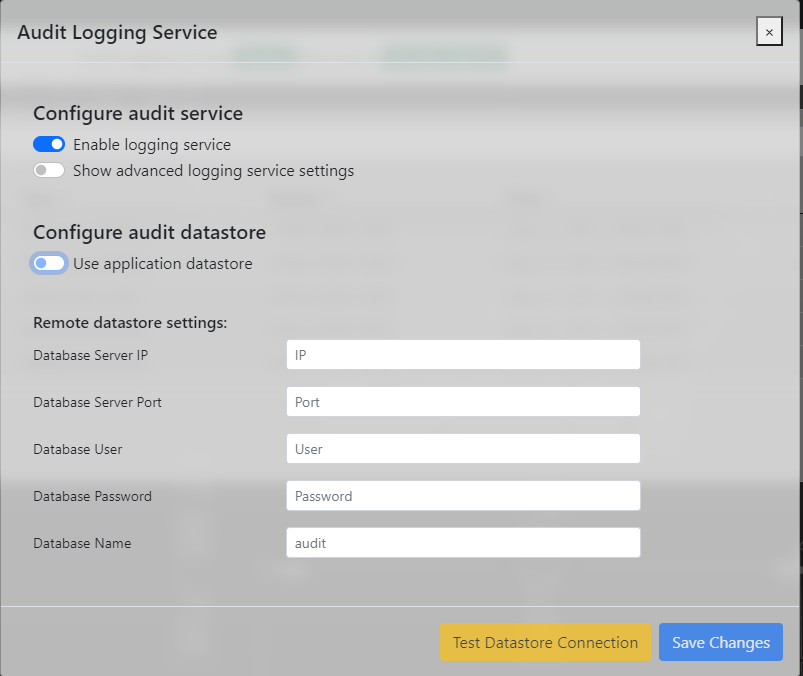
In order to configure a remote datastore, you must have an audit database set up. For more information, see Configure Audit Database for CNS.
You can configure the following remote datastore settings:
- Database Server IP - the IP or Hostname of the database server
- Database Server Port - the port used to connect to the database
- Database User - the user account associated with the datastore
- Database Password - the password for the user account
- Database Name - the name of the database to create or use for audit logs
- Click Test Datastore Connection to verify that the connected database is working. If the connection fails, check that your settings are valid.
-
Click Save Changes to apply the changes. An error message returns if the listing service IP binding or database connection fails.
Note: If the camera loses connection to the audit server, the software queues each change made during that time as an .asf file on the file system of the camera. Once the camera has regained connection to the audit server, the system sends out the queued messages and also removes them from the file system.
Note:
If you experience the Windows Defender Firewall blocking the audit trail logging service, configure the firewall:
- For CNS to receive audit messages from the camera, open port 5753. This is the default setting.
- To access the CNS Management Application from a different PC, open port 52447.