Generic Features Finder
Generic Features Finder UI is the interactive HMI element of Generic Features Finder tool block. It allows user to configure multiple generic feature finders. When executed in a sequence, the block behind runs the configured finders on its input images and outputs a list of the generic features and graphics.
Settings
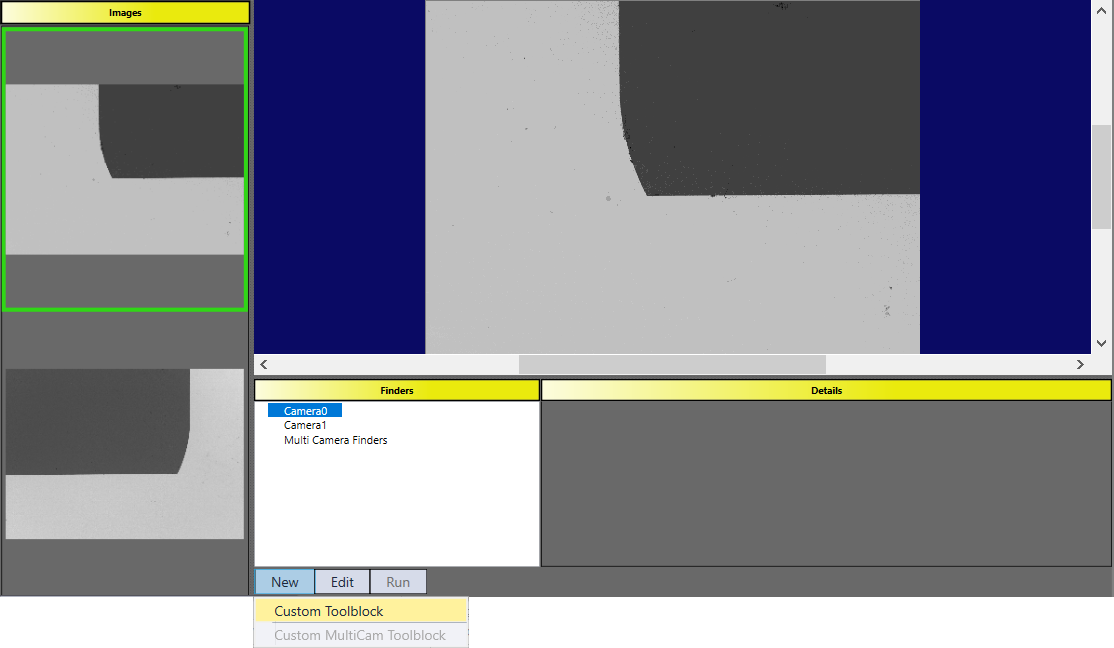
Point Features Finder UI consist of four areas: Images, Main Display, Finders, and Details.
Images
This area lists out all available images for feature finding. The number of images is the same with the image input pins of bonded Generic Feature Finder block inside the program. Images are visible on this UI only when there are valid images fed into the feature finder block. If not, this area appears as blank and no further operations can be done.
Main Display
By clicking one of the images, the main display area will show the selected image in larger scale.
Finders
The finder area maintains all finders that are used to find features. If a finder locates feature using only one input image, that finder should be added under the corresponding camera icon. Otherwise, it should be added under “Multi Camera Finders” category.
There are several buttons allow user to create/edit/modify finders.
-
New: Create a new Custom ToolBlock Generic Finder
-
Edit: Edit the selected finder(rename, copy, delete or edit)
-
Run: Run the selected finder for user to check the result.
-
Features: Rename features found by finders. Feature names are the same with their finder names by default. However, users can rename to make them more meaningful.
Details
Details area is used to set parameters for selected finder.
Link to Tool Block
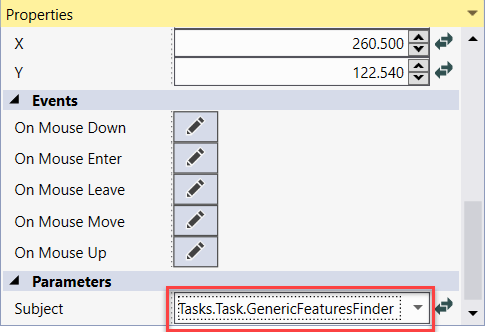
One Generic Features Finder UI is corresponding to one Generic Features Finder toolblock. To bond UI with toolblock, you just need two steps:
- Click the Generic Features Finder HMI control;
-
At the its properties, manually select the path of the toolblock in “Subject” property.