Line Finder
A line finder, represented by a VisionPro CogFindLineTool tool. This tool is set up to find a line feature on a single selected camera image.
Add
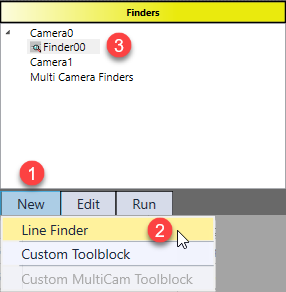
Line Finder is available in Line Features Finder HMI control. The steps to add it are:
-
Select one image
-
Click "New" button under the Finders panel
-
Choose "Line Finder", then a line finder will be available under the selected image for user to edit.
Setting
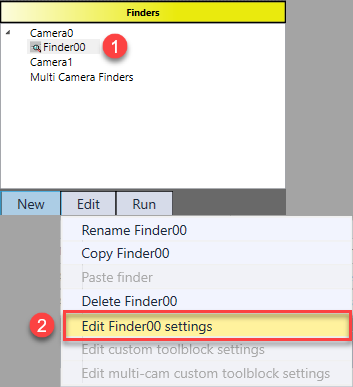
To enter edit mode, first select the finder, then choose Edit finder settings under "Edit" button.
Here are steps to set it up:
1. Align the reference line to the target edge.
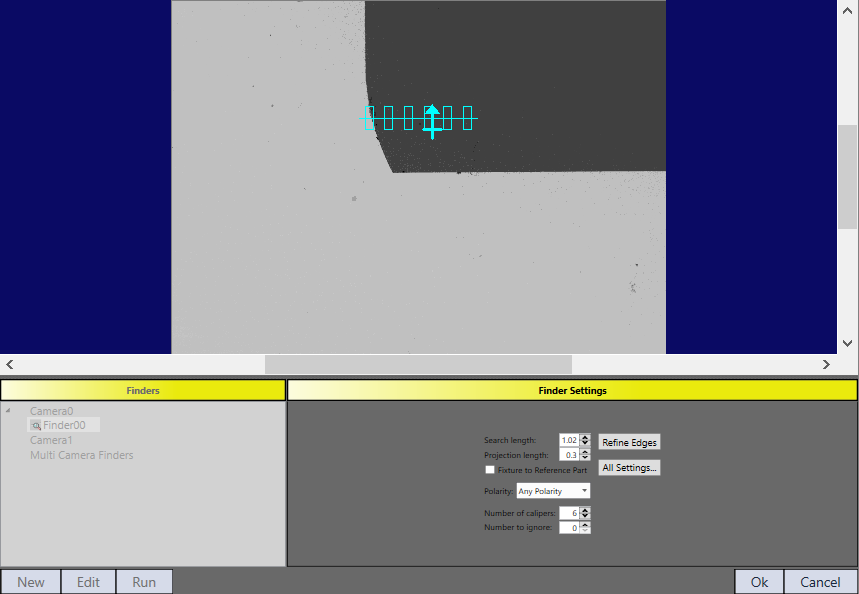
Click Refine Edges button to automatically fine tune the reference line to real edge.
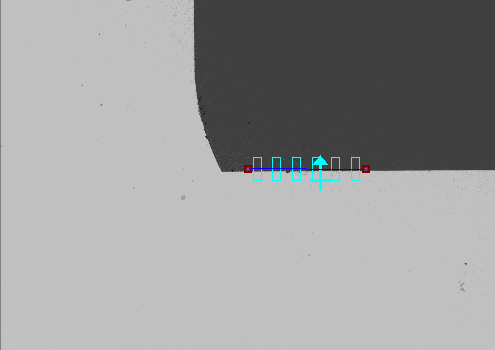
|
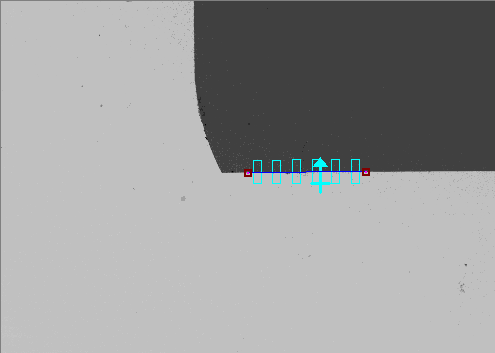
|
| before refining edges | After refining edges |
2. Adjust search length and projection length.
Line finer only finds edge points within its search length. Therefore, to cover run time part location variances, it is recommended to make the search length long enough during setup time. A easy way to adjust search length is to drag and drop the cross mark on CogFindLineTool interactive graphic.
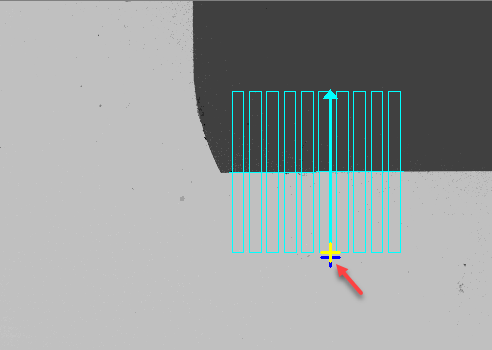
Projection Length is the width of calipers. The selection of proper width is based on the length of expected edge and the evenness if it. Here are two extreme cases:
- Calipers are too thin to resist noise
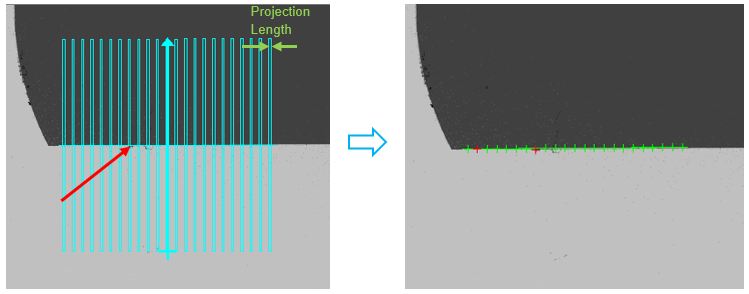
- Calipers are too wide to have enough number of calipers
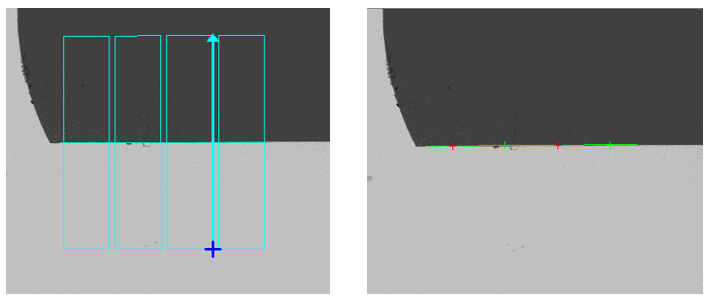
Projection Length can also be adjusted by dragging and dropping the cross mark on CogFindLineTool interactive graphic.
3. Choose polarity
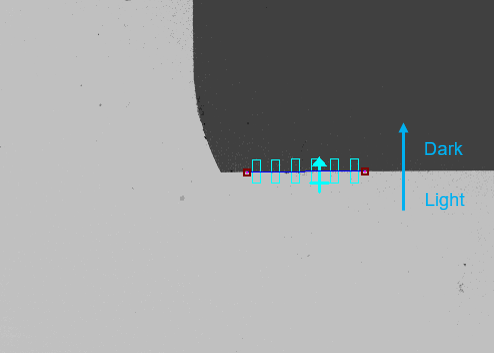
Choose whether the edge is indicated by a dark to light transition, or light to dark transition, or any polarity along the arrow direction. In the image below, polarity can be set as "Light to Dark" or "Any Polarity" . However, "Light to Dark" is better than "Any Polarity" because it resists more noises.
4. Adjust caliper number and ignore number
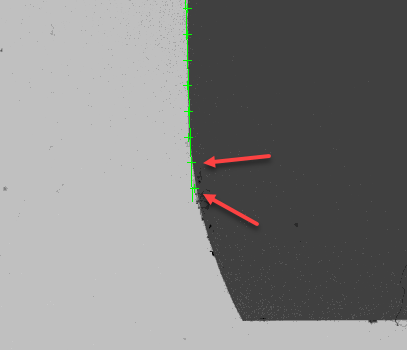
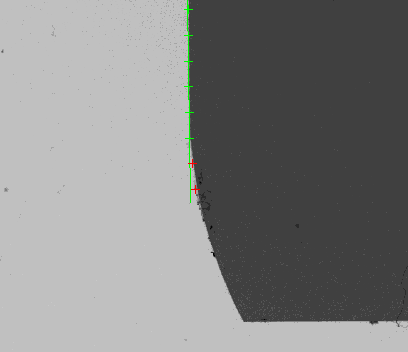
Number to ignore is the number of points that will be ignored in the fitting operation. Line finder automatically filters out the given number of outliers that are farthest from the fitting line. Setting this number as non-zero value is important when pseudo edge points could impact line fitting result.
 |
|
| Number to ignore = 0 | Number to ignore = 2 |
Run
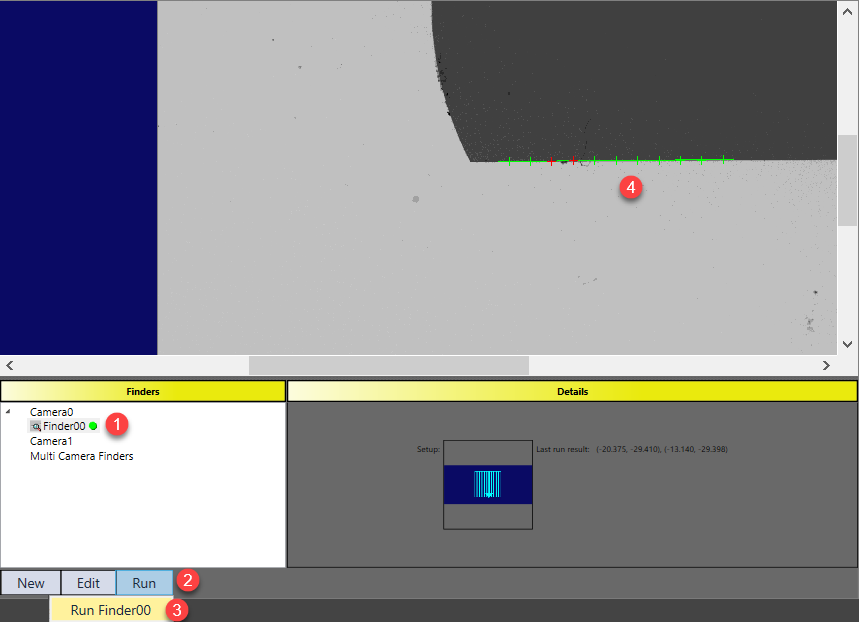
After the settings, click "Ok" button, and then run the added line finder to check the result following the steps shown below.